Turn apps on or off
Hide the optional apps your business does not use, and bring them back without losing data.
Fourteen apps are optional. Turning one off hides it for everyone. Its data is kept, so switching it back on loses nothing.
Before you start: You need the Organization settings permission at Can change settings (the owner always has it). Without it the switches are disabled.
Steps
- Open Organization settings from the workspace menu.
- Find the Apps card ("Turn off what this business doesn't use to keep the menu focused.").
- Flip the switch next to an app. A message confirms, for example "Forms turned off". Each switch saves immediately.
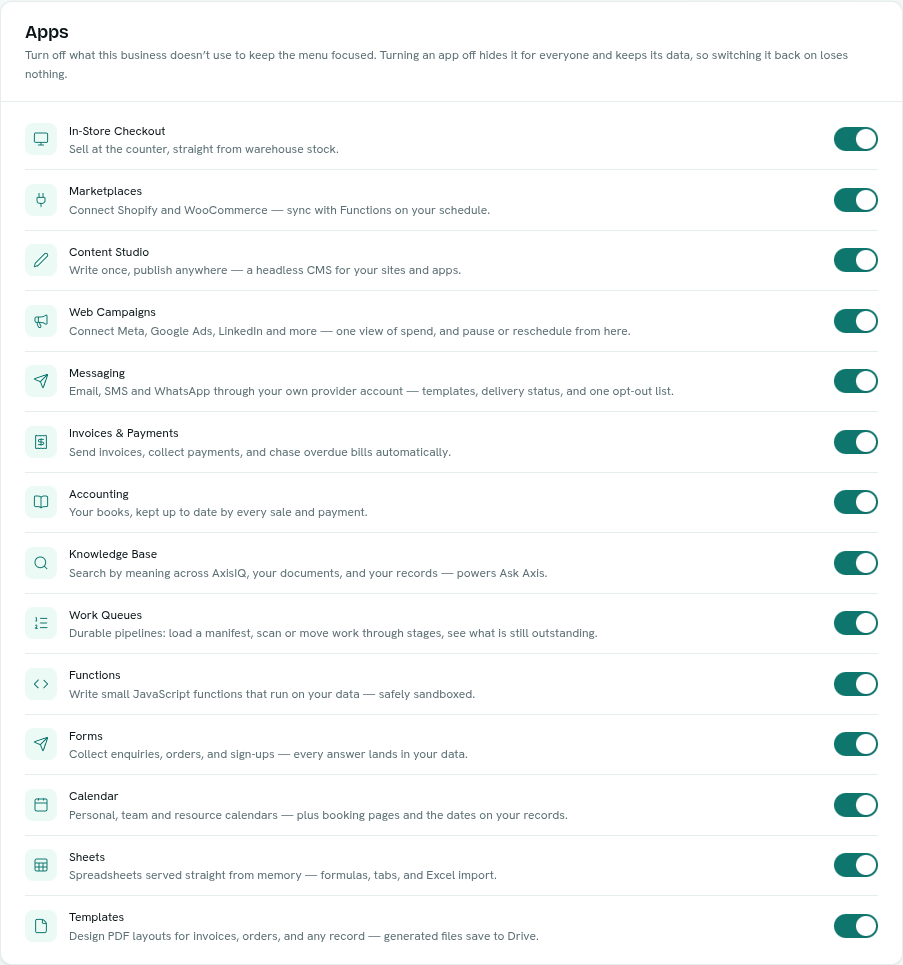
The optional apps
In-Store Checkout, Marketplaces, Content Studio, Web Campaigns, Messaging, Invoices & Payments, Accounting, Knowledge Base, Work Queues, Functions, Forms, Calendar, Sheets and Templates.
Records, Analytics & Reports, Ask Axis, Flows, Drive, Notifications and Team & Permissions are always on.
What happens when an app is off
- It disappears from the launcher and its menus.
- Its pages show " is switched off" with an Open settings button.
- Ask Axis stops offering it and automated work for it pauses.
- Its data stays where it was.
A template switches off the optional apps its industry does not use when the workspace is created.
Troubleshooting
A page says " is switched off" Ask someone who can change organization settings to turn it on under Settings > Apps.