Pages and folders
Browse a site by folder, search and filter pages, create pages and folders, and use the page menu.
Folders in Content Studio come from web addresses. A page at blog/2026/hello sits in the folder blog/2026. There is nothing else to set up.
Before you start: Reading pages needs Website content at Can view. Creating, duplicating, moving and deleting pages needs Can write drafts. Publishing and archiving needs Can publish.
Browse pages
- Open Content Studio › Pages. Pick the site in the site picker if you have more than one.
- Use the Folders tree on the left to open a folder. Each folder shows how many pages are under it. The site name at the top shows everything.
- Use the breadcrumb above the list to go back up.
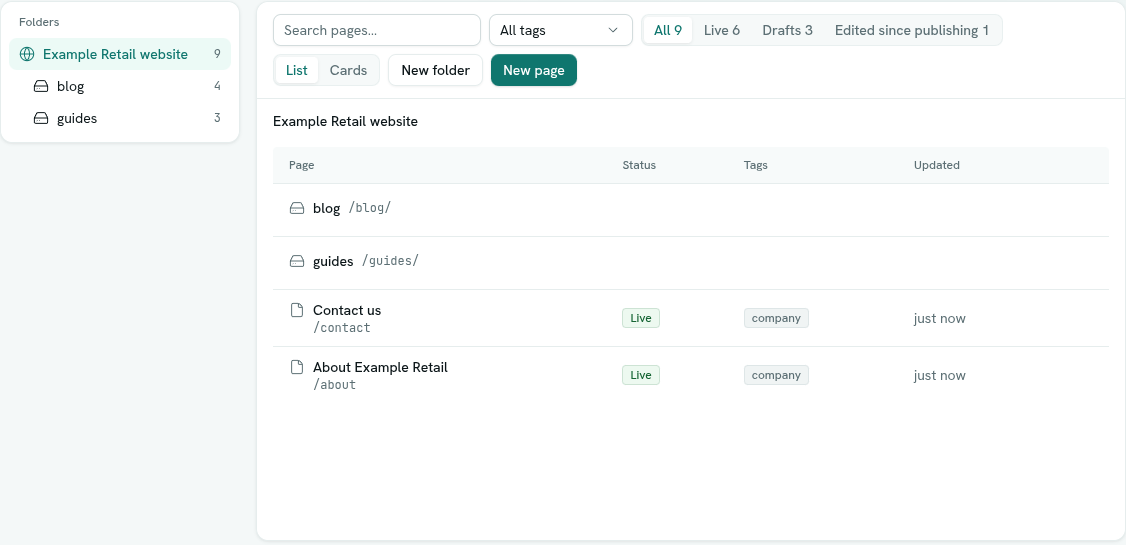
The tree appears on wide screens. On narrow ones, use the folders in the list and the breadcrumb.
Search and filter
- Search pages… searches the whole site and ignores the folder you are in.
- All tags filters by one tag.
- The status filter has All, Live, Drafts, Edited since publishing and, if any exist, Archived. Each shows a count.
- List or Cards changes the layout. Cards show each page's share image, or its first letter. AxisIQ remembers your choice.
While you filter, folders are hidden and matching pages show from the whole site. With more than 100 items, click Load more.
Create a page
- Click New page. The dialog title says New page in /folder (just New page in / at the top level), and the page is created in the folder you are in.
- Enter a Title. It is required, up to 200 characters. Its web address is made from the title, and you can change it later.
- Click Start writing. The page opens in the editor.
Create a folder
- Click New folder.
- Enter a Folder name and click Open folder.
The folder appears in the list once a page is saved inside it. Until then it is only the address you are standing in.
Page menu
Click the ⋯ on a row, or right-click it:
| Menu item | What it does |
|---|---|
| Open / Open in new tab | Opens the editor. |
| Publish / Publish changes | Makes the page live, or updates the live copy. |
| Unpublish | Takes a live page off the site after you confirm. |
| Review changes | For a live page with edits, shows what changed since publishing. |
| Archive / Restore from archive | Retires a page, or brings an archived page back as a draft. |
| Duplicate | Makes a draft copy titled "… (copy)" with a free web address, and opens it. |
| Change web address… | Moves the page to a new address. |
| Copy link | Copies the page's public address. |
| See how search engines see it | For live pages, opens the plain version crawlers read. |
| Delete | Deletes the page and its version history after you confirm. |
Right-click on empty space for New page, New folder and Site settings. Right-click a folder for Open and New page here.
Web addresses
A web address is made of one or more words separated by /. Each word uses lowercase letters, digits and hyphens only (no spaces, capitals or underscores). An empty address is the site's home page. Every page in a site needs a different address, otherwise AxisIQ says "that key, slug, or path is already in use". When you create a page, the address is made from the title, so a title with no letters or digits from A to Z (for example only non-English characters) gives the home page address. Change the address right away in that case.
Important: When you move a live page, the old address stops working as soon as you save, so links to it will break.
Troubleshooting
The page I just created is not in the folder tree A new page is a draft in its folder, and the tree lists every page. Check the status filter is All.
Delete is not in the menu You need Can write drafts or higher.