Content Studio
Write, publish and manage the pages of your website, app or help centre, with search settings, version history and an AI writing helper.
Content Studio is where you write and publish the pages that live on your website, app or help centre. You write once here, and your site shows what you publish. Each site holds its own pages, folders and search settings, and everything is kept with a full version history.
What you can do
- Set up a site with a name, web address and a description. Sites and site settings
- Organise pages in folders by web address, and filter by status or tag. Pages and folders
- Write a page with autosave, images and a plain-text view. Write a page
- Publish, unpublish and archive. Publish, unpublish and archive
- Go back in time with saved versions and restore. Version history
- Improve how pages appear in search and when shared. Search settings
- Add your own fields such as author or category to every page. Custom fields
- Get help writing in your house style. Writing style and the AI writer
- Keep images and files in one library. Media library
Before you start
- Who can use it: the Website content app on the Roles page. Can view reads pages including drafts, Can write drafts edits them, Can publish puts pages live, and Full control also creates and deletes sites and changes site settings. See Team & Permissions.
- You can limit a role to one site with Advanced rules. The Media library is controlled separately from individual sites.
- If you have no content access at all, the app shows "No access to Content Studio".
- Content Studio can be switched off in Settings → Apps. It must be on to use it.
- To let your website read what you publish, a role for visitors who are not signed in must give Published pages the level Readable by anyone. See Team & Permissions.
Where to find it
Launcher category Marketing › Content Studio. A site picker beside the title switches between sites. The left rail has:
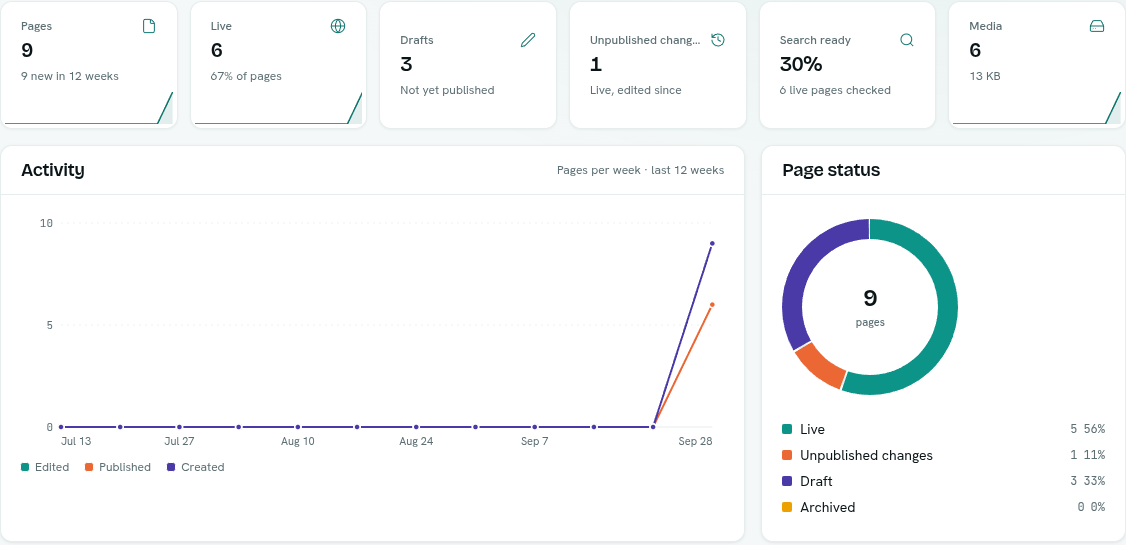
- Dashboard — headline numbers and charts for the open site (pages, live, drafts, unpublished changes, search readiness and media).
- Pages — the folder explorer for the open site.
- Media — the image and file library shared by every site.
- Site settings — name, writing style, custom fields and developer addresses.
Key ideas
| Term | What it means |
|---|---|
| Site | One place your content is published, such as a website, an app or a help centre. |
| Page | One piece of content with a title, text, a web address, tags and search settings. |
| Web address | Where the page lives on your site, such as blog/hello. It is also its folder. |
| Folder | Pages whose web address starts with the same words. Folders have no setup of their own. |
| Draft | A page that has never been published, or has been unpublished. |
| Live | The page is published and your site shows it. |
| Unpublished changes | A live page you have edited since publishing. The live version stays as it was until you publish again. |
| Archived | Retired: off your site and hidden from the default list, but not deleted. |