Write a page
Use the editor: write, add images, set the web address and tags, rely on autosave, and work with the inspector.
The page editor is one wide column for your text, with an inspector on the right for the page's details.
Before you start: Editing needs Website content at Can write drafts or higher. With Can view the editor is read-only.
Write
- Open a page from Pages, or create one with New page.
- Type the Title at the top. Under it, the page's public address is shown. Click it to copy.
- Write in the text area. The default view, Write, is a rich editor. Switch to Plain text at the top for the raw text.
- To format, select some text: a small toolbar offers Bold, Italic, Strikethrough, Heading, Subheading, Quote, Inline code and Link. On an empty line, click the + in the left margin to insert a Heading, Subheading, Bullets, Numbers, Quote, Code, Divider or Image.
- To add an image, drop or paste one into the Write view, use Image from the + menu, or use Insert image in Plain text. It is uploaded to the Media library and added to the page.
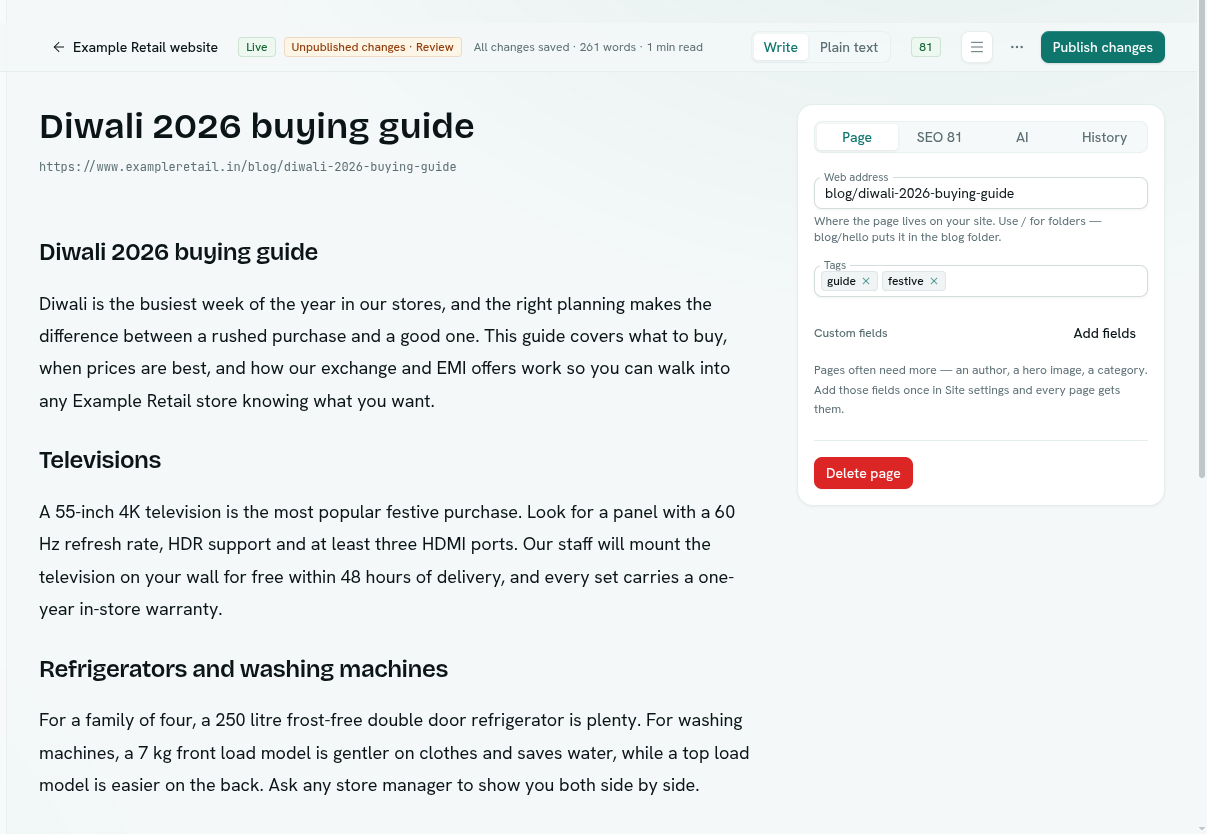
The title bar shows how many words the page has and an estimate of reading time.
Autosave
You never need to press Save. About a second after you stop typing, AxisIQ saves your changes. The bar shows Saving…, Unsaved changes or Saved. Press Ctrl + S (⌘ + S on a Mac) to save at once.
Saving a draft never changes what visitors see. A live page keeps showing what was last published until you publish again.
The top bar
- The back button, labelled with the site name, returns to the list in the same folder.
- A badge shows Live, Draft or Archived. For a live page with edits you also see Unpublished changes · Review.
- A number badge is the page's SEO score. Click it to open the SEO tab. See Search settings.
- The inspector button hides or shows the panel. On narrow screens, Details opens it as a dialog.
- Publish or Publish changes appears if you can publish.
- The ⋯ menu has Copy link, See how search engines see it (live pages), Version history, Unpublish and Delete page.
The inspector
The inspector has tabs. AxisIQ remembers which one you used last.
| Tab | What it is for |
|---|---|
| Page | Web address, Tags, Custom fields and Delete page. |
| SEO (with the score) | Search and sharing settings. Search settings |
| AI | The AI writer. Only shown if you can edit. Writing style and the AI writer |
| History | Saved versions. Version history |
Web address and tags
- Web address is where the page lives on your site. Use
/for folders, such asblog/hello. If the page is live, changing it breaks old links. - Tags are free-form labels. Type to add one. Tags are lowercase, up to 60 characters each, and a page holds up to 20. Existing tags from the site are suggested.
- Custom fields show any extra fields set up in Site settings. A star (
*) marks fields that must be filled before the page can be published. Site managers see Add fields or Edit fields here. See Custom fields.
Delete a page
Click Delete page and confirm. The message says "Delete "…" and its version history? This cannot be undone."
Important: Deleting removes the page and all its history for good.
Troubleshooting
The editor is read-only You have Can view only. Ask for Can write drafts.
An error toast appears after saving The message comes from the server, for example that the web address is already used by another page. Fix it in the Page tab; autosave retries.