Comment on a page
Select text in a page and leave a comment, reply in threads, mention teammates with @ and resolve comments when they are dealt with.
Select any words in a page and leave a comment on them — a question, a suggestion, a note for whoever is writing. Comments sit beside the page, never inside it: nothing you write in a comment ever appears on your website.
Before you start: anyone who can view pages on the site can read and add comments. Resolving other people's comments needs Can write drafts or higher on Website content on the Roles page.
Comment on some text
- Open the page in Content Studio. Make sure the editor is on Write (comments are not shown in Plain text).
- Select the words you want to talk about.
- Click the Comment button (a speech bubble) in the small menu that appears over your selection.
- Type your comment in the Comments tab of the panel on the right (next to Page, SEO, AI and History). Type @ and pick a name to bring someone in.
- Click Comment.
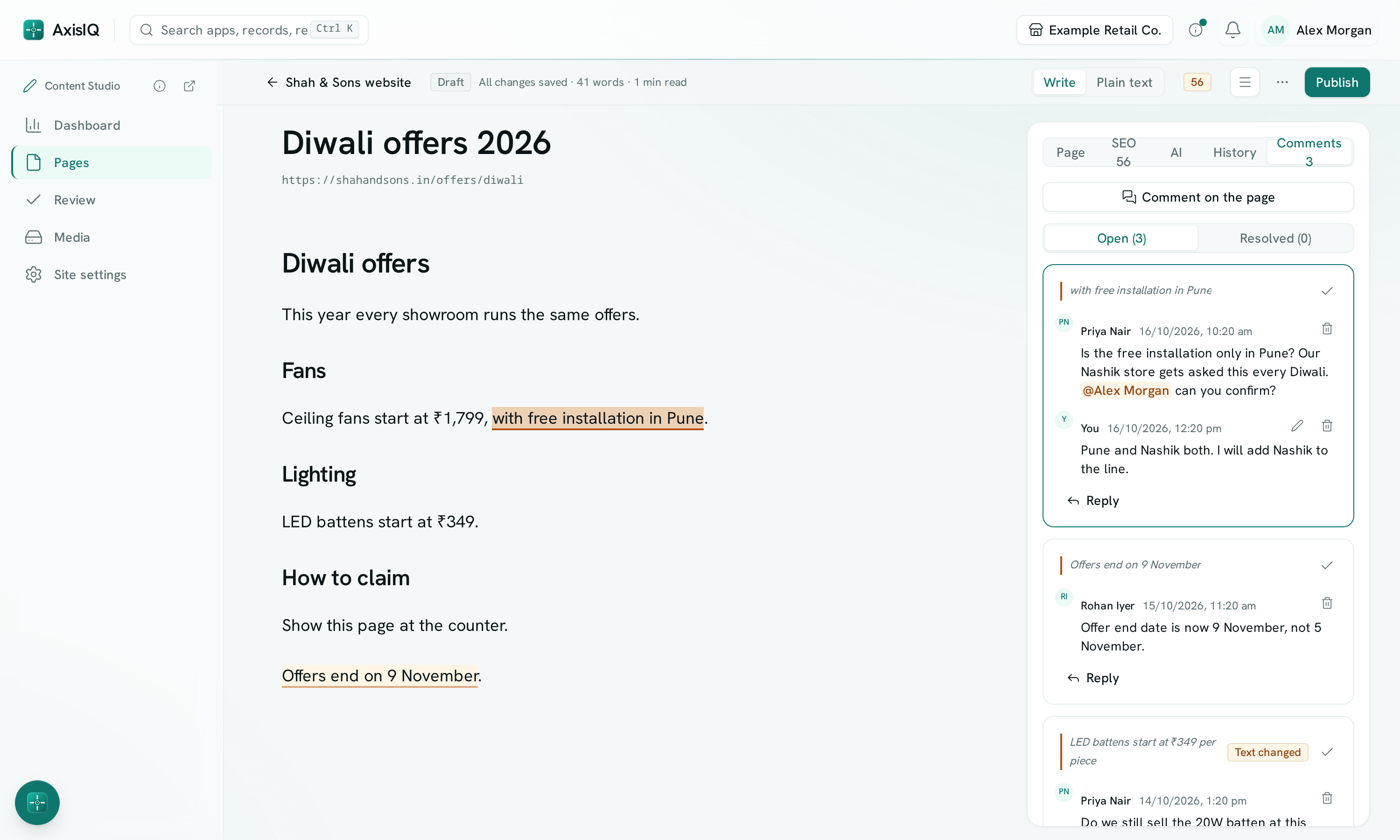
The words you commented on are highlighted in the page. Click the highlight to see the conversation, or click the quoted words on a comment to jump to them in the page.
To comment on the page as a whole rather than on particular words, open the Comments tab and click Comment on the page.
Reply, resolve and reopen
- Click Reply under a comment to answer it. Everyone already in the conversation is told.
- Click the tick (Resolve) on a comment once it has been dealt with. It moves to Resolved and its highlight disappears.
- Open Resolved, then click the tick (Reopen) on a comment to bring it back, or click Reply and reopen.
- Use the pencil to edit your own comment, or the bin (Delete thread or Delete reply) to delete it. Deleting the first comment of a conversation deletes its replies.
When the text changes
Comments follow the words they are on, so edits elsewhere in the page don't move them. If the words themselves are rewritten or removed, the comment stays in the list with a Text changed label, so nothing anyone said is lost.
Comments and review
On a site that uses review, the reviewer sees the page's open comments in the review dialog. When a reviewer clicks Ask for changes, their note is also left as a comment on the page, so the writer can reply to it right beside the text.
Good to know
- Only people who can view the site can be mentioned. Others appear greyed out in the list and are not told.
- Mentions and replies arrive under Mentions and messages in your notifications. Opening one takes you to the page with that comment open.
- You can edit only your own comments. You can delete your own; the workspace owner can delete anyone's.
- A comment starter can resolve their own comment even if they cannot edit the page.
- A comment can quote up to 500 characters of the page. A page holds up to 500 conversations.
- Deleting a page deletes its comments. Moving it to the trash and restoring it keeps them.