Review pages before they go live
Turn on review for a site so pages are checked and approved by someone who can publish before they appear on your website.
Turn on review for a site and every page written by your writers waits for a second pair of eyes before it appears on your website. A reviewer sees exactly what will change, then approves it — which publishes it straight away — or sends it back with a note.
Before you start: to turn review on you need permission to manage the site. Writers need permission to add and edit pages on the site. Reviewers are the people who can publish on that site.
Turn on review for a site
- Open Content Studio and pick the site from the switcher next to the title.
- Go to Site settings, then the General tab.
- Under Review before publishing, choose:
- For writers who cannot publish — writers send pages for review; people who can publish still publish their own pages directly.
- For everyone — every page needs someone else to approve it, including pages written by people who can publish.
- Click Save.
Send a page for review
- Open the page and write as usual — it saves on its own.
- Click Send for review in the top bar (it takes the place of Publish).
- Add a note for the reviewer if you like, then click Send for review.
The page shows In review and a Waiting for review message. Everyone who can publish on the site gets a notification under Approvals.
If you edit the page while it is waiting, it comes back to you — the reviewer only ever approves what they saw. Send it again when you are done. To take it back yourself, click Withdraw.
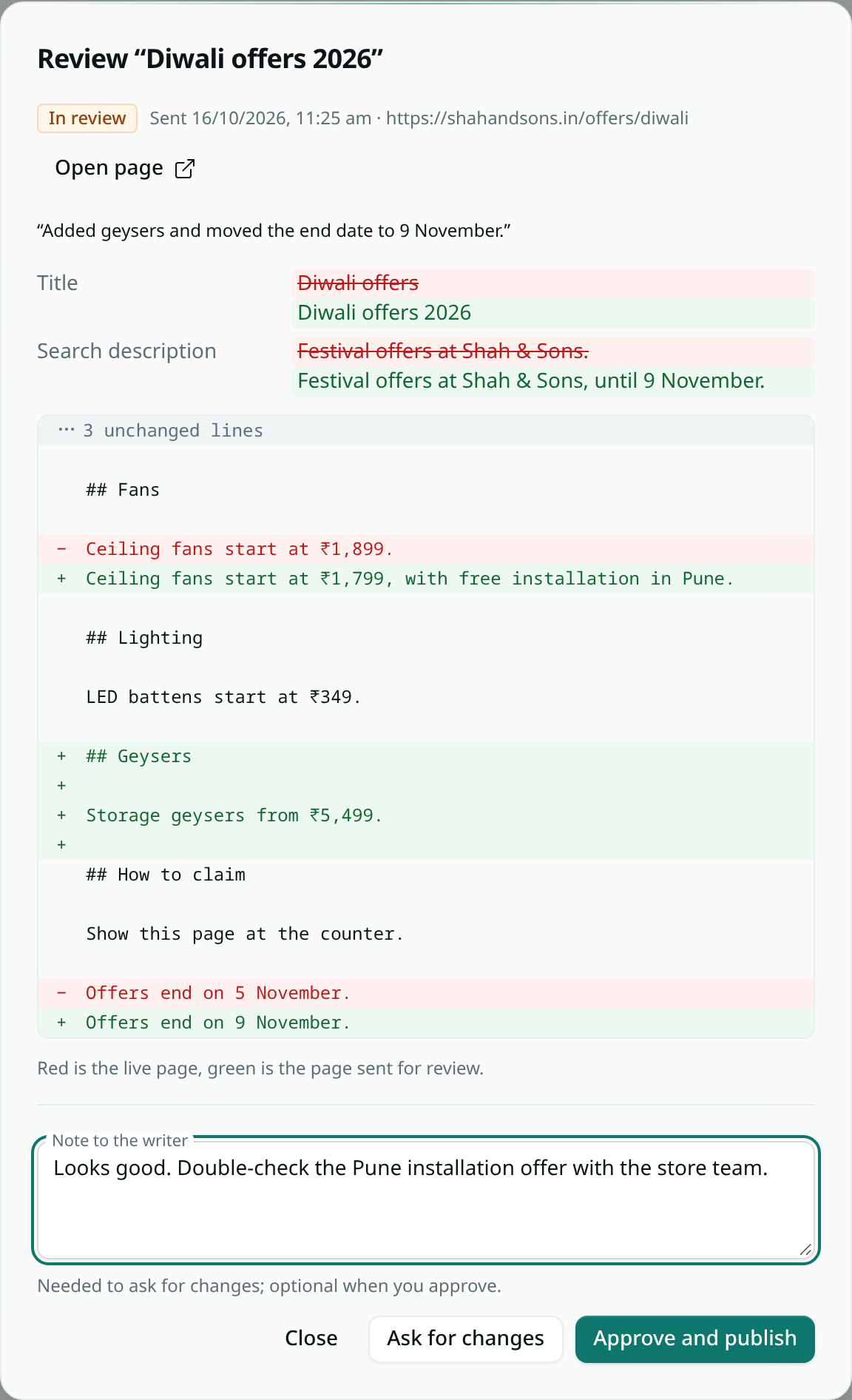
Review a page
- Open the notification, or go to Content Studio → Review. Waiting lists every page sent for review on the site.
- Click a page. You see what changes compared with the live page: changed details first, then the text, with removed lines in red and added lines in green. A page that is not live yet is compared with an empty page. Open comments on the page are listed too.
- Choose:
- Approve and publish — the page goes live now, published by you. The writer is told.
- Ask for changes — write a note saying what needs to change. The writer sees it at the top of the page and is told. It is also left as a comment on the page, so the writer can reply beside the text.
History lists earlier reviews with what was decided.
Good to know
- You cannot approve or send back a page you sent for review yourself — someone else has to. This applies to the workspace owner too. If you work alone, turn review off.
- On a site set to For everyone, nobody can publish directly, Ask Axis cannot publish there, and Schedule… is not offered for publishing. A publish that was scheduled before review was turned on does not run; the schedule list shows why.
- Taking a page off the site, archiving it and deleting it never need review.
- Required custom fields must be filled before a page can be sent for review.
- There is one review step. You cannot pick a particular reviewer — every person who can publish on the site can decide.
- If someone who can publish publishes a page directly while it is waiting for review, the review is closed.