Notifications
Tell your team the moment a record changes, with rules that post to every member's in-app inbox.
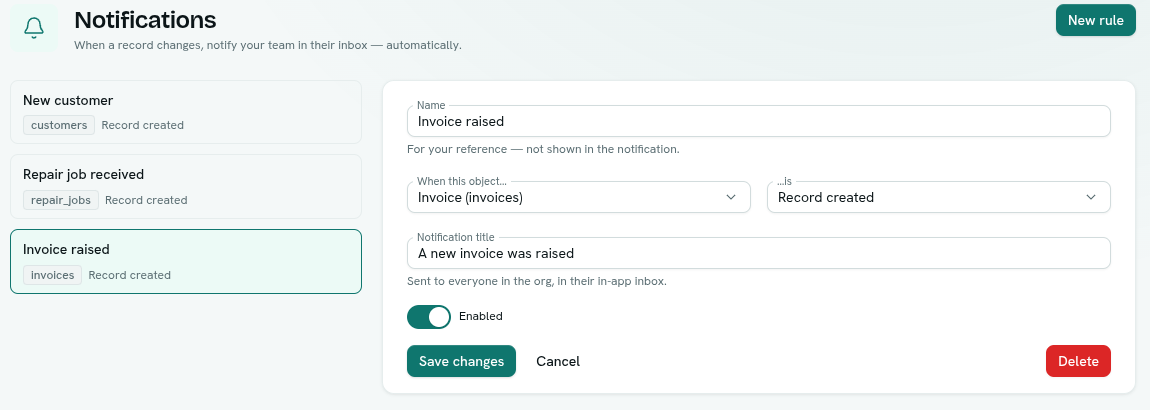
Notifications tell your team when something changes. You write a rule such as "when an Order is created, post 'A new order was received'", and everyone in the workspace gets it in their inbox, behind the bell icon at the top of the screen.
What you can do
- Create a rule that fires when a record is created, updated or deleted. Notification rules
- Turn a rule off and on, edit it or delete it. Notification rules
- Read your own notifications, mark them read and jump to calendar events. Your inbox
Before you start
- Who can use it: the Notifications permission on the Roles page. Can view lets you see the rules. Full control lets you create, edit and delete them. Everyone in the workspace can read their own inbox, no permission needed.
- The Notifications app cannot be switched off in Settings → Apps.
- Nothing needs to be set up first.
Where to find it
- Launcher category Platform › Notifications. It has no sections: a list of rules on the left and the selected rule on the right.
- The bell icon in the top bar shows your inbox. Its footer link Notification settings opens this app.
Key ideas
| Term | What it means |
|---|---|
| Rule | A trigger: "when a record of this type is created, updated or deleted, post this title". |
| Event | Record created, Record updated or Record deleted. |
| Audience | Everyone in the workspace. This is the only audience today. |
| Inbox | Your own list of notifications, behind the bell. |
What notifications can and cannot do
- A rule fires for every record of its type. There are no conditions such as "only when status is paid".
- The title is plain text. It cannot include values from the record.
- Rules post to the in-app inbox only. They do not send email, SMS or WhatsApp. To do that, use Flows or Messaging.
Important: A notification goes to every member, whatever their permissions on the record type. The inbox shows only your title and the record type's name, never field values. Do not put sensitive details in a title.