Notify only when it matters
Add conditions to a notification rule — "amount is more than ₹1,00,000" or "status becomes Overdue" — so your team hears about the records that need them, not every change.
A notification rule can carry conditions, so it fires only for the records you care about: an order over ₹1 lakh, a ticket marked Urgent, or an invoice the moment its status becomes Overdue.
Before you start: you need permission to create notification rules. Recipients still only hear about records they are allowed to open.
Add conditions to a rule
- Open Notifications and select a rule, or press New rule.
- Pick the object under When this object… and the event under …is (Record created or Record updated).
- Under Only when, press Add condition.
- Choose a field, then how to compare it — for example Amount · is more than ·
100000with INR as the currency, or Status · is · Overdue. - Add more conditions if you need them. With two or more, choose all of these are true or any of these is true.
- Press Create rule or Save changes.
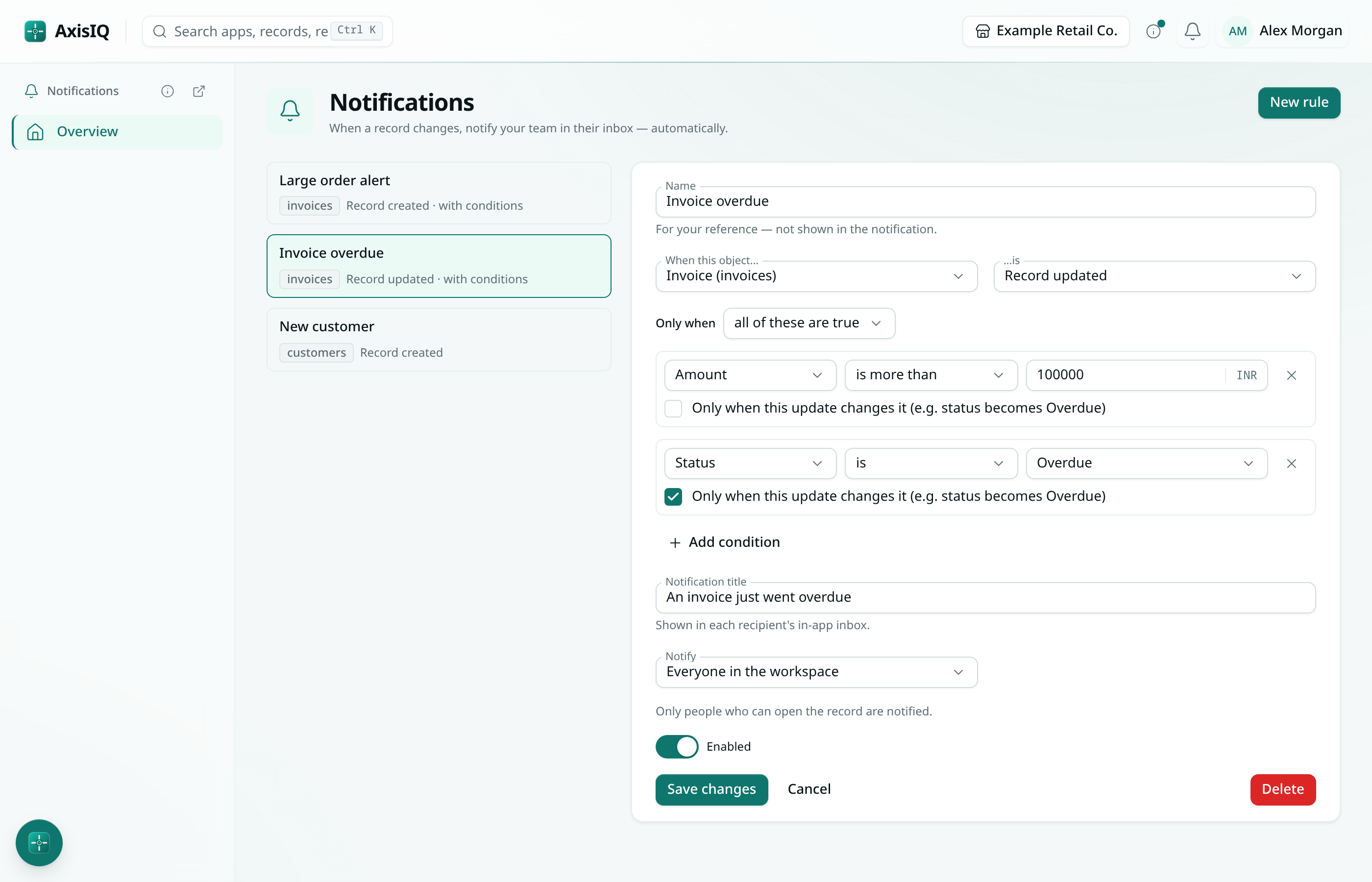
Notify on a change, not on every edit
On a Record updated rule, each condition has Only when this update changes it. Tick it and the rule fires only on the update that moves the field to a matching value.
For example, Status · is · Overdue with Only when this update changes it notifies when an invoice goes from Sent to Overdue — and stays quiet when someone later edits a note on that overdue invoice.
What you can compare
- Numbers and money: is, is not, is more than, is at least, is less than, is at most. Money compares exactly, in one currency: a ₹ condition never matches an amount in $ or €.
- Dates: is on, is after, is on or after, is before, is on or before.
- Text and choices: is, is not, contains. Capital letters don't matter.
- Multi-choice fields: includes.
- Yes/No fields: is Yes or is No.
- Any field: is empty, is not empty.
Good to know
- Conditions work on Record created and Record updated rules. A deleted record has nothing left to compare, so Record deleted rules always fire.
- Changing the rule's object clears its conditions, because the fields belong to the old object.
- Dates compare against a fixed day you pick. "Due before today" style conditions that move with the calendar are not available — use a flow with a schedule for those.
- A rule takes up to 10 conditions.
- If the record can't be read when the rule runs, a rule with conditions stays quiet rather than notify by mistake.
- When two updates land within moments of each other, the rule may judge both against the later one.