Flows
Automate work with a visual workflow: a trigger starts it, conditions branch it, and actions change records, call code or send web requests.
A flow is a small workflow you draw on a canvas. Something happens — a record changes, the clock hits a time, a calendar event is about to start, or you press Run — and the flow does the work you laid out: update a record, create one, call a web service, run your own code.
What you can do
- Build a flow on the canvas from triggers, conditions and actions. Build a flow
- Choose what starts it: a record change, a schedule (UTC), a manual Run, or a calendar event. Triggers
- Look up every block and its settings. Blocks reference
- Branch and loop with conditions, filters, summaries and For each. Conditions and lists
- Pass data between blocks with the Insert value menu. Insert values
- Start from a template or describe the flow in words and let AI draft it. Templates and AI drafting
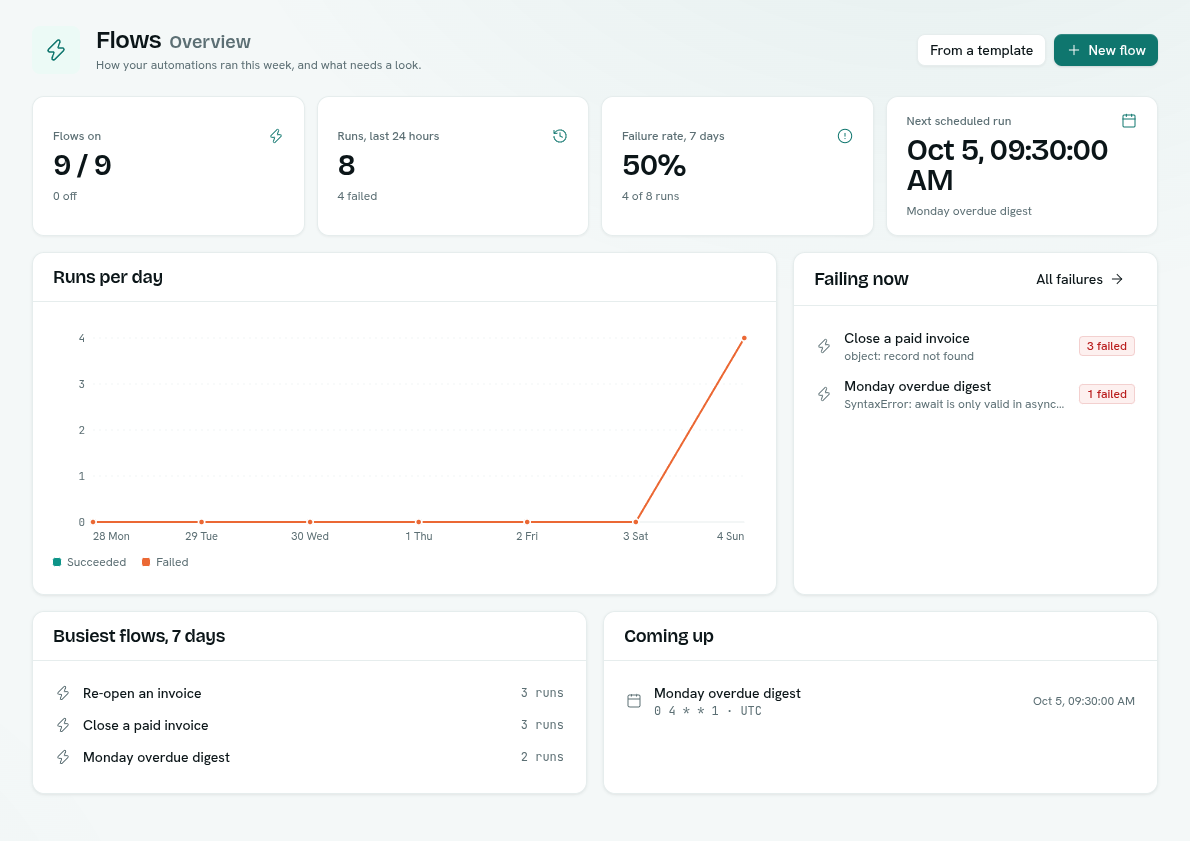
- See what happened: run history, per-block detail and the overview dashboard. Runs and overview
- Understand whose permissions a flow uses. Who a flow runs as
Before you start
- Who can use it: the Automations app on the Roles page. Can view shows flows and their run history. Can run adds the Run button. Full control builds, edits and deletes flows.
- Flows is a core app. It cannot be switched off in Settings → Apps.
- A flow acts with the permissions of the person who last changed it, so give Full control only to people you trust. See Who a flow runs as.
- Blocks that touch data need that data to exist first. A record block needs a record type, and a Run function block needs a function. See Functions.
Where to find it
Launcher › Automation › Flows. The left rail has these sections:
- Overview — numbers for the last week and what needs attention.
- Flows — the list of every flow, with filters.
- Runs — every run across all flows.
- Templates — ready-made starting points and Describe a flow.
Opening a flow takes you to a full-page canvas builder.
Key ideas
| Term | What it means |
|---|---|
| Flow | A saved graph of blocks with exactly one trigger. |
| Block | One step on the canvas: a trigger, a piece of logic or an action. |
| Trigger | The block that starts the flow. A flow has exactly one. |
| Condition | A block that sends the flow down its true or false output. |
| Run | One execution of a flow, with a result for every block that ran. |
| Flow context | Named values you set once and use in any block. |
| On / Off | A flow that is Off never starts by itself. You can still press Run to test it. |