Runs and overview
See every time your flows ran, what each block did, and what needs attention this week.
Every execution of a flow is recorded with a result for each block. Use Runs to find out what happened and Overview to spot trouble.
Before you start: you need at least Can view on the Automations app on the Roles page.
Statuses
| Where | Status | Meaning |
|---|---|---|
| Run | OK | Every block that ran succeeded. |
| Run | Failed | At least one block failed. |
| Block | OK | The block did its job. |
| Block | Failed | The block hit an error. The error text is in Detail. |
A failed block stops its own branch only. Other branches carry on. A web request that comes back with an error status (such as 404) is not a failed block. See Blocks reference.
See the runs of one flow
- Open the flow in the builder.
- Click Runs in the View switch at the top.
- Pick a run in the Recent runs table (When and Status). Click Refresh to load newer runs.
- Read the table on the right. It has Block, Status, Took (milliseconds) and Detail. Detail shows the error if the block failed, otherwise what the block produced.
If the list is empty you see "No runs yet". A run appears when the trigger fires or when you press Run.
See every run
- Open Flows › Runs.
- Use the All / Succeeded / Failed buttons and the All flows menu to narrow the list.
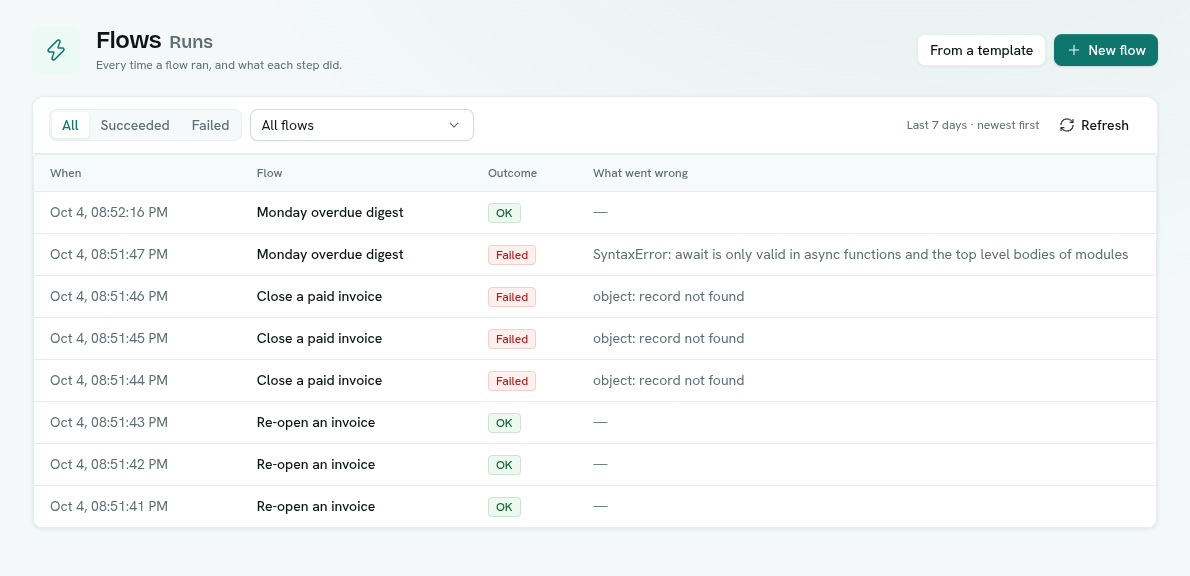
- Click a run. A window titled "Run of " opens with the same per-block table.
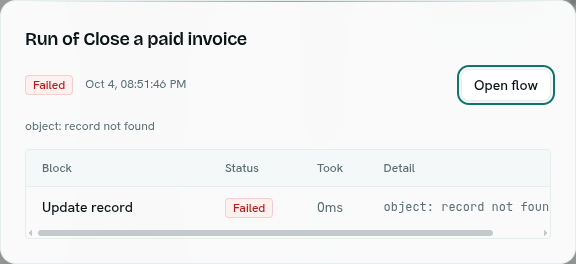
The list shows the last 7 days, newest first, with When, Flow, Outcome and What went wrong. A run of a flow that has since been deleted shows "Deleted flow". Filters and the open run are in the web address, so you can share a link to a failed run.
The Overview
Flows › Overview shows the past week at a glance. Click the first three tiles to jump to the matching list.
| Tile | Shows |
|---|---|
| Flows on | How many flows are On out of the total, and how many are Off. |
| Runs, last 24 hours | Number of runs, and how many failed. |
| Failure rate, 7 days | Percentage of runs that failed, and the counts. |
| Next scheduled run | The soonest scheduled run, and the flow's name. |
Panels below:
- Runs per day — a 7-day line chart of Succeeded and Failed runs. Days are UTC.
- Failing now — flows with failures in the last 7 days, each with its latest error. Click one to open its latest failed run. All failures opens the failed runs.
- Busiest flows, 7 days — the five flows with the most runs.
- Coming up — the next scheduled runs with their cron (UTC) and time.
With no flows, the Overview shows "No flows yet". If you can create flows, it also shows Browse templates and Build from scratch.
Tips
- In Flows › Flows, the Failing filter lists only flows with recent failures.
- Use Run after fixing a flow to confirm the fix without waiting for the trigger.
Troubleshooting
The flow never shows a run Check it is On, and that its trigger fits. For a record event, check the record type and event. For a schedule, check the cron is in UTC.
A run shows Failed with "not permitted to run functions" The person the flow runs as lacks permission to run functions. See Who a flow runs as.