Templates and AI drafting
Start a flow from a ready-made template, or describe what you want in plain words and let AI draft the blocks.
You will create a draft flow from a template, or have AI propose one from a sentence.
Before you start: you need permission to create flows (Full control on Automations). Without it, Templates shows a note that you need permission.
Start from a template
- Open Flows › Templates.
- Find a card and click Use template.
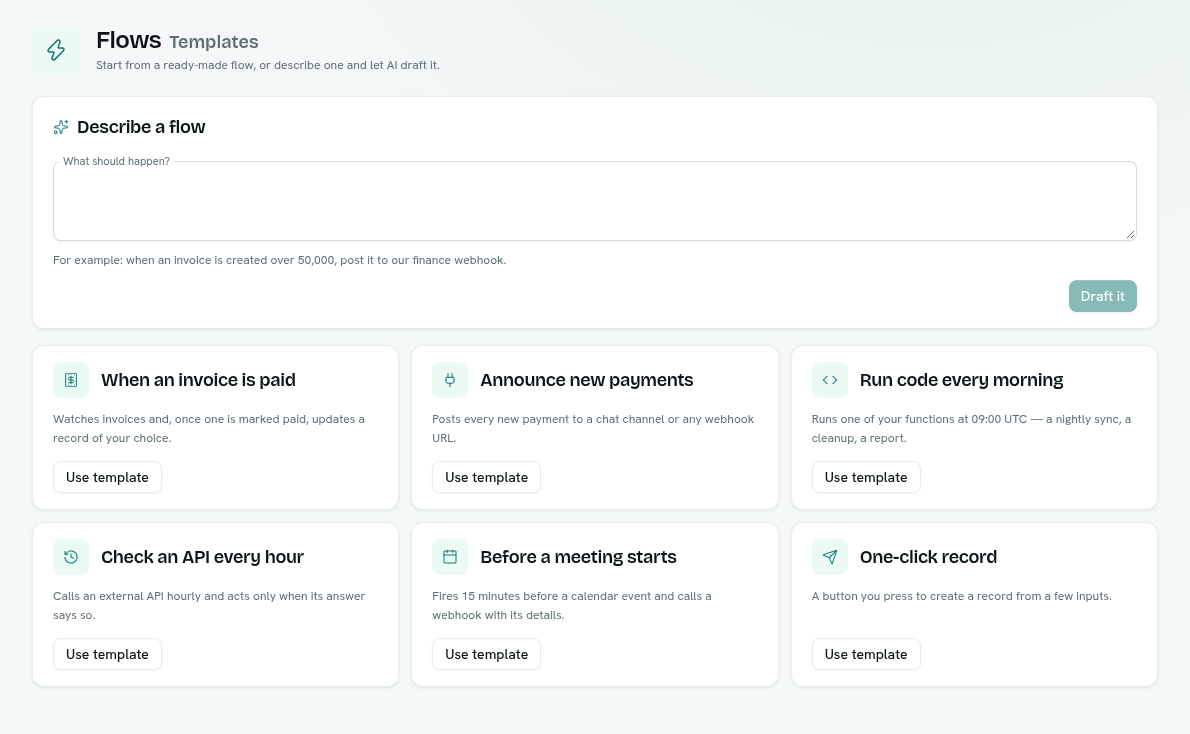
- The flow opens on the canvas as a draft that is Off.
- Fill in the blanks. Templates leave things like the record type or URL for you to choose.
- Save, switch Enabled on, and save again.
| Template | What it sets up |
|---|---|
| When an invoice is paid | Watches invoices and, once one is marked paid, updates a record of your choice. |
| Announce new payments | Posts every new payment to a chat channel or any webhook URL. |
| Run code every morning | Runs one of your functions at 09:00 UTC. |
| Check an API every hour | Calls an external API hourly and acts only when its answer says so. |
| Before a meeting starts | Fires 15 minutes before a calendar event and calls a webhook with its details. |
| One-click record | A button you press to create a record from a few inputs. |
Nothing runs until you fill the blanks and turn the flow on.
Describe a flow
- Open Flows › Templates.
- In the Describe a flow card, answer What should happen? For example: "when an invoice is created over 50,000, post it to our finance webhook."
- Click Draft it.
- The drafted flow opens as an Off draft. Review every block.
If AI drafting is not set up for your workspace, the Describe a flow card disappears after you click Draft it.
Draft with AI inside the builder
Use this to redraft the flow you are editing.
- In the builder, click Draft with AI.
- In Draft a flow with AI, type a description in Describe the flow. Keep it under 2000 characters.
- Click Generate.
- If the canvas already has blocks, confirm Replace blocks to swap them for the draft.
- You see "Flow drafted — review the blocks, then Save". Nothing is saved until you click Save.
What to check in a draft
- Record types and field names are best guesses. Fix them with the pickers.
- AI drafts are checked by the same rules as flows you build by hand, so an unworkable draft is refused rather than saved.
- The draft is a proposal. You decide whether it goes live.
Tips
- Name the record type and event, and mention any limits, for example "when a payment is created for more than 10,000".
- A good prompt names the trigger, the condition and the action.
Troubleshooting
"AI drafting is not configured on this server." Drafting is not available for your workspace. Use a template or build by hand.
The draft is missing a step Add the block from Add a block, or edit the description and click Generate again.