Build a flow
Create a flow, add a trigger and actions on the canvas, connect them, save it and turn it on.
You will build a flow from an empty canvas, save it as a draft, then turn it on.
Before you start: you need Full control of the Automations app on the Roles page (permission to create and edit flows). If the flow uses a record type or a function, create those first.
Steps
- Open Flows › Flows.
- Click New flow. If you have no flows yet, click Create a flow.
- Enter a Name (up to 120 characters). The Description is optional.
- Click Start building. The flow opens on a blank canvas.
- Under Add a block, click a trigger: Record event, Schedule, Manual or Calendar event. A flow can have only one trigger. If you add a second you see "A flow can only have one trigger."
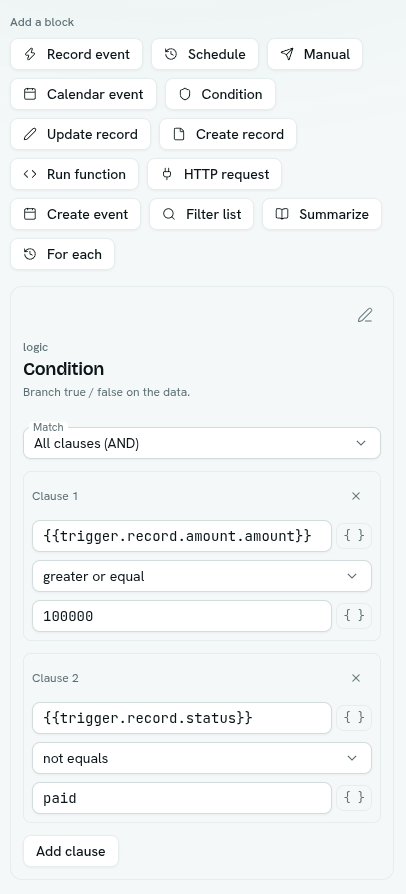
- Click the block on the canvas. Its settings open in the panel on the right. Fill them in. See Triggers and Blocks.
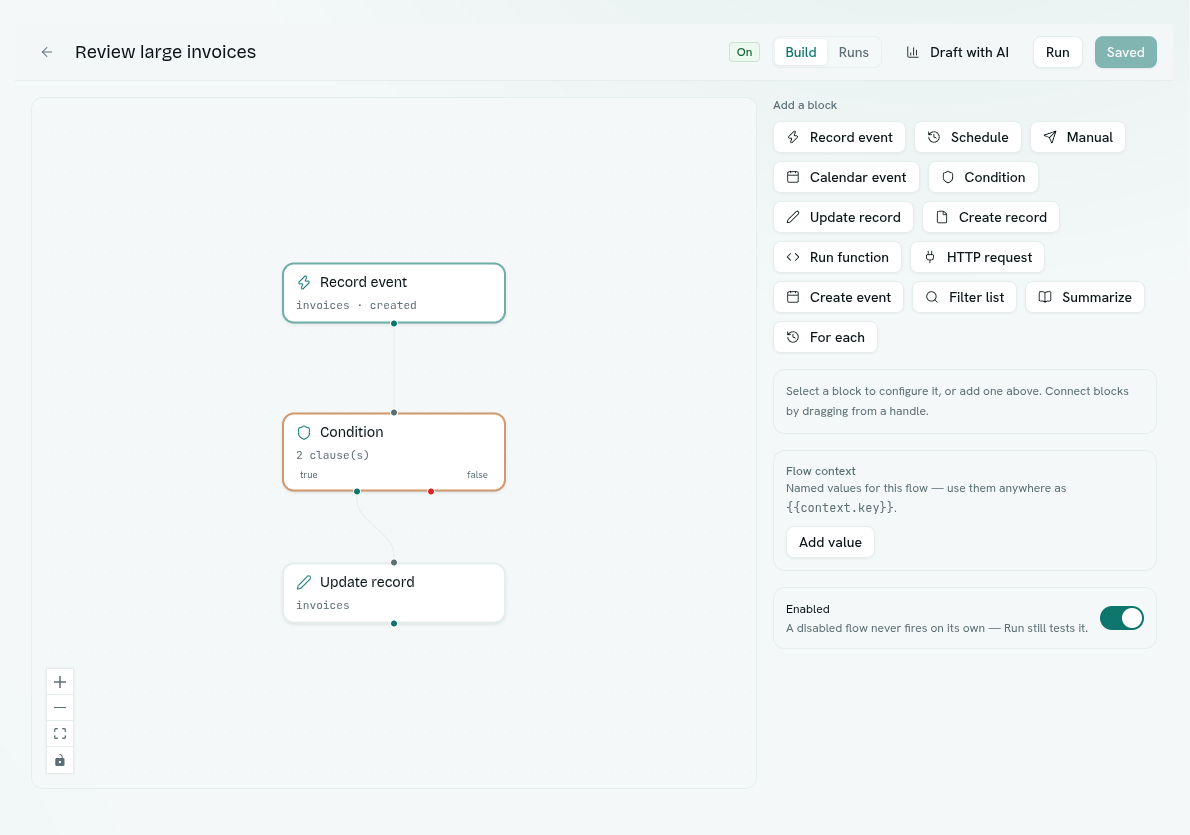
- Click another button under Add a block to add a condition or an action. Each new block is selected so you can configure it straight away.
- Connect the blocks. Drag from the round handle at the bottom of one block to the top of the next. A Condition has two outputs: the left handle is true and the right handle is false. A For each block also has two: the left handle is each and the right handle is after. (The small caption under a For each block reads true / false. Ignore it — left is each, right is after.)
- Optional: use Flow context to add named values you want to reuse. See Insert values.
- Click Save. The button reads Saved when nothing has changed.
- Switch Enabled on, then click Save again.
- To test without waiting, click Run. The message "Run queued — see the Runs tab" appears. Open the Runs tab at the top to see the result.
What happens next
- A new flow starts Off. A draft can be saved half-finished.
- When you save with Enabled on, the flow must be complete: exactly one trigger, every block filled in, and every record type or function it names must exist.
- An enabled flow starts by itself whenever its trigger fires. A disabled flow never starts by itself, but Run always works so you can test a draft.
- Flows run in the background, so a flow never delays or fails the record change that started it.
- In rare cases a flow can run twice for one trigger. Make actions safe to repeat.
- Each block shows a one-line summary on the canvas, such as the record type and event, the cron text or the HTTP method and URL.
Manage your flows
On Flows › Flows:
- Search flows filters by name. All triggers filters by Record change, Schedule, Manual or Calendar. The All / On / Off / Failing buttons show counts. Your filters stay in the link, so you can share a filtered list.
- The table columns are Name, Trigger (type), On (the trigger detail, such as the record type and event or the cron text), Status (the On or Off badge, plus Failing when it has recent failures), Steps and Updated.
- Right-click a flow, or click its ⋯ button, for Open, Open in new tab, See runs, Run now, Turn off / Turn on, Duplicate and Delete. Which items you see depends on your permissions.
- Duplicate makes " (copy)", switched Off, and opens it.
- Delete asks you to confirm. It cannot be undone.
Tips
- Run runs the last saved version of the flow, so save first.
- Drag blocks to tidy the layout. Moving blocks marks the flow as changed, but it does not change who the flow runs as.
- To remove a block, select it and click the delete icon at the top of the settings panel. Its connections go with it.
- Not sure where to start? Use Templates and AI drafting.
Troubleshooting
Could not save The message under it says why. Common causes are "the graph has a cycle — flows must be acyclic", "a flow must have exactly one trigger block", a block that is missing a required setting (for example "http-request block needs a URL"), or a record type or function that no longer exists.
The Save button is greyed out or missing Greyed out means you have no unsaved changes. If it is missing, you do not have permission to edit flows.
A trigger block cannot accept connections A trigger is always the start of the flow, so nothing connects into it.