Flow history
See every saved version of a flow, check which version a run used, and restore an earlier one.
Every time you save a change to what a flow does, the previous version is kept. If an edit breaks something, you can see exactly what the flow looked like before and bring it back in two clicks.
Before you start: Can view on the Automations app on the Roles page lets you see the history. Restoring a version needs Full control.
See past versions
- Open the flow.
- Click History in the top bar.
- The list shows every version, newest first, with who saved it and when. The one in use is marked Current.
- Click a version to see its blocks on a read-only canvas.
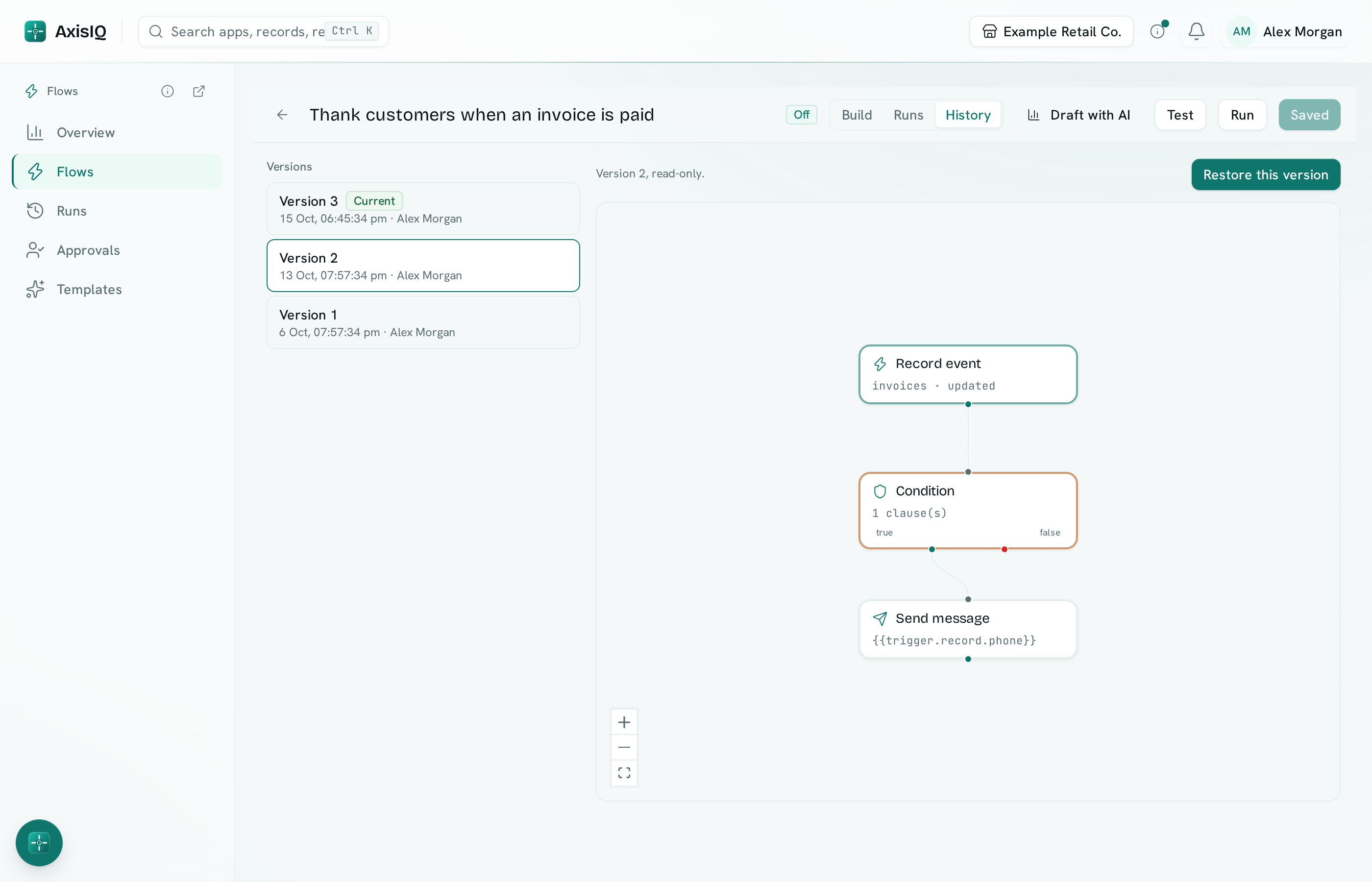
Restore a version
- Click the version you want.
- Click Restore this version and confirm.
The old blocks, links and flow values come back as a new version, so the version you replaced stays in the list and can be restored too. The flow's name and its on/off switch stay as they are.
Note: a restore counts as an edit, so from then on the flow runs with your permissions. See Who a flow runs as. Unsaved changes on the canvas are lost when you restore.
Which version a run used
Each run in Runs shows the version of the flow it ran, so you can tell whether a failure happened before or after a change.
What makes a new version
- A save that changes the blocks, the links between them, the trigger or the flow values.
- Renaming a flow, turning it on or off, or moving blocks around on the canvas does not.
- The newest 50 versions are kept.