Export all rows of a query
Get every row of a query result, past the 1,000 rows shown on screen, as a CSV or Excel file in My Drive or as a new Sheets workbook.
The query workspace and report tables show up to 1,000 rows. When a result is bigger, Export all rows runs the same query again in the background and saves the whole result for you as a CSV file, an Excel file, or a new workbook in Sheets.
Before you start: you need permission to run analytics queries. To save the result as a workbook, you also need permission to create workbooks in Sheets.
Export from the query workspace
- Open Analytics & Reports and go to Query workspace.
- Write or open your query and click Run.
- If the result has more than 1,000 rows, you see capped at 1,000 next to the row count. Click Export all rows.
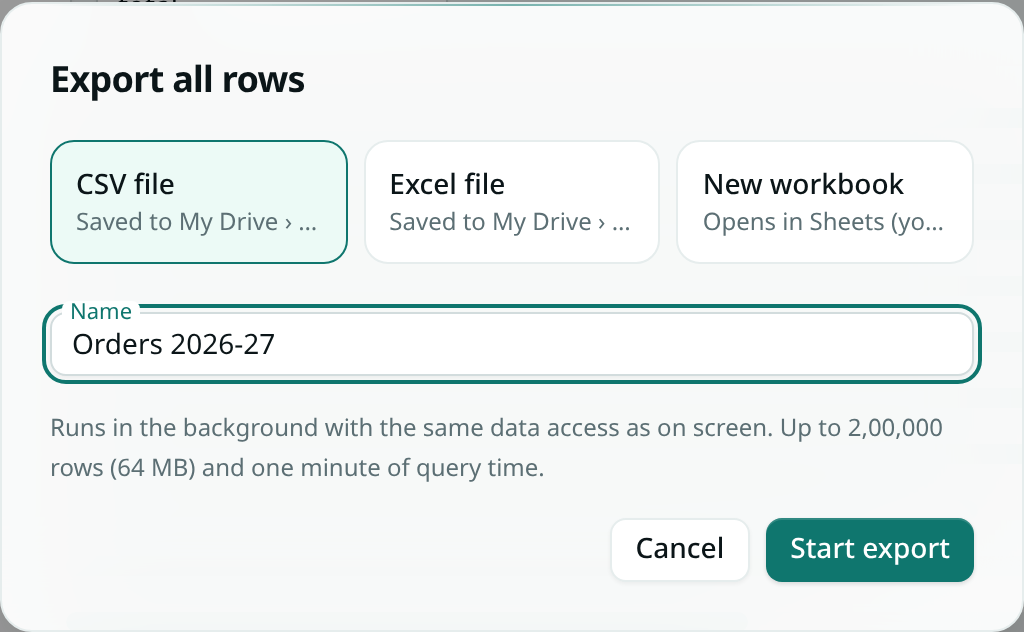
- Under Export to, pick CSV file, Excel file or New workbook.
- Check the Name. This becomes the file or workbook name.
- Click Start export.
You can keep working while it runs. When it finishes, the bell shows an Analytics export notification. Click it to open the file in My Drive › Exports, or to open the new workbook.
Export from a report
- Open the report and hover over a table widget.
- Open the widget menu and choose Export all rows….
- Pick where it goes, check the name and click Start export.
The export uses the report's current filters and time range, the same as the table on screen.
Good to know
- An export can include up to 200,000 rows and 64 MB of data, and the query can run for up to one minute. If you hit a limit, the notification tells you. Select fewer columns, or add a WHERE clause to narrow the rows.
- A workbook export is also limited by your plan's Sheets row limit.
- An export shows you exactly the data you can see on screen. Fields hidden from you stay blank. If your access changes before the export runs, the new access is what counts.
- Files go into your own My Drive, in an Exports folder. Nobody else sees them unless you share them, and they count toward your workspace's storage.
- You can run two exports at a time. Wait for one to finish before you start a third.
- Exports work on your workspace data. Queries on a connected external data source can't be exported this way.
- If an export is interrupted, it is marked as failed and you can start it again.
- To choose which notifications you get for finished exports, go to your notification settings and look under Analytics.