Storage used and your allowance
See how much storage your workspace uses against your plan's allowance, what happens near the limit, and how to free up space.
Drive's Home page shows how much storage your whole workspace is using and how much your plan includes, so you can tidy up before you run out.
Check your storage
Open Drive › Home. The Workspace storage card shows how much is used and your plan's allowance, with a bar, and what makes up the total: Files, Past versions of replaced files, and Websites you host.
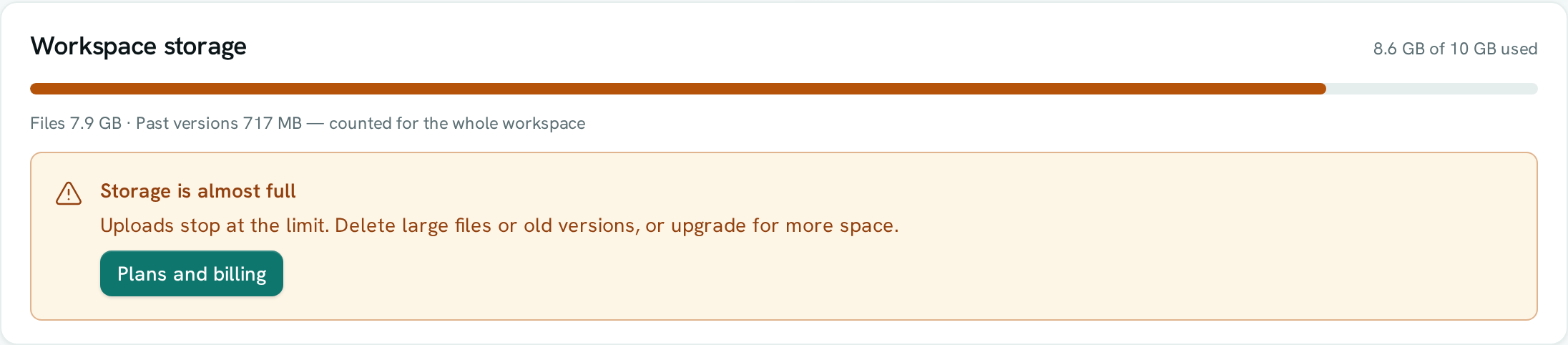
The figure is for the whole workspace — every space, including ones you cannot open, and files other apps save into Drive. It is the same figure your plan counts.
When storage is nearly full
From 80% the bar turns amber and a note appears; at 100% it turns red. What happens at the limit depends on your plan:
- Free plan or trial: uploads stop at the limit until you free up space or choose a plan.
- Paid plan: nothing stops. Storage beyond your allowance is billed at the extra-usage rate with your next payment. See Usage and allowances.
Plans and billing in the note takes you to your plan.
Free up space
- Largest files on the same page lists the 10 biggest files in your own spaces. Open one to move or delete it.
- Old copies of replaced files count too. Delete the ones you no longer need from a file's version history.
- Deleted files go to Trash and are removed for good after 30 days.
Good to know
- Largest files only covers your own spaces, not folders others have shared with you.
- Uploads are checked against a figure that can lag by a few moments, so right at the limit the card and an upload can briefly disagree.