Version history
See, download and restore earlier versions of a Drive file after uploading a new one with the same name.
When you upload a file with the same name into the same folder, Drive keeps the file it replaced. Open Version history to download an older version or put it back.
Before you start: anyone who can see a file can see and download its versions. Restoring or deleting a version needs edit access to the space.
Open version history
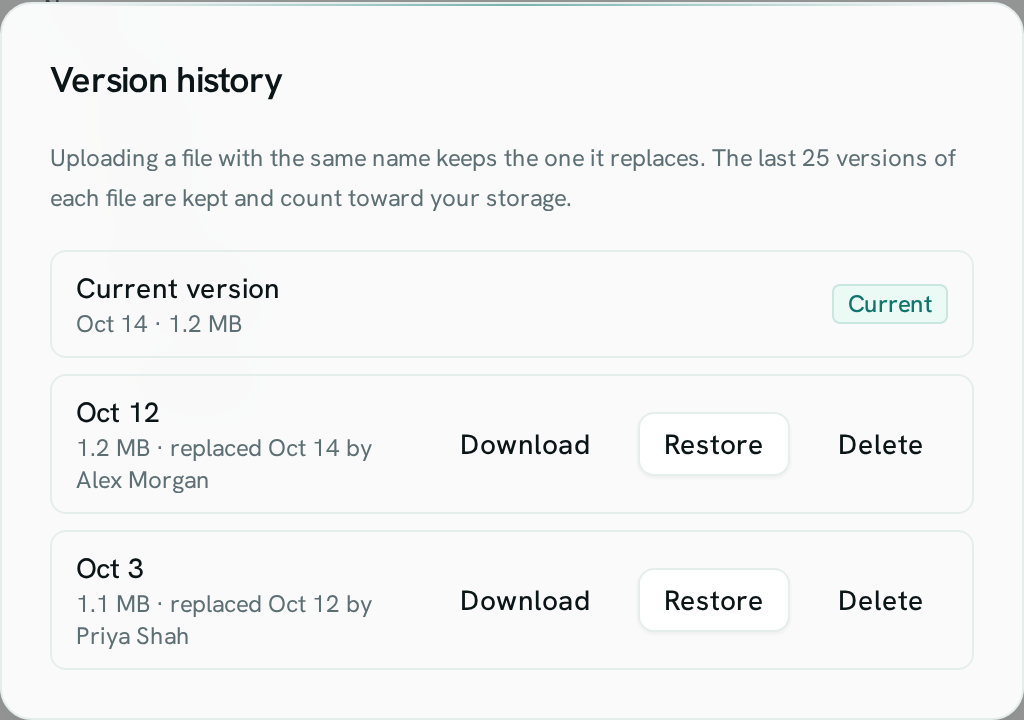
Right-click a file (or open its ⋯ menu) and choose Version history. You see the Current version at the top, then each earlier version, newest first: when it was uploaded, its size, and when and by whom it was replaced.
Download an older version
Click Download on the version. It saves under the file's name.
Restore a version
- Click Restore on the version you want back.
- Confirm Restore. The file now has that content. You see "Version restored".
The version that was current is kept in the history, so you can undo a restore by restoring it again.
Delete a version
Click Delete on a version and confirm. It is removed for good and cannot be restored.
Good to know
- Each file keeps its last 25 versions. When a 26th is made, the oldest is deleted.
- Uploading exactly the same file again does not add a version.
- Versions stay with the file when you rename or move it, and come back with it if you restore it from the trash.
- Deleting a file forever also deletes its versions.
- Versions count toward your workspace storage.