Notification rules
Create, edit, switch off and delete rules that notify your whole team when a record is created, updated or deleted.
Create, change, switch off and delete the rules that post to your team's inbox when records change.
Before you start: Seeing the rules needs the Notifications permission at Can view. Creating, editing and deleting need Full control. Without view access the page says "No access to Notifications".
Create a rule
- Open Notifications from the app launcher.
- Click New rule.
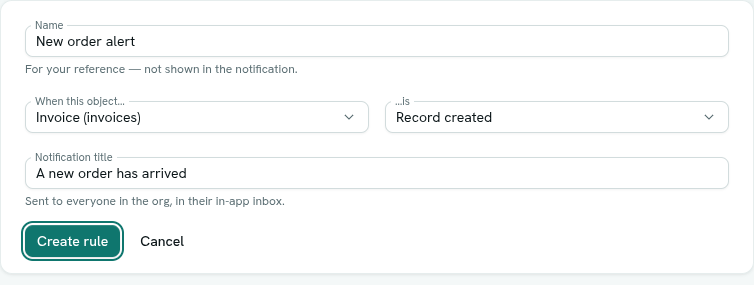
- Type a Name. It is for your reference and is not shown in the notification.
- Under When this object…, choose a record type. The list shows each type as
Label (key), for exampleOrder (orders). - Under …is, choose Record created, Record updated or Record deleted.
- Type the Notification title, for example
A new order was received. This is what people read in their inbox. - Click Create rule.
The new rule opens on the right and appears in the list.
If you have no rules yet, the list says "No notification rules yet" with a New rule button.
When a rule fires
| Event | Fires when |
|---|---|
| Record created | A record of the type is created: on the form, by CSV import, by a flow, a function, a form submission or Ask Axis. |
| Record updated | Values of an existing record are changed and saved. |
| Record deleted | A record of the type is deleted. |
Each time it fires, every member of the workspace gets one notification with your title. The person who made the change is notified too.
Limits
| Item | Limit |
|---|---|
| Name | Required, up to 120 characters |
| Notification title | Required, up to 200 characters |
| Audience | Everyone in the workspace (not selectable) |
A rule has one record type and one event. For two events on the same type, create two rules.
Edit a rule
- Click a rule in the list.
- Change the name, record type, event or title.
- Click Save changes.
If you only have view access, the fields are greyed out and you cannot save.
Turn a rule off or on
- Open the rule.
- Use the Enabled switch (it appears on existing rules, not while creating).
- Click Save changes.
A rule that is off shows an Off badge in the list and sends nothing. Turning it on does not send anything for changes made while it was off.
Delete a rule
Either:
- Open the rule and click Delete, then Confirm (or No to keep it), or
- Right-click the rule in the list, choose Delete, and confirm
Delete "<name>"?with Delete.
Notifications that were already sent stay in people's inboxes.
Right-click menu
Right-clicking a rule opens a menu with Edit (or Open if you only have view access) and Delete.
Troubleshooting
No access to Notifications You need Can view on Notifications. Ask a workspace owner.
no such object type: x The record type no longer exists. Pick another type.
name is required (max 120 chars) / title is required (max 200 chars) Fill in both fields and keep them within the limits.
This rule no longer exists. Someone deleted it while you had it open. Pick another rule from the list.
People are not getting my notification Check that the rule is Enabled, that the record type and event match what happened, and that the change really happened on a record of that type. Notifications arrive in the inbox behind the bell icon, not by email.