Schedule publishing
Pick a date and time for a page to go live or come off your site, then change or cancel it.
Pick a date and time for a page to go live — or to come off your site — and Content Studio does it then, even if nobody is at their desk. Good for a sale that starts at midnight, or an offer that should end on a set day.
Before you start: scheduling needs Website content at Can publish or higher on the Roles page.
Schedule a page
- Open the page's ⋯ menu in Pages (or right-click it) and choose Schedule…. In the editor, the same option is in the ⋯ menu at the top.
- Under What happens, choose Publish (or Publish changes for a live page) or Unpublish.
- Pick the date and time under When. It is in your own time zone, and can be from 5 minutes to a year ahead.
- Click Schedule.
A badge such as Publishes 20 Oct, 9:30 appears beside the page in the list and in the editor. A page can have one scheduled publish and one scheduled unpublish at a time — scheduling another replaces the first.
What gets published
Whatever the page says at the scheduled time goes live — not what it said when you scheduled it. Keep editing until then; your changes are saved as you type. Edits you have not saved yet when the time comes are not included.
Change or cancel
- In the editor, click the badge to change the time.
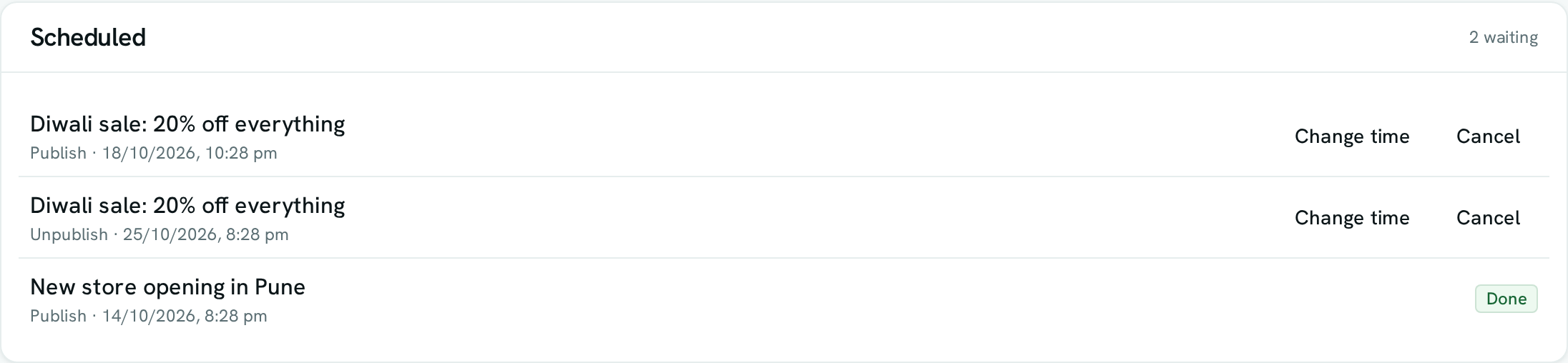
- On the site's Dashboard, the Scheduled panel lists what is waiting, with Change time and Cancel. It also shows what ran in the last 7 days, with Done, or Did not run and the reason.
When it does not run
The page is published as the person who scheduled it, with their access at that moment. It does not run, and shows Did not run, if by then:
- they have left the workspace or no longer have Can publish,
- the page has been deleted, or
- a required custom field is empty (see Custom fields).
Nobody is notified when that happens, so check the panel after an important launch. Scheduled changes run within about a minute of the time and are never run twice.