Version history
See every publish, save a named version, compare it with your draft, and restore or roll back.
Every page keeps a history. You can pin a version yourself at any time and restore an earlier one if an edit goes wrong.
Before you start: Anyone who can open the page can read its history. Saving a version and restoring into the draft need Website content at Can write drafts. Restore & publish also needs Can publish.
Open the history
- Open a page.
- In the inspector, choose the History tab. Or open the ⋯ menu and click Version history.
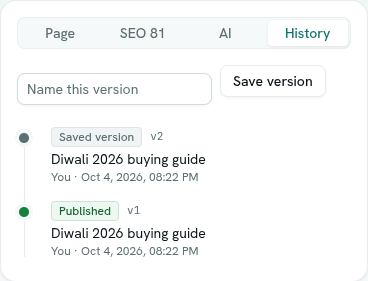
Each entry shows a label, a version number such as v3, a note or the page title, who made it and when. Your own entries say You; people you cannot look up show as "A teammate". The labels are:
- Published
- Unpublished
- Saved version
- Archived
An empty history says "No history yet. Every publish is kept here, and you can save a version any time."
Save a version
- Under Name this version, type a short note, such as "Before the pricing rewrite". It can be up to 200 characters.
- Click Save version (or press
Enter).
It appears in the list as Saved version. The AI writer also saves one called "Before AI replace" before it replaces a whole page.
Compare and restore
- Click an entry. Unpublished entries cannot be opened.
- A dialog opens with two views: Compared with your draft shows what is different, and This version shows the full text.
- Choose:
- Restore into draft copies that version into your draft. The live page does not change.
- Restore & publish restores it and publishes it straight away. This is how you roll a live page back.
- Close leaves everything alone.
Restore brings back the title, text, search settings, tags and custom fields. It does not change the web address, because moving a page is its own decision. A custom field value that no longer fits the site's current fields is dropped.
What happens next
After a restore, the editor shows the restored text and autosave carries on from there.
Tips
- Save a named version before a big rewrite or before using Replace page in the AI writer.
- History is deleted along with the page.