Search settings
Improve how a page appears in search results and when shared, using the SEO score, previews and AI suggestions.
The SEO tab shows a live score and lets you control how a page looks in search results and when its link is shared.
Before you start: You need Website content at Can write drafts to change anything. With Can view the fields are read-only.
Open the SEO tab
Open a page and choose the SEO tab in the inspector. The tab label includes the score, for example SEO 72. The same score is a badge in the top bar.
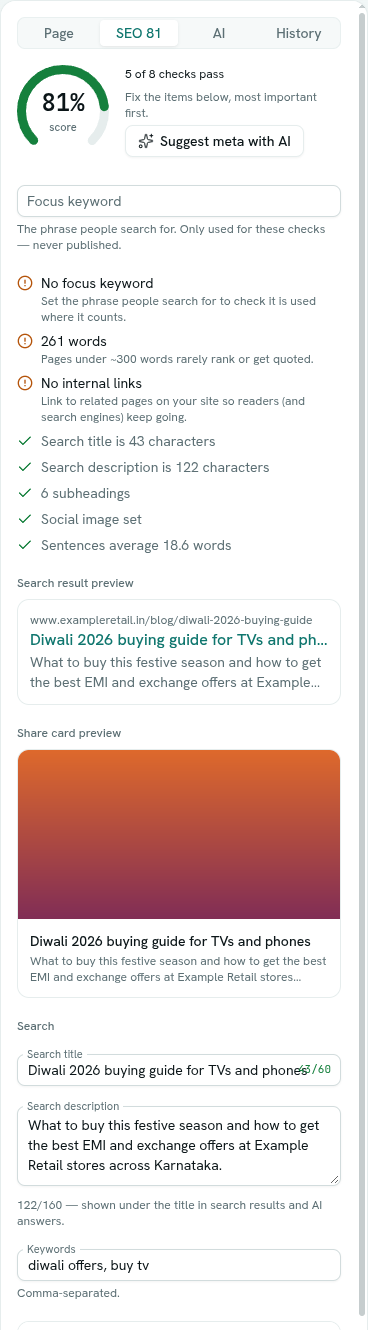
The score and checks
The score and the "N of M checks pass" line update as you type. Below them is a list of checks, with problems first. Each shows a good, warning or problem mark and a hint on what to do. Checks cover:
- Search title length (30 to 60 characters is good).
- Search description (120 to 160 characters is good).
- A focus keyword in the title, description, web address, first paragraph and a subheading, plus keyword density.
- Page length (300 words or more is good).
- Whether the page repeats the main heading.
- Subheadings on long pages.
- Image descriptions.
- Internal links to other pages.
- A share image.
- Average sentence length.
- A notice if the page is hidden from search engines.
The Search ready tile on the dashboard is a separate summary: the share of live pages that have a search title, search description, share image, focus keyword and tags.
Fill in the search fields
- Focus keyword — the phrase people search for. It is only used for the checks and is never published. Up to 120 characters.
- Search title — defaults to the page title. A counter shows the length.
- Search description — shown under the title in search results and AI answers. A counter shows the length out of 160.
- Keywords — comma-separated.
Search result preview shows roughly how the page will look in results. If there is no description, it says search engines pick a sentence from the page. Share card preview shows the card made when the page link is shared.
Sharing and advanced
Open Sharing & advanced for:
- Share title and Share description for the shared card.
- Share image — 1200×630 works everywhere. Upload one or paste an address. Empty means the first image in the page.
- Page type — helps search engines understand the page. Automatic picks for you, or choose one of: WebPage, Article, BlogPosting, NewsArticle, TechArticle, HowTo, FAQPage, AboutPage, ContactPage, CollectionPage, Product, Event.
- Author — a person's name. Empty credits the organisation. Up to 120 characters.
- Original page address — only when this page is a copy of one that lives elsewhere.
- Hide from search engines — keeps the page out of search and out of what AI tools are told about. A badge reminds you when it is on.
Let AI fill it in
Click Suggest meta with AI. A box titled AI suggestions shows a proposed title, description, keywords, tags and sometimes an address idea. Click Apply to use them, or Dismiss. Applying fills the search and share fields but never publishes. Tags are added to the ones the page already has. Always review before publishing.
Troubleshooting
Suggest meta with AI shows an error AI writing might not be set up for your workspace, or your plan's limit may be reached. The message appears as a notification.