Media library
Upload images and files once, then use them on any page of any site.
The media library holds every image and file uploaded to Content Studio. It is shared by all your sites.
Before you start: Viewing the library needs Website content at Can view. Uploading needs Can write drafts. Media is controlled separately from individual sites if you use Advanced rules on a role.
Open the library
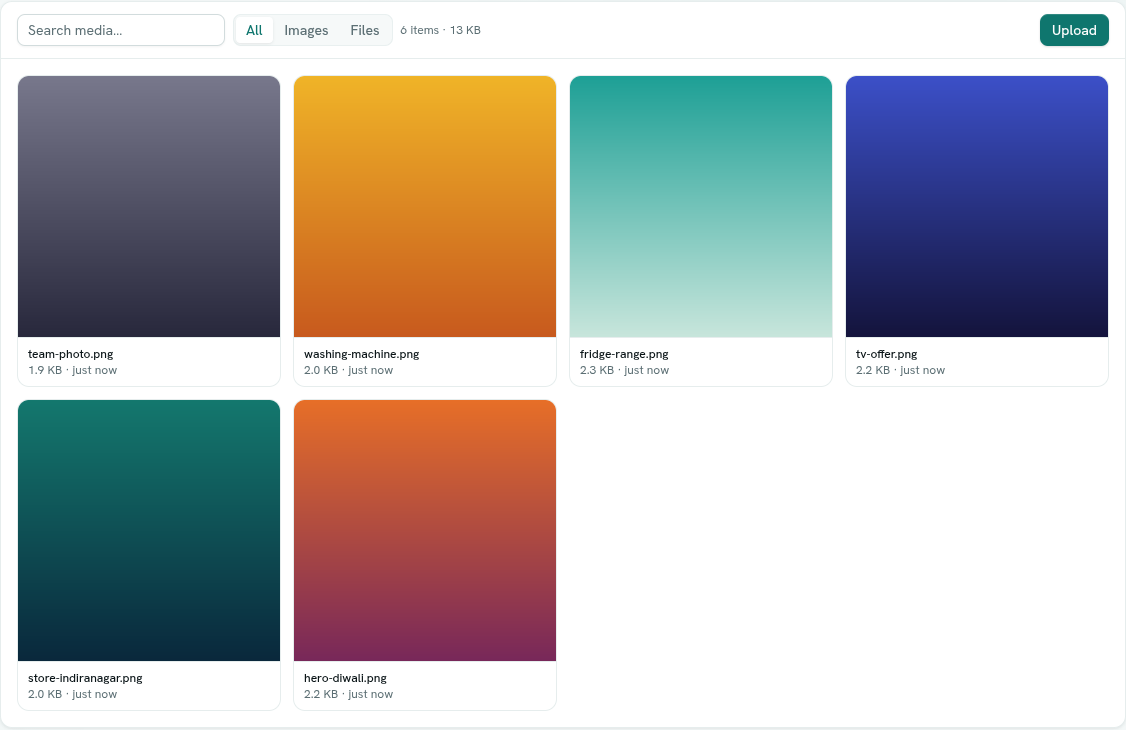
Open Content Studio › Media. The header reads "Images and files for every site — upload once, use on any page." Newest uploads come first, and the library shows up to 500 items.
Upload
- Click Upload, pick one or more files, or drag files onto the page ("Drop to upload").
- Wait for the toast. It says Uploaded or "N files uploaded". If some fail, it says how many of the total were uploaded, with the first error.
Files uploaded from the page editor, a share image or an image field land here too.
Find things
- Search media… searches by file name.
- All, Images and Files filter by kind.
- The line beside the filters shows how many items there are and their total size.
Use an item
- Click a tile to open it. You see a preview, whether it is an image or a file, its size and upload time.
- Click Copy link to copy the file's address. A toast says Link copied.
Images in a page are added from the editor. See Write a page.
Tips
- File names are cleaned up when you upload: lowercase, with unsupported characters turned into hyphens.
Troubleshooting
"No media yet" Nothing has been uploaded. Click Upload media.
The Upload button is missing You need Website content at Can write drafts or higher.