Sites and site settings
Create a site, switch between sites, change its settings, find the developer addresses, or delete it.
A site is one place your content is published. Create one for each website, app or help centre.
Before you start: Creating a site, changing its settings and deleting it need Website content at Full control.
Create a site
- Open Content Studio. If there are no sites yet, you see "Create your first site".
- Click Create a site. If you already have a site, open the site picker beside the title and choose New site instead.
- Enter a Site name. This is required.
- Optionally enter the Web address, such as
https://example.com. This is where people will read the content. You can add it later. - Optionally describe it under What is this site about? Write one or two sentences. Search engines, AI tools and the writing assistant use it.
- Click Create site.
You land on the new site's dashboard, and a toast says Site created.
Switch sites
Click the site name beside the Content Studio title, then pick a site from Switch site. Each site is listed with its web address, or "No web address yet". AxisIQ remembers your choice for next time on this browser. The Media section shows every site's files together, so the picker is hidden there.
When a site has a web address, View site appears in the header and opens it in a new tab.
Change site settings
- Open Site settings in the left rail.
- Pick a tab: General, Writing style, Custom fields or For developers.
- Make your changes and click Save. A toast says Settings saved.
| Tab | What it holds |
|---|---|
| General | Site name (up to 120 characters), What is this site about? and Web address. |
| Writing style | The house style the AI writer follows. See Writing style and the AI writer. |
| Custom fields | Extra fields every page carries. See Custom fields. |
| For developers | The addresses your website reads published pages from. |
The Web address must start with http:// or https://, and cannot contain a ? query or a # part. A trailing / is removed.
If you do not have permission to manage the site, Site settings shows "Only site managers can change settings".
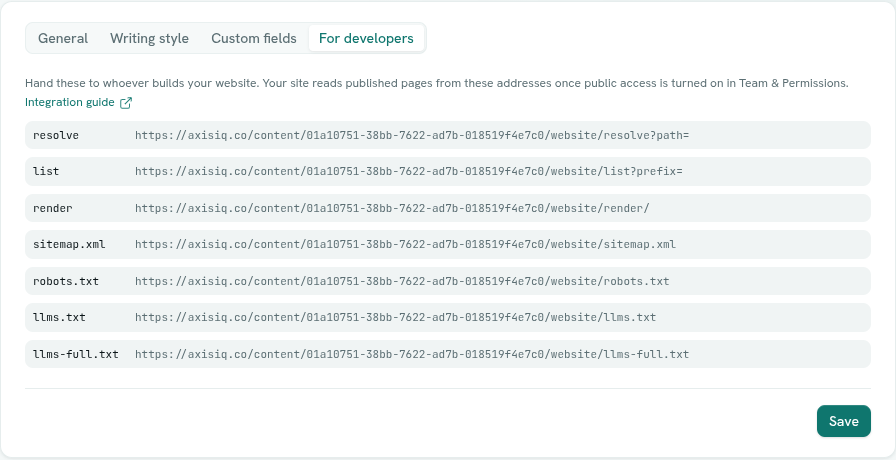
For developers
The For developers tab is for whoever builds your website. It lists the addresses your site uses to read published pages:
| Name | What it gives |
|---|---|
resolve |
The published page for a given web address. |
list |
Summaries of published pages in a folder. |
render |
A complete page of HTML for search engines and tools that do not run JavaScript. |
sitemap.xml |
A sitemap of everything published. |
robots.txt |
Instructions for search crawlers. |
llms.txt |
A short guide to your site for AI tools. |
llms-full.txt |
The full text of your published pages for AI tools. |
Click any row to copy its address. The sitemap, robots.txt and the two AI files are generated each time they are requested, so a page you publish appears in them straight away.
These addresses only work once public access is switched on: a role for visitors who are not signed in must give Published pages the level Readable by anyone. Without it every one of them answers "not found". For the technical details, see the developer documentation.
Delete a site
- In Site settings, scroll to Delete site.
- Click Delete site and confirm Delete site.
The button is disabled while the site still has pages: delete or move them first. Your site stops showing its content straight away.
Important: Deleting a site cannot be undone.
Troubleshooting
That key, slug, or path is already in use Another site already has the same name once it is turned into letters, digits and hyphens. Choose a different name.
site URL must be an absolute http(s) URL
Include https:// at the start.
site URL must not carry a query or fragment
Remove anything after a ? or #.