Create and issue a document
Draft an invoice with lines, tax and discounts, check the live totals and PDF, then issue it with its number.
A document starts as a draft that saves itself as you type. When it is right, you issue it: it takes the next number in its series and is locked.
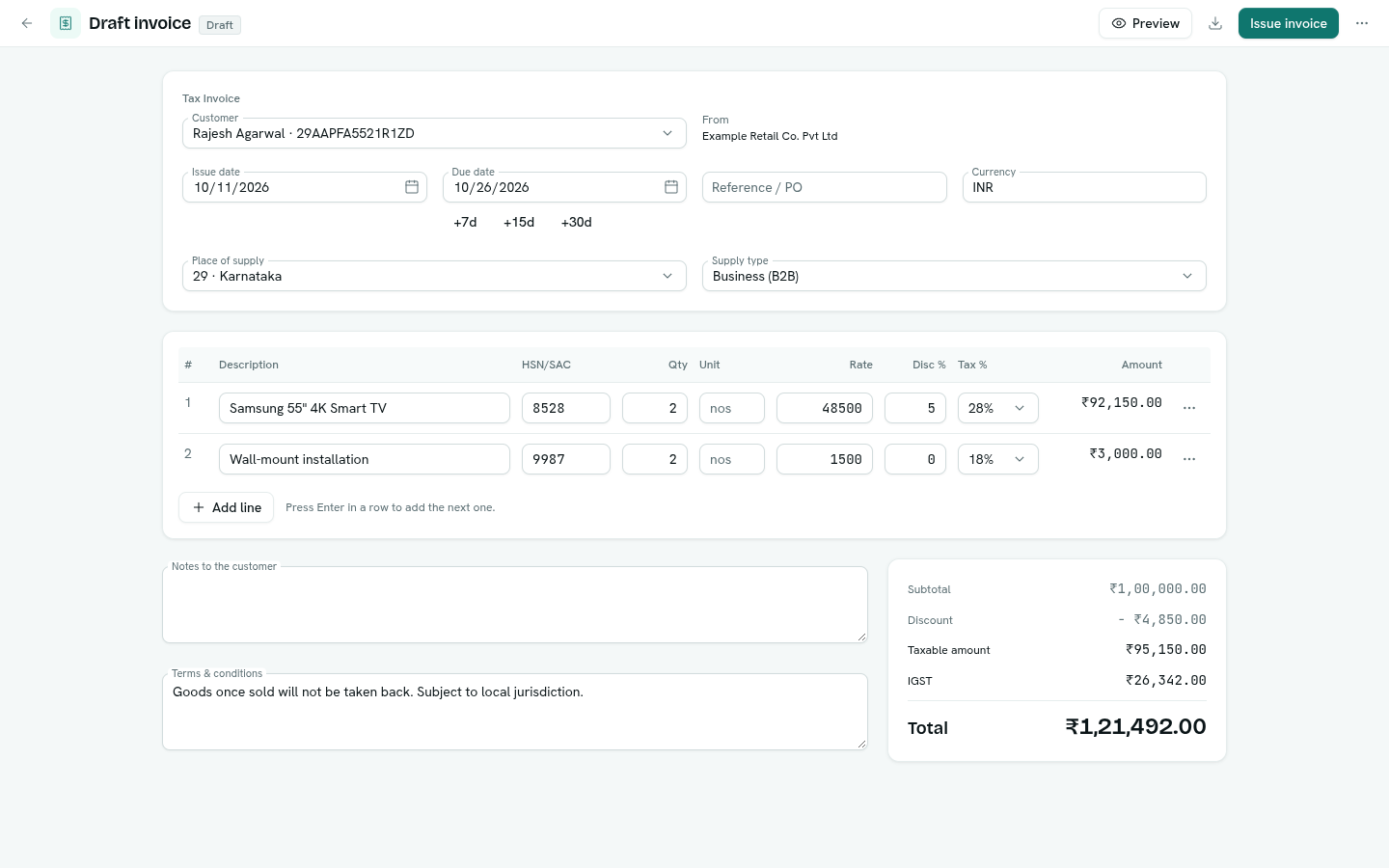
Create a draft
- Go to Documents and click New invoice (the button follows the document type tab you are on).
- Pick the Customer. Their GSTIN, email and state are read from the customer record, and the Place of supply is set from their state — or, if the record has no state, from the first two digits of their GSTIN.
- Check Issue date and Due date. +7d, +15d and +30d set the due date from the issue date.
- Add lines. For each line enter a Description, the HSN/SAC code, Qty, Unit, Rate, an optional Disc % and the Tax %. Press Enter in a row to add the next one.
- Watch the totals card: subtotal, discount, taxable amount, each tax and the total update as you type.
- Add Notes to the customer and Terms & conditions if you need them. Each document type can carry defaults.
Tip: If you set up an item catalogue, start typing in the Item column to fill a line from it.
Each line has a ⋯ menu (or right-click the row) with Insert line below, Move up, Move down and Remove line.
Preview the PDF
Click Preview to open the PDF beside the editor. It updates as the draft saves. A draft prints a "DRAFT — not a valid invoice until issued" banner and a DRAFT-… number.
Issue it
- Click Issue invoice.
- Confirm. The document takes its number (for example
INV/26-27/0001), its PDF is saved in Drive, and — if the document type posts to the ledger — a journal entry is posted.
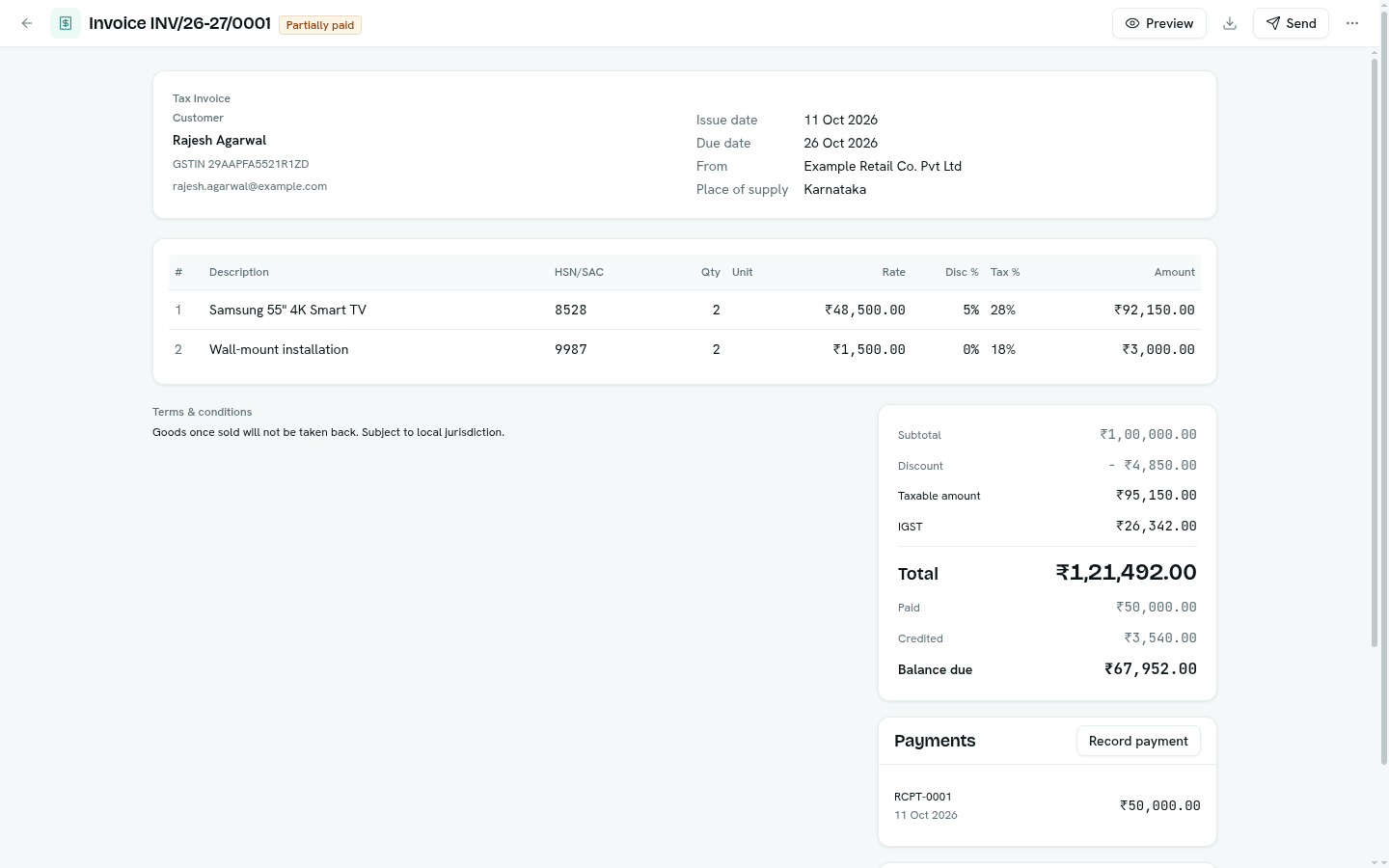
Important: An issued document cannot be edited. To correct one, raise a credit note or cancel it and issue a new one.
Other actions
From the ⋯ menu in the top bar:
- Duplicate — a new draft with the same customer and lines.
- Convert to … — for example a quotation into an invoice. See Convert and create from records.
- Delete draft — drafts only.
Troubleshooting
Issue is disabled You need Issue documents for this document type. Ask an administrator.
"Add your business details to issue documents" Add a business profile first. See Set up invoicing.
A number was skipped If a number in the series already exists on another record (for example an invoice you entered by hand), issuing skips it and takes the next free one.