Invoices & Payments
Track what customers owe, send payment links and see money arrive as payments, all in one app.
Invoices & Payments is where you see what your customers owe, how late it is, and what has come in. You collect money by sending a hosted payment link through your own Razorpay account. When the customer pays, AxisIQ files the payment for you.
What you can do
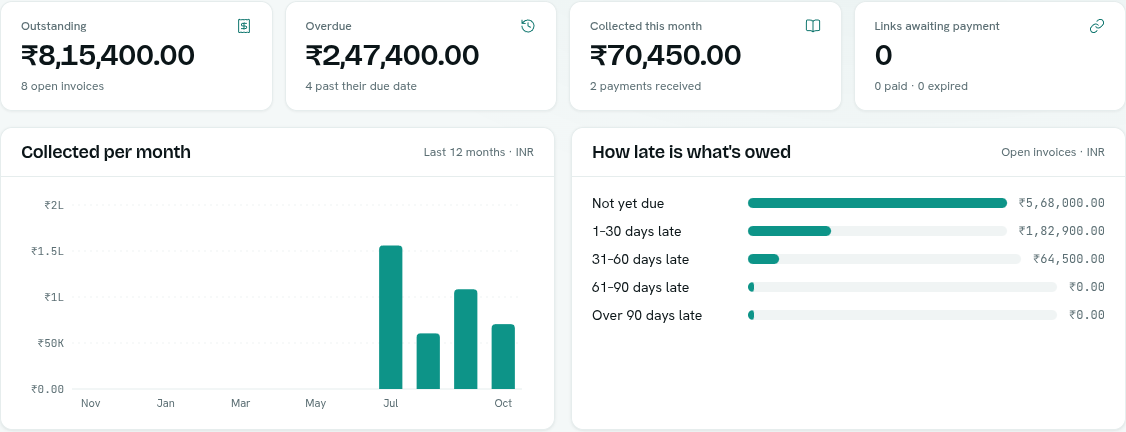
- See what is owed and how late it is — totals, ageing bands, overdue invoices and top debtors. Read the overview guide
- Keep invoices and payments as records — they are ordinary record types with their own fields. See the fields
- Connect Razorpay — add your keys once and set up the webhook. Connect Razorpay
- Collect a payment — create a link for an amount or for an invoice, copy it, and share it. Payment links
- Choose who your customers are — point invoices and payments at the record type you use for customers. Customer setup
Before you start
- Who can use it: you need Collecting payments on the Roles page. Can view lets you open the app and see links and figures. Can collect lets you create, refresh and cancel payment links. Full control adds adding, editing, testing and removing provider connections. Without at least Can view you see "No access to Payments".
- Invoice and payment figures on the overview also depend on your record permissions. You need to be able to read invoices (or payments) and every field the overview uses. Otherwise that half of the overview is left out.
- Switching it off: the app is one of the optional apps. It must be switched on in Settings → Apps or its pages show a "turn it on" page instead.
- Collecting needs a connection. Until a Razorpay connection exists, Collect a payment sends you to Connections instead of opening.
Where to find it
Launcher category Money › Invoices & Payments. The left rail has:
- Overview — what is owed, what is late, what came in.
- Payment links — every link you have created, newest first.
- Connections — your Razorpay accounts.
- Customer setup — which record type your customers live in.
- A Records group under these sections that opens the invoice and payment lists.
Key ideas
| Term | What it means |
|---|---|
| Invoice | A record of money a customer owes you. It has a status of draft, open, paid or void. |
| Payment | A record of money received. Payments made through a link are created for you. |
| Payment link | A web address you share with a customer. They pay on Razorpay's hosted page. |
| Connection | Your Razorpay account, added with your own keys. AxisIQ never charges on your behalf with its own account. |
| Mode | Test or Live. Shown on every connection and in the Collect through list. |
Note: This is you collecting money from your customers. It is separate from your AxisIQ plan and billing, which are under Workspace.