Automatic payment reminders
Send unpaid invoices reminders before and after the due date automatically, from your own email, SMS or WhatsApp account.
Invoices & Payments can chase payment for you. Each unpaid invoice with a due date gets a reminder on the days you choose — before the due date, on the day and after it — sent from your own email, SMS or WhatsApp account with a link to the invoice.
Reminders are on by default, but nothing is sent until you choose the channel they go out from.
Before you start: you need Manage invoicing on Invoices & quotes on the Roles page, and a channel connected in Messaging. The customer needs an email address (for an email channel) or a phone number (for SMS or WhatsApp) on their record.
Set up reminders
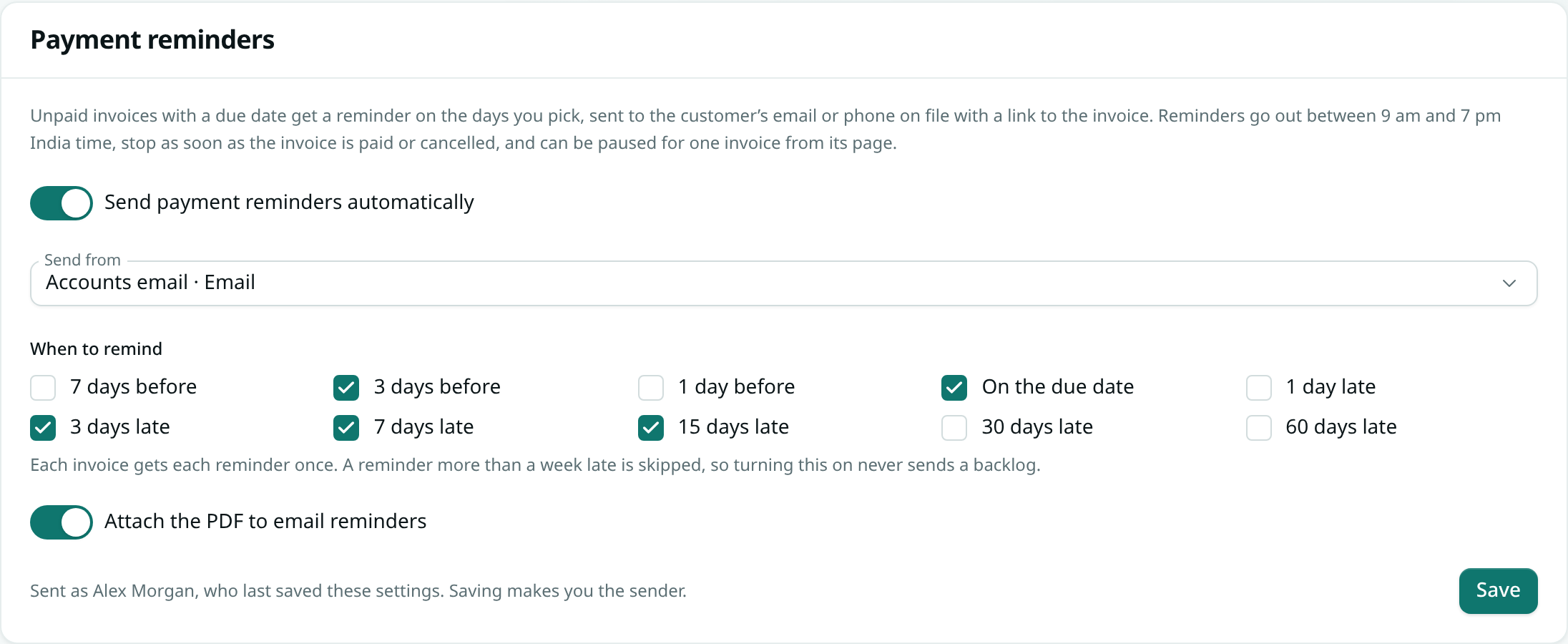
- Open Invoices & Payments › Invoice settings › Payment reminders. While no channel is chosen, the Overview shows Automatic payment reminders are on with a Set up reminders button that brings you here.
- Leave Send payment reminders automatically on.
- Under Send from, pick the channel.
- Under When to remind, tick the days. The default is 3 days before, on the due date, then 3, 7 and 15 days late.
- Leave Attach the PDF to email reminders on if you want the invoice attached.
- Click Save.
What gets sent
- Before or on the due date: "Reminder: INV/26-27/0042 is due on 30 Oct 2026" with the amount due.
- After the due date: "Overdue: INV/26-27/0042 was due on 30 Oct 2026", how many days late it is, and "If you have already paid, please ignore this message."
- Every reminder carries the link to the invoice page, where the customer can download the PDF and, if your business profile has a UPI id, pay by UPI QR.
- Reminders go out between 9 am and 7 pm India time.
Which invoices get reminders
- Issued documents of a type that tracks payment for sales — invoices, not quotations, credit notes or supplier bills.
- With a due date, and with something still owed. A partly paid invoice is reminded for what is left.
- Reminders stop by themselves when the invoice is paid in full, or cancelled.
Each invoice gets each reminder once. If a reminder day is more than a week in the past, it is skipped, so switching reminders on never sends a pile of old reminders to your customers.
One invoice
Open an issued invoice. The Payment reminders panel shows when the next reminder goes out and every reminder already sent, with the date. If one could not be sent, the reason is shown — for example a customer with no email address.
- Click Pause to stop reminders for this invoice only (for example, the customer has agreed to pay later). Click Resume to start again. Pausing needs Issue documents for that document type.
Whose name reminders go out under
Reminders are sent with the permissions of the person who last saved the reminder settings — the settings page says who. If that person leaves the workspace or loses access to messaging or invoicing, reminders stop; whoever saves the settings next becomes the sender.
Note: WhatsApp only delivers free text within 24 hours of the customer's last message, so most reminders on WhatsApp are refused by WhatsApp. Email or SMS is the reliable choice. Every reminder appears in Messaging's activity with its delivery status, and opted-out customers are never messaged.