Share and send documents
Download the PDF, share a public link with a UPI QR, or send the document by email, SMS or WhatsApp through your own account.
Once a document is issued you can hand it to the customer three ways.
Download the PDF
Click the download button in the top bar. Issued documents are also saved to Drive (in the space chosen for the layout); the Sharing panel shows PDF saved in Drive.
Share a public link
- In the Sharing panel click Create link. The link is copied.
- Send it however you like. The customer sees your business, the amount due, the due date, a Download PDF button, the PDF itself and — if your profile has a UPI id and the document is unpaid — a UPI QR to pay.
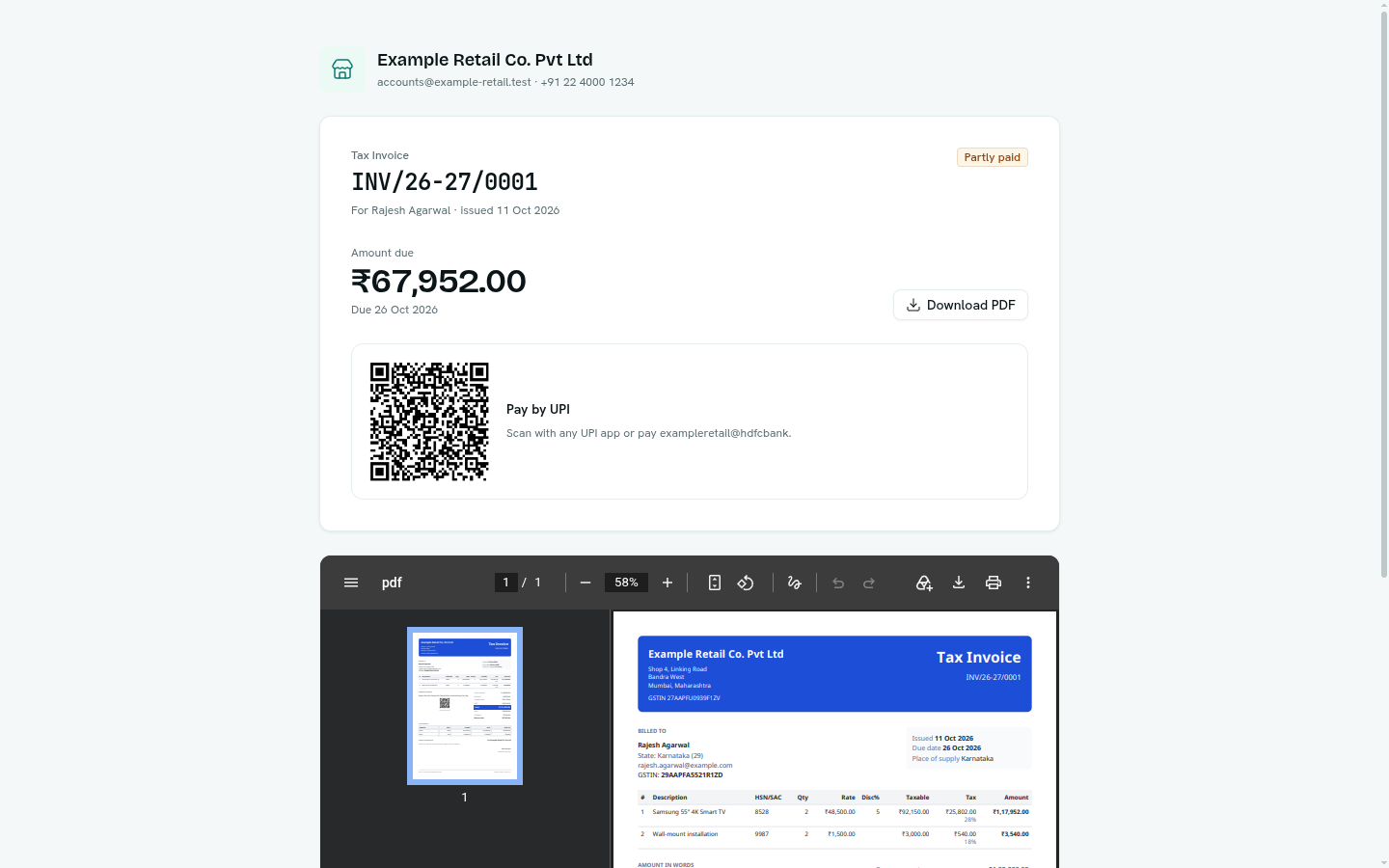
To stop the link working, choose Stop sharing from the ⋯ menu. A new link can be created later; the old one never works again.
Send by email, SMS or WhatsApp
Documents are sent through your own messaging account, connected in Messaging — so the message comes from you and your provider's delivery reports apply.
- Click Send.
- Pick the channel, check the recipient (filled from the customer's email or phone), the subject and the message.
- Leave Attach the PDF on for email.
- Click Send. The message is queued and appears in Messaging's activity with its delivery status.
Before you start: Sending needs a messaging connection. Without one, the Send dialog offers Open Messaging instead.
Note: WhatsApp only allows approved templates outside a 24-hour customer window. Use a template your provider has approved.
Remind about overdue documents
The Overdue panel on the Overview has a Remind button on each document. It opens the same Send dialog with a reminder message.