Customer setup
Choose which kind of record your invoices and payments treat as a customer, or create one.
Every invoice and payment can name the customer it belongs to. This setting chooses which record type a "customer" is in your workspace.
Before you start: you need permission to change fields on both invoices and payments to edit this. To create a new kind of record you also need permission to create record types. Others see a note that only people who can change fields on invoices and payments can change it.
Steps
- Open Invoices & Payments › Customer setup.
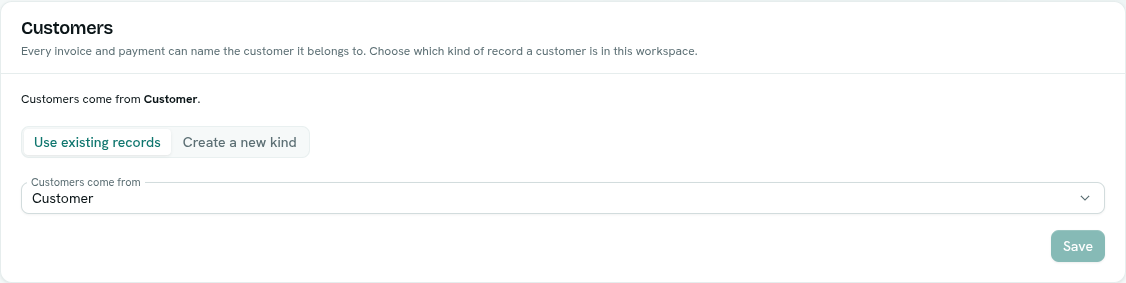
- Read the status line. It says "Customers come from ", or shows Customers aren't set up yet when the type invoices look for does not exist.
- Choose how to set it:
- Use existing records — pick from Customers come from, then click Save.
- Create a new kind — enter a Name (for example "Customers"), then click Create and use. The new type is created with a Name field. You can add more fields later in Settings.
(The switch between the two only appears if you can create record types.)
What happens next
- The Customer field on both invoices and payments now points at the chosen type, and customers can be picked on those records.
- If a type is created, it is filed under this app.
Switching away from a type
If a customer type is already set and you pick another, a confirmation asks "Switch customers to ?". Invoices and payments that already name a record of the old type keep that link, but it no longer shows. Their customer must be picked again. Click Switch to continue.
Tips
- Use an existing type if your workspace already has one, such as Customers or Clients. Types that are invoices, payments or line-item child types are not offered.
- If invoices and payments in your workspace have no customer field at all, the page says so and there is nothing to set.
Troubleshooting
A yellow banner "Customers aren't set up yet" appears on every section Invoices look for a type that does not exist in your workspace, so no customer can be picked. Click Fix in settings and choose or create a type.
Save is disabled Nothing has changed, or no type is chosen.