PDF layouts and design
Choose a built-in layout, set your accent colour and the sections that print, or write your own layout in Templates.
Every document prints through a layout. You can change how documents look at three levels: pick a different built-in layout, adjust its appearance without touching code, or write your own layout.
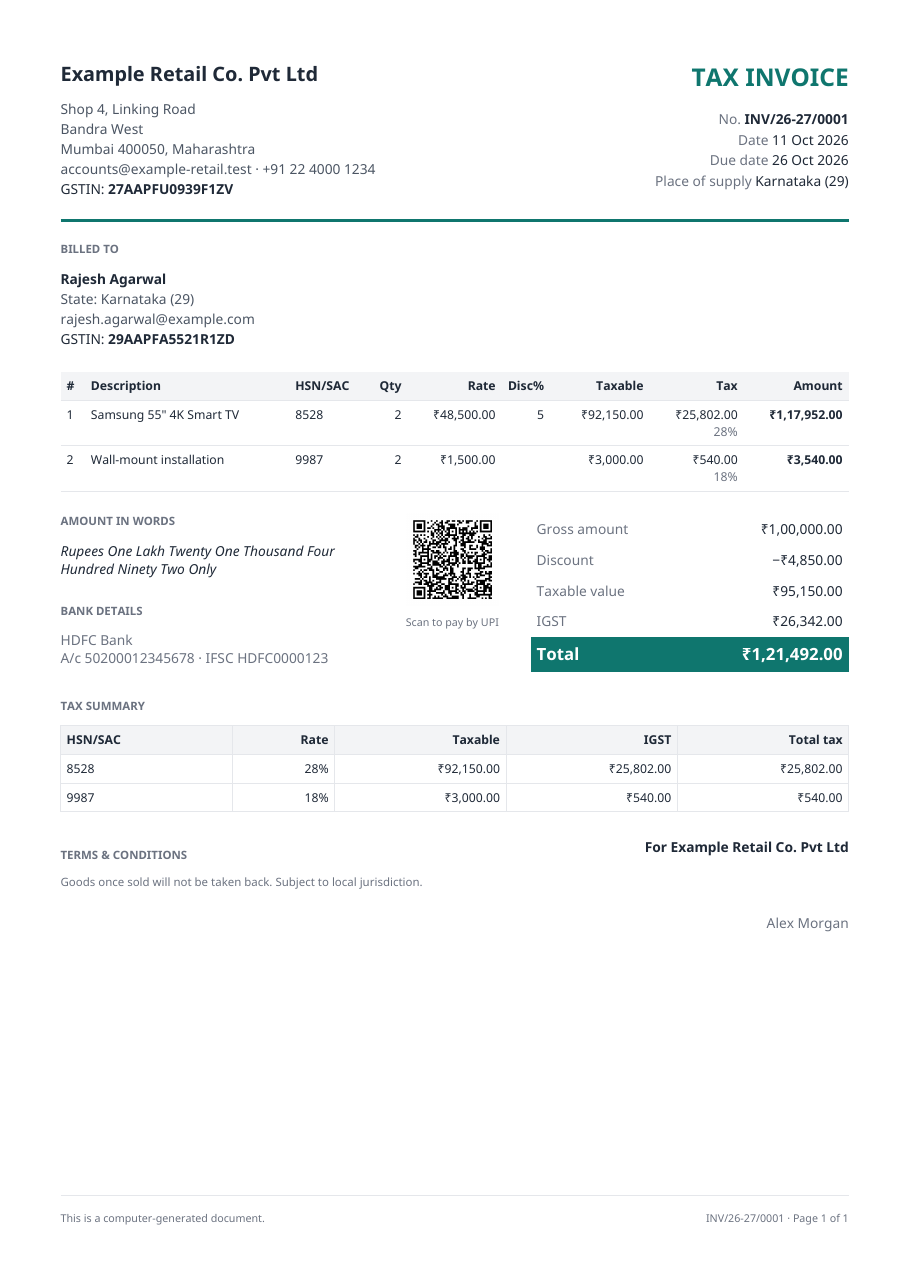
The built-in layouts
| Layout | Best for |
|---|---|
| Classic | Tax invoices and credit notes: seller and buyer blocks, itemised lines, tax summary, bank details, UPI QR and signature. |
| Modern | The same statutory content under a coloured header band, with roomy totals. |
| Simple | One clean column without the tax summary or bank block — quotations, proformas and delivery challans. |
Change the look without code
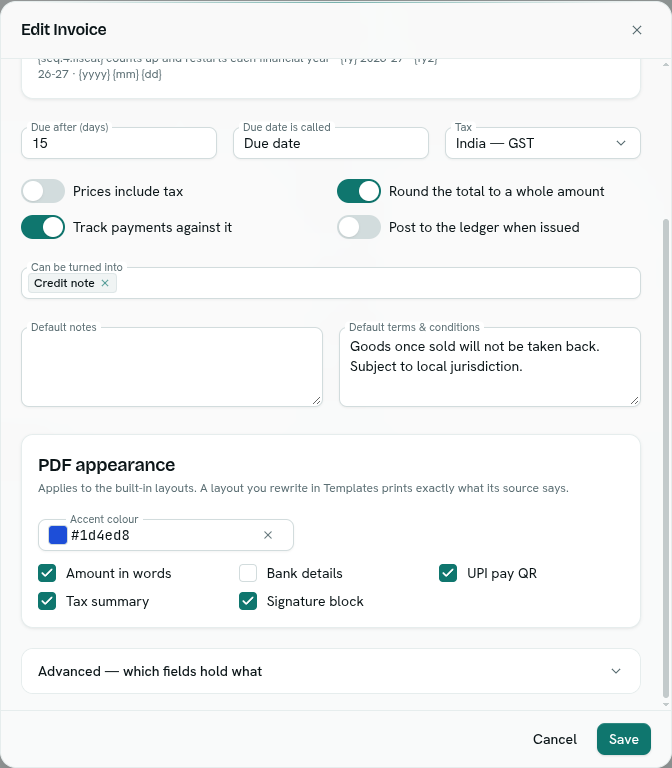
- Go to Invoice settings → Document types and click the document type.
- Scroll to PDF appearance.
- Pick an Accent colour — it colours the title, the rule under the header, the Modern header band and the total.
- Untick any section you do not want printed: Amount in words, Bank details, UPI pay QR, Tax summary, Signature block.
- Click Save. The next preview or PDF uses it.
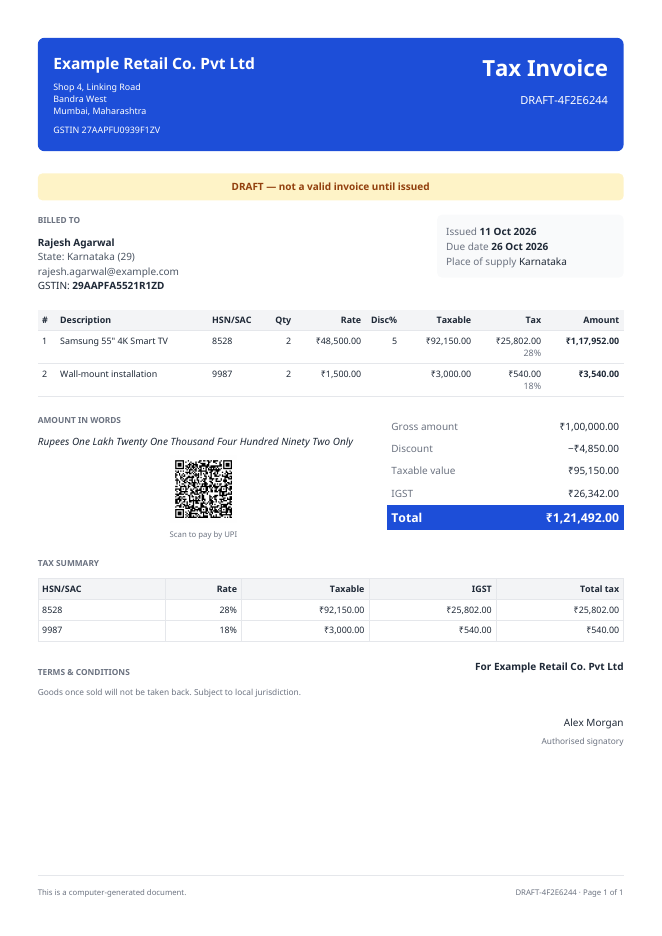
Your logo, footer, signatory, bank details and UPI id come from the business profile. The Printed title (for example "TAX INVOICE") and default notes and terms come from the document type.
Use a different layout
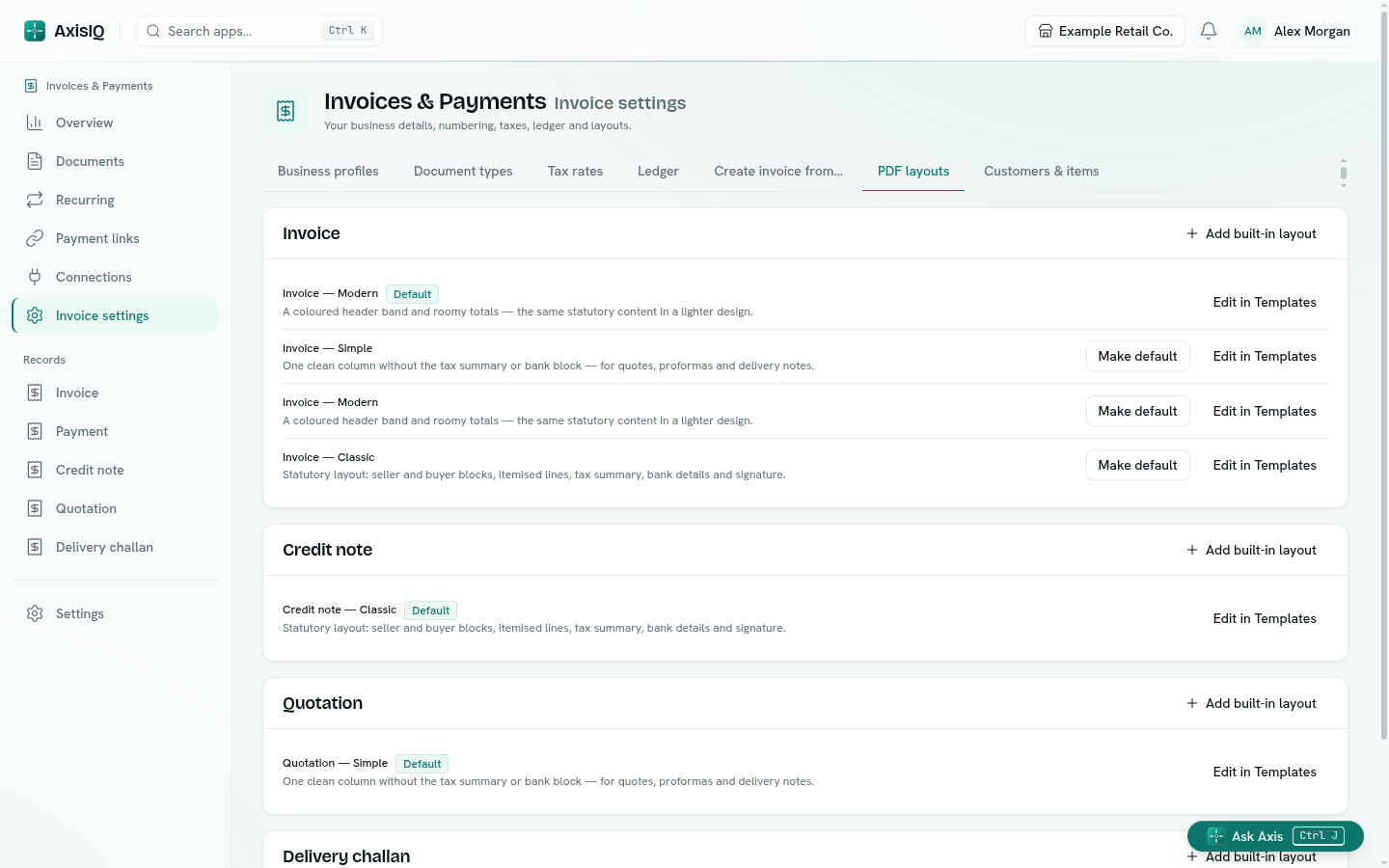
- Go to Invoice settings → PDF layouts.
- Under the document type, click Add built-in layout, choose Classic, Modern or Simple, and pick the Drive space PDFs are saved to.
- Click Make default on the layout you want. New previews, downloads and issued documents use it.
Write your own layout
Click Edit in Templates on any layout. It opens in the Templates app, where the layout source is an XML document — rows and 12-column grids, tables, boxes, images and text styles. Everything about the document is available to it under .doc:
| Value | What it holds |
|---|---|
.doc.number, .doc.issue_date_display, .doc.due_date_display |
Number and dates |
.doc.seller |
Your business profile: legal_name, address, tax_id, bank_name, logo_url, signatory… |
.doc.party |
The customer: name, address, tax_id, email, region_name |
.doc.lines |
Each line: n, description, code, qty, unit, rate, taxable, tax, total, plus values (every field on the line record) |
.doc.totals |
gross, discount, taxable, components, round_off, total, amount_paid, credited, amount_due |
.doc.tax_summary |
The rows of the tax summary |
.doc.amount_in_words, .doc.upi_qr, .doc.style |
Words, the UPI payment string, and the appearance settings |
Helpers: {{amount .doc.totals.total .doc.currency}} formats money (₹1,21,492.00), {{qr .doc.upi_qr}} draws a QR code. Click Preview PDF to check against a real document before saving.
Note: A layout you rewrite prints exactly what its source says — the accent colour and section switches apply to the built-in layouts only.
Tip: Issued documents keep the PDF that was saved when they were issued. Changing a layout affects new previews and documents issued after the change.