The overview
Read the Overview tiles, charts, overdue list and top debtors, and open the invoices behind each number.
The Overview is the home of Invoices & Payments. It answers three questions: what customers owe, how late it is, and what came in.
Before you start: the invoice figures need permission to read invoices, and the payment figures need permission to read payments (see Customer setup and your role's record permissions). A half you cannot read is left out rather than shown as zero.
The four tiles
| Tile | What it shows |
|---|---|
| Outstanding | The total of open invoices, with the count ("3 open invoices"). Click it to open the invoice list filtered to open invoices. |
| Overdue | Open invoices whose due date is before today (UTC). Shows "Nothing late" when there are none. Click it to open the overdue invoices. |
| Collected this month | Payments received this month and how many. Click it to open this month's payments. |
| Links awaiting payment | Payment links not yet paid, with "paid · expired" counts beside it. Click it to open Payment links. |
Totals are shown with two decimals and each currency's own symbol.
The charts
- Collected per month — payments received over the last 12 months.
- How late is what's owed — open invoice amounts in bands: Not yet due, 1–30 days late, 31–60 days late, 61–90 days late, Over 90 days late.
Each chart draws one currency. When your activity spans more than one currency, a Charts in selector appears. The charts start on your workspace's default currency (or the busiest currency) and name the other currencies in the chart hint. Amounts in different currencies are never added together.
Overdue invoices
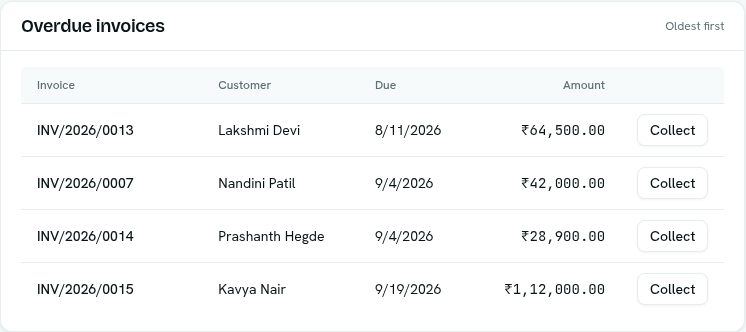
A table of the 10 oldest overdue invoices: Invoice, Customer, Due, Amount. If you can collect payments, each row has a Collect button that opens Collect a payment with that invoice already chosen.
Who owes the most
The top five customers by open invoice amount, with how many invoices each has. Invoices with no customer are not counted here.
Empty states
- Nothing owed or collected yet — shown when there are no open invoices, payments or links. It offers Go to invoices (or Connect a payment provider if you can only see links).
- No access to invoice or payment figures — you have neither permission.
- The overview could not be loaded — click Retry.
Troubleshooting
The Collect button says to connect a payment provider first Collecting needs a Razorpay connection. Add one under Connections. See Connect Razorpay.
The customer column shows a dash The invoice has no customer. Choose one on the invoice, or check Customer setup.