Create a template
Write a PDF layout, bind it to a record type, choose where files are saved and preview it.
Write a layout, choose where its files are saved, and check it with a live preview before you save.
Before you start: you need Full control on Document templates (Roles page). At least one shared Drive space must exist to save files into.
Steps
- Open Templates and click New template.
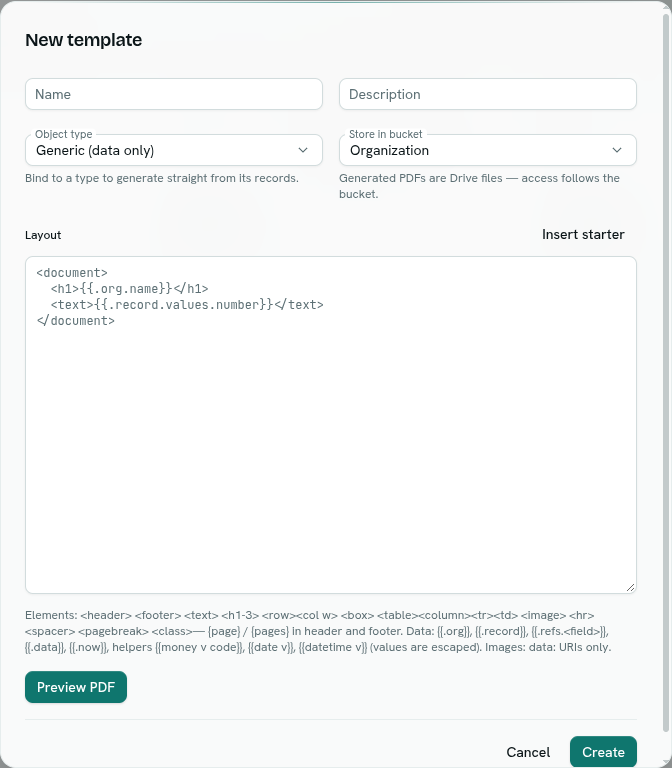
- Fill in Name (required, up to 120 characters). Add a Description if you like (up to 500 characters).
- Pick an Object type. Choose a record type to bind the template to it, so you can generate from that type's records. Leave Generic (data only) if the template should not use a record.
- Pick Store in bucket. Generated PDFs are Drive files, and access follows this space. Personal drives are not offered. The first shared space is chosen for you.
- In Layout, write the template. Click Insert starter to drop in a working invoice layout you can edit.
- Click Preview PDF. The PDF opens in a new browser tab. If the template is bound to a type, pick a record in Preview with record first so the preview uses real data.
- Click Create.
What happens next
- You see "Template created" and the card appears in the grid.
- On every save the layout is checked. A layout that is not valid is refused with every problem listed (for example
line 7 <row>: col widths sum to 10, must be 12). - Preview uses your unsaved text, so you can iterate without saving. Nothing is stored.
Tips
- The hint under the editor lists the elements, the data you can use and the helpers. See Layout reference and Template data and helpers.
- Edit later with Edit on the card. In the editor, Save updates the template and Delete removes it.
- A layout is limited to 256 KB. A filled-in document is limited to 8 MB and 500 pages.
Troubleshooting
template source is required The Layout box is empty. Write a layout or click Insert starter.
generated documents need an organization bucket, not a personal one Choose a shared space in Store in bucket.
layout: … The layout breaks a rule. The message names the line and the tag. See the Layout reference.
template: doc:… (a message from the template language)
A {{placeholder}} is not written correctly, for example a missing }} or an {{if}} without {{end}}.
Preview failed The PDF could not be built. The message under the form says why.