Expense claims
File an expense claim with a receipt, get it approved, and have it paid with the next salary — with per-category limits and receipt rules.
File a claim
- Click New claim at the top of any People page.
- Pick a Category, say What for, the Date and the amount.
- Attach receipt — a photo or PDF. Some categories need one; the dialog tells you.
- Click Submit claim.
The claim goes to your approver. Once approved, it is paid with the next payroll run as a reimbursement on your payslip.
Track claims
My HR lists your recent claims. Expenses shows them all:
- Whose claims — Mine, Waiting on me, Team or Everyone.
- Status — pending, approved, rejected, reimbursed or cancelled.
- Tiles for Waiting for approval, Approved, to be paid and Reimbursed this month.
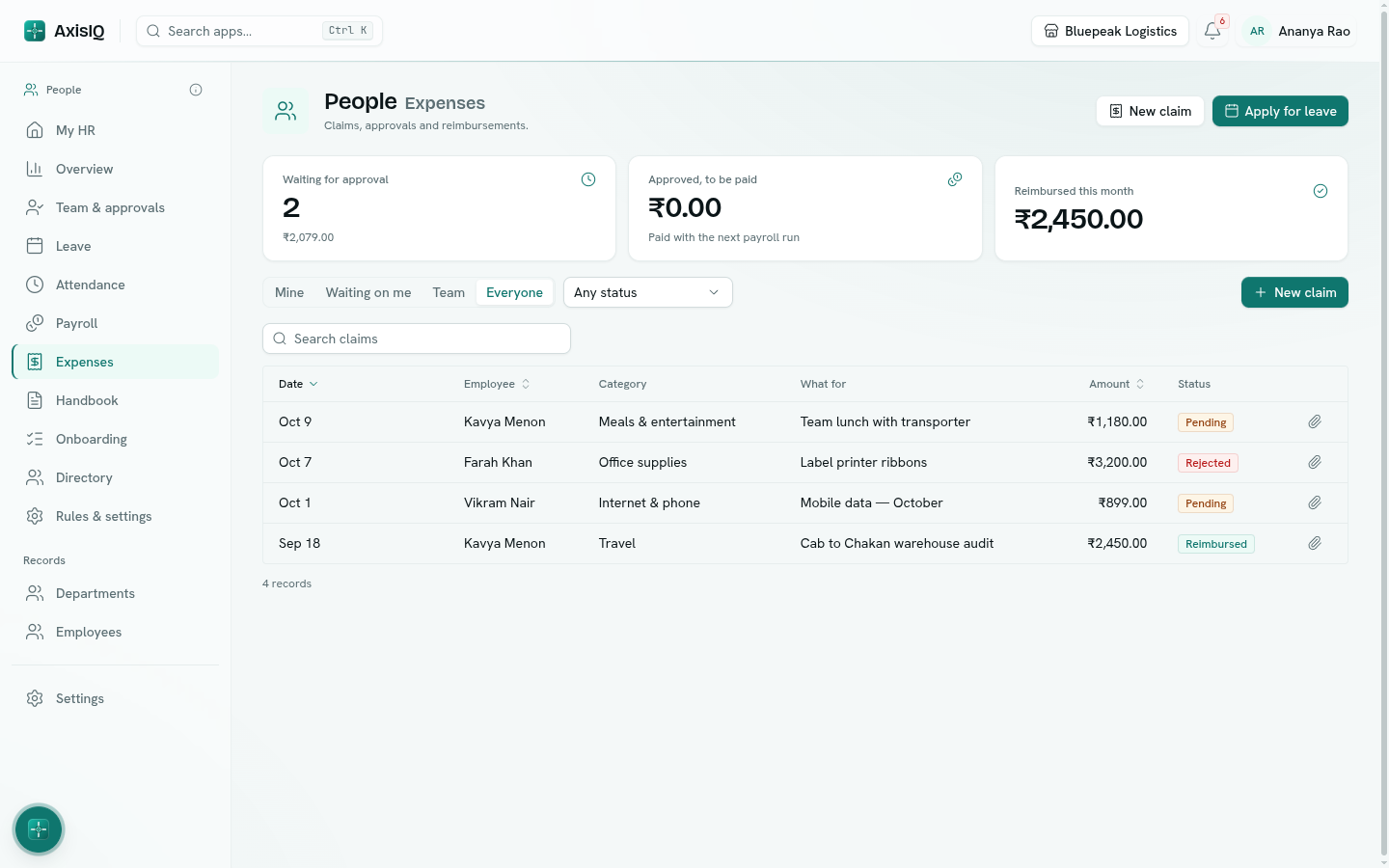
Click a claim to see its receipt and approval steps. Withdraw your own while it is pending.
Categories and limits
Under Rules & settings › Expenses, each category has a Limit per claim and Receipt required above (0 means always). The starting categories are travel, meals & entertainment (limit 5,000, receipt over 500), internet & phone (limit 2,000), office supplies and other. Who approves claims is set under Rules & settings › General › Approvals.
Paid outside payroll
If you paid a claim another way, open it and click Mark paid outside payroll (needs Full control on People) so it isn't paid again in the next run.