Overview and activity
See open, overdue and stuck work across all your queues, and follow every change in the Activity feed.
The Overview answers "how is work going?" across every queue you can see, and Activity shows every change as it happened.
Before you start: you need at least Can view on Work queues. Both sections only count queues you are allowed to see.
Overview
Open Work Queues. The Overview is the first section in the rail.
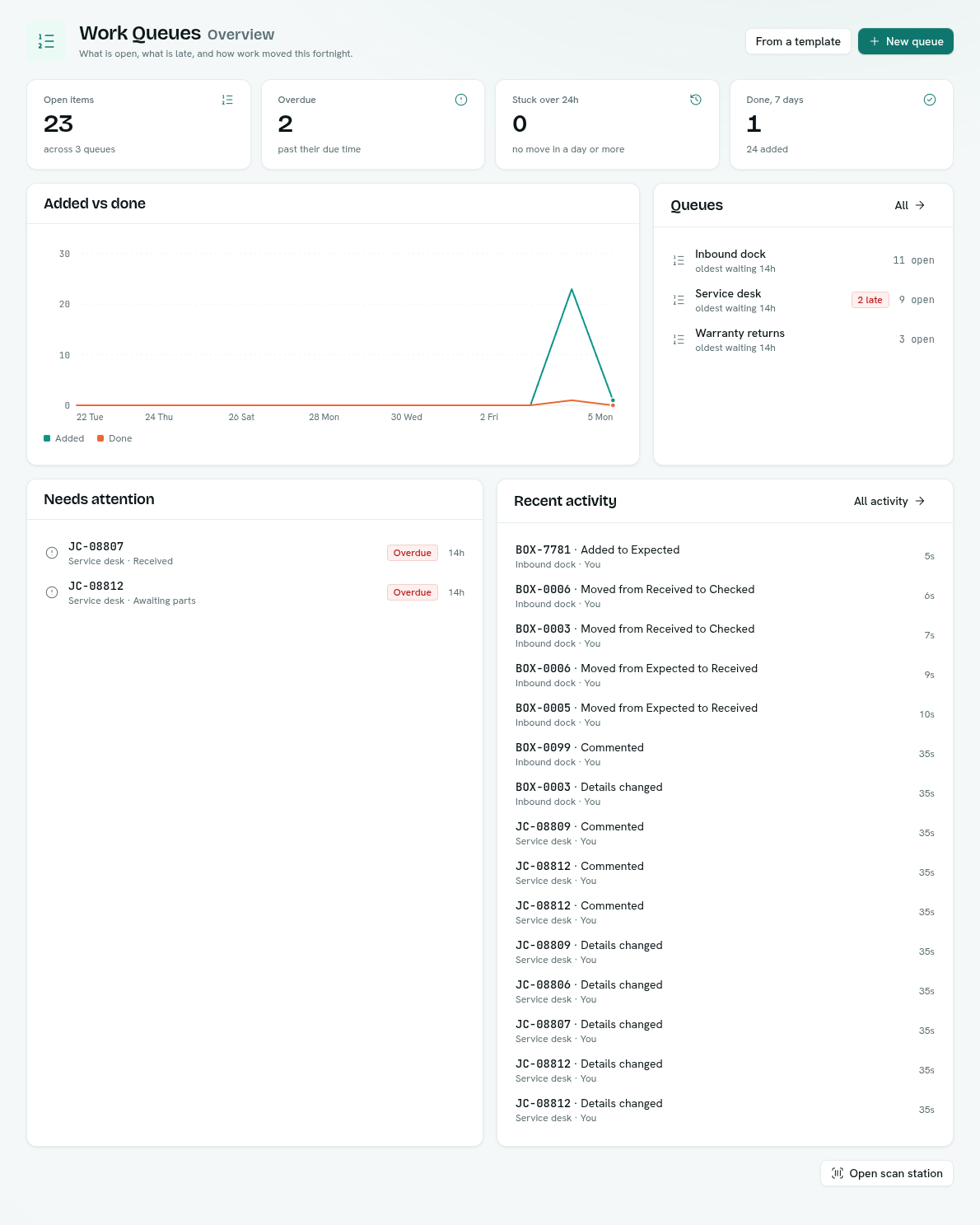
- Open items — how many items are open, across how many queues. Click it to go to Queues.
- Overdue — open items past their due time.
- Stuck over 24h — open items with no move in a day or more.
- Done, 7 days — items finished in the last week, with how many were added. Click it to go to Activity.
- Added vs done — items added and completed per day over the last 14 days.
- Queues — each queue with its open count, how long its oldest item has waited, and a red late badge when it has overdue items. Click a queue to open it.
- Needs attention — the overdue and stuck items most in need of a look, with their queue, stage and age. Click one to open it. When there are none it says "Nothing is late or stuck. Nice."
- Recent activity — the latest changes. All activity opens the Activity section.
- Open scan station at the bottom goes straight to the scanner.
A brand-new workspace shows "No queues yet" with Browse templates and a button to build your own.
Activity
Open Work Queues › Activity.
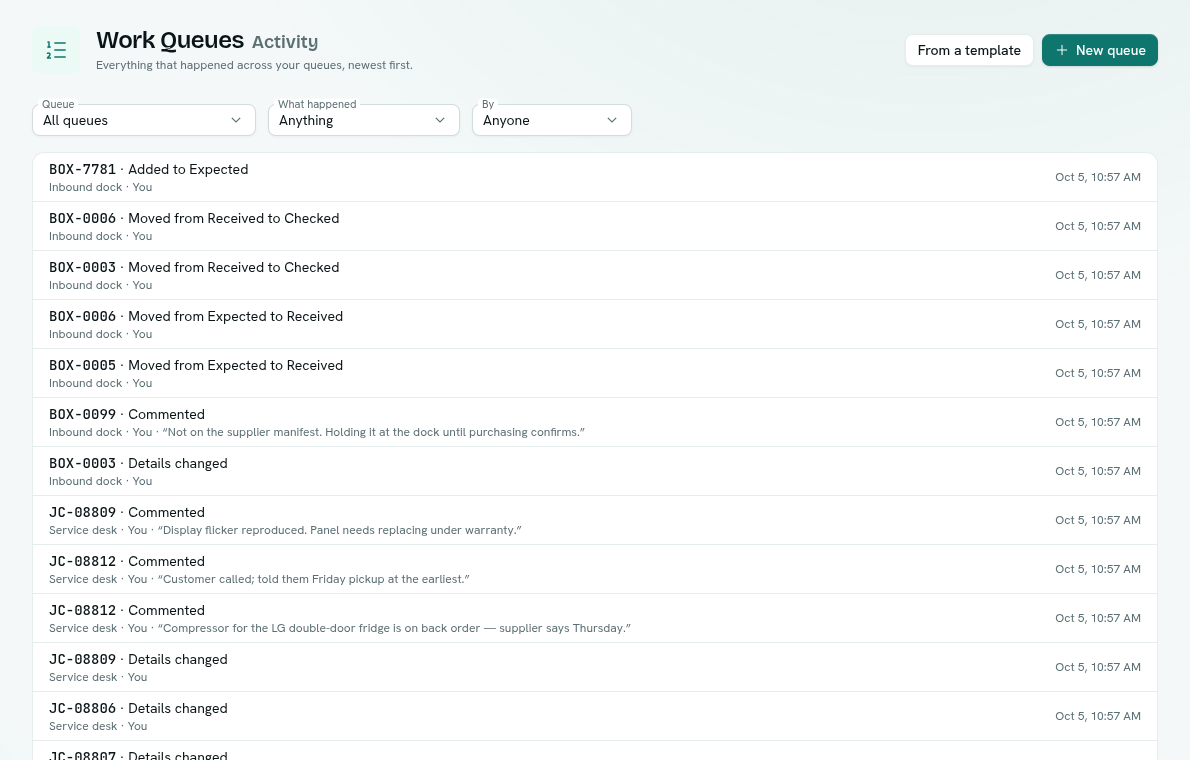
Each row names the item, what happened ("Moved from Received to Checked", "Added to Expected", "Commented", "Picked up", "Put back", "Details changed", "Ran a stage button"), the queue, who did it and when. Comments show their text.
Filter with:
- Queue — All queues or one queue.
- What happened — Anything, Added, Moved, Picked up, Put back, Details changed, Comments or Buttons.
- By — Anyone or Me.
Click a row to open that item. Load more fetches older events. Filters are part of the page address, so you can send a filtered view to a teammate.
Tips
- Check Needs attention at the start of a shift.
- Use Activity with By: Me to see what you did today.
- Add a due date to an item (or a time limit to a stage) so late work shows up as Overdue.