Scan station
A full-page barcode scanner: pick a queue, scan all shift, and see what each scan did.
The Scan station is a full page made for a barcode gun: pick a queue once, then scan all shift. Every scan moves an item and answers at once with what happened.
Before you start: you need a running queue and Can work the queue on it. A scan that creates a new item (queues set to Create an item) also needs permission to add work. See Queue permissions.
Steps
- Open Work Queues › Scan station (or Open scan station on the Overview).
- Choose the Queue. Optional: choose a Batch so new items land in that batch.
- The cursor waits in Scan or type a code. Scan a code with a barcode gun, or type it and press
Enter(or click Record scan). - Optional: change Move to from Next stage to a specific stage, for example to send everything straight to Checked.
- Keep scanning. The box clears and stays focused after every scan.
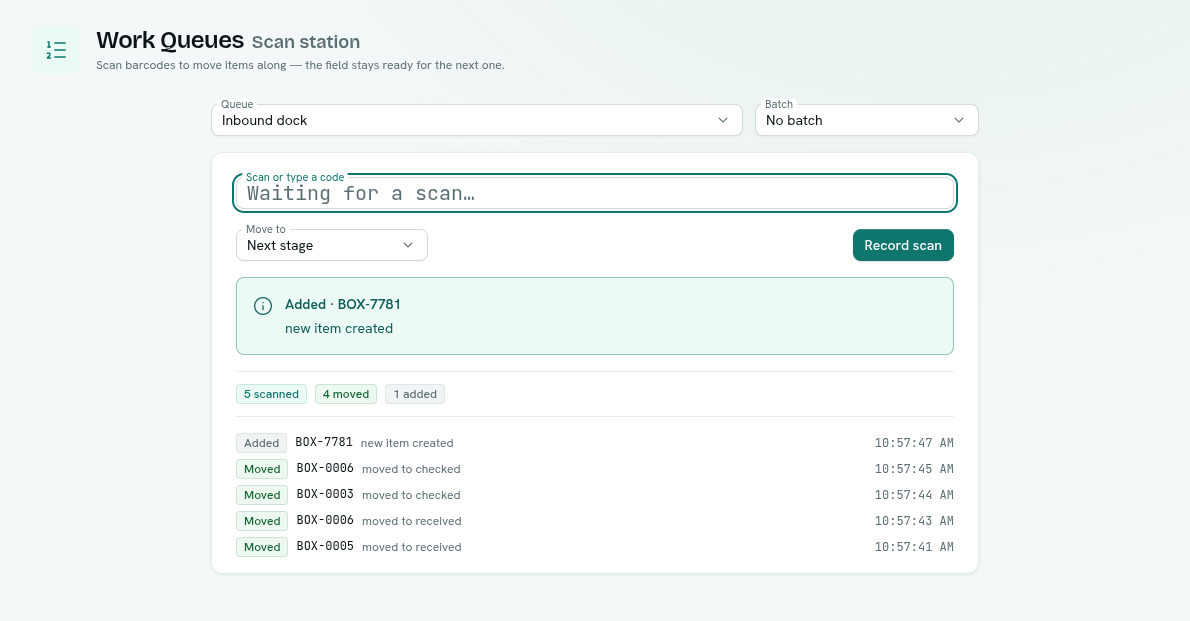
The station's address includes the queue and batch (for example …/apps/queues/scan?queue=…&batch=…). Bookmark it on the station's computer so it opens ready to scan.
You can also scan from inside a queue: click Scan in the queue's header to open the same scanner in a window.
Results
The last scan is shown large; below it, counters for the session and a log of your scans, newest first.
| Result | Meaning |
|---|---|
| Moved | The item was found and moved to the next stage (or the stage you chose). |
| Added | The code was not in the queue, and the queue is set to Create an item for unknown scans, so a new item was made. It shows as Not on the list. |
| Already scanned | The item is already in that stage. Nothing changed, so a double beep is harmless. |
| Not on this list | The code is not in the queue, and the queue is set to Reject it. Nothing was changed. |
| Can't move | The item was found but could not move. The message gives the reason, such as a stage that does not accept items from there, or a stage that is full. |
Tips
- Use Reject it when checking a delivery against a list: anything unlisted shows Not on this list, which is what you want to catch.
- Use Create an item for open intake, where every scan is new work.
- The log keeps your last 200 scans for this session. The queue's own history in Activity is separate and permanent.
- If a scan fails because of a connection or permission problem, the row shows Can't move with the message. The code was not recorded, so scan it again.
Troubleshooting
"No queue to scan into" There is no running queue you can move items in. Ask someone with Full control to create one or switch it on.
The scanner types into the wrong place Click into Scan or type a code once. After that the box keeps focus by itself.