Work on an item
Open an item to move, assign, prioritise or finish it, and keep notes in its history.
Open an item to see everything about it, move it, assign it, change its priority and keep notes in its history.
Before you start: Can view on Work queues to open an item. Moving, assigning, priority and comments need Can work the queue. Delete item needs Full control.
Open an item
Click it anywhere it appears: a card on the Board, a row in Items, My work, Activity or Needs attention on the Overview. The item opens in a window over the queue, and its address can be shared.
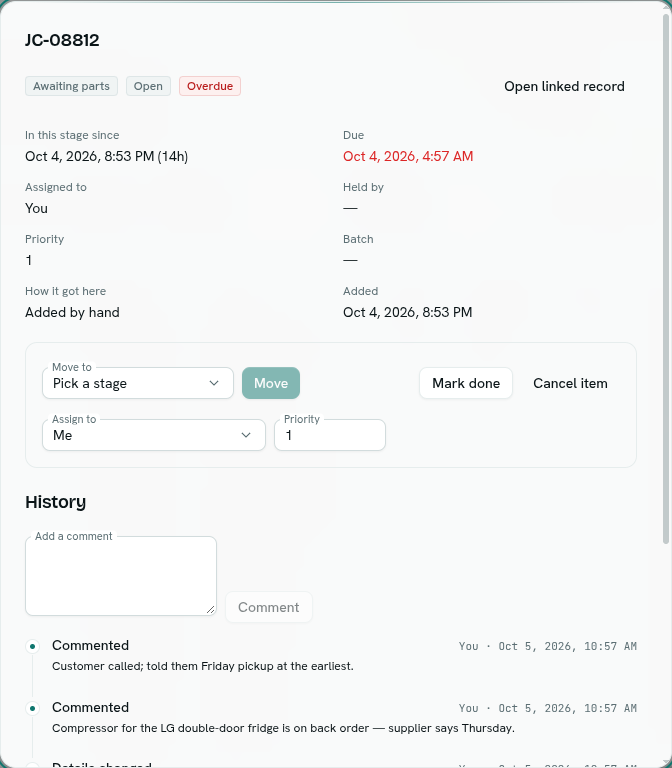
What you see
- The reference, its stage, its status and badges such as Overdue or Not on the list.
- Open linked record — when the item points at a record.
- In this stage since, Due, Assigned to, Held by, Priority, Batch, How it got here (Added by hand, From a list, From a record, From a function, or Scanned (not on the list)), Added, and Closed once it is finished.
- Failed attempts and Last problem if a stage button failed on it.
- Details — any extra information that came with the item.
Change it
| To | Do this |
|---|---|
| Move it | Choose a stage in Move to and click Move. Stage rules (accept-from, WIP limit, record update) apply. |
| Finish it | Mark done. Or Cancel item if it will not be done. A finished item can be Reopened. |
| Assign it | Pick Me, a teammate or Nobody in Assign to. |
| Prioritise it | Type a number in Priority and click Save priority. Higher numbers are picked up first. |
| Free it | Put back releases a hold so someone else can pick it up. |
| Remove it | Delete item and confirm. Its history goes with it and this cannot be undone. |
History and comments
History lists everything that happened to the item, newest first: when it was added, every move, pick-up and put-back, detail changes and button runs — with who did it and when.
To leave a note for the next person:
- Type in Add a comment (up to 2,000 characters).
- Click Comment.
The note appears in the item's history and in Activity for everyone who can see the queue. Comments cannot be edited or deleted.
Tips
- Use comments for handovers: "Compressor on back order — supplier says Thursday."
- Assign items rather than telling people in chat; they then show up in that person's My work.