Relay Connect: work with other organizations
Share a channel with people from another AxisIQ organization, message them directly, and disconnect when the work is done.
Relay Connect brings a customer, supplier or partner into one of your channels, while each side stays in its own workspace. They see that one channel and nothing else of yours.
Before you start: sharing a channel needs Full control on Relay, in your workspace. The person you invite needs an AxisIQ account and Full control on Relay in their own workspace to accept. Invitations are sent by email.
Share a channel
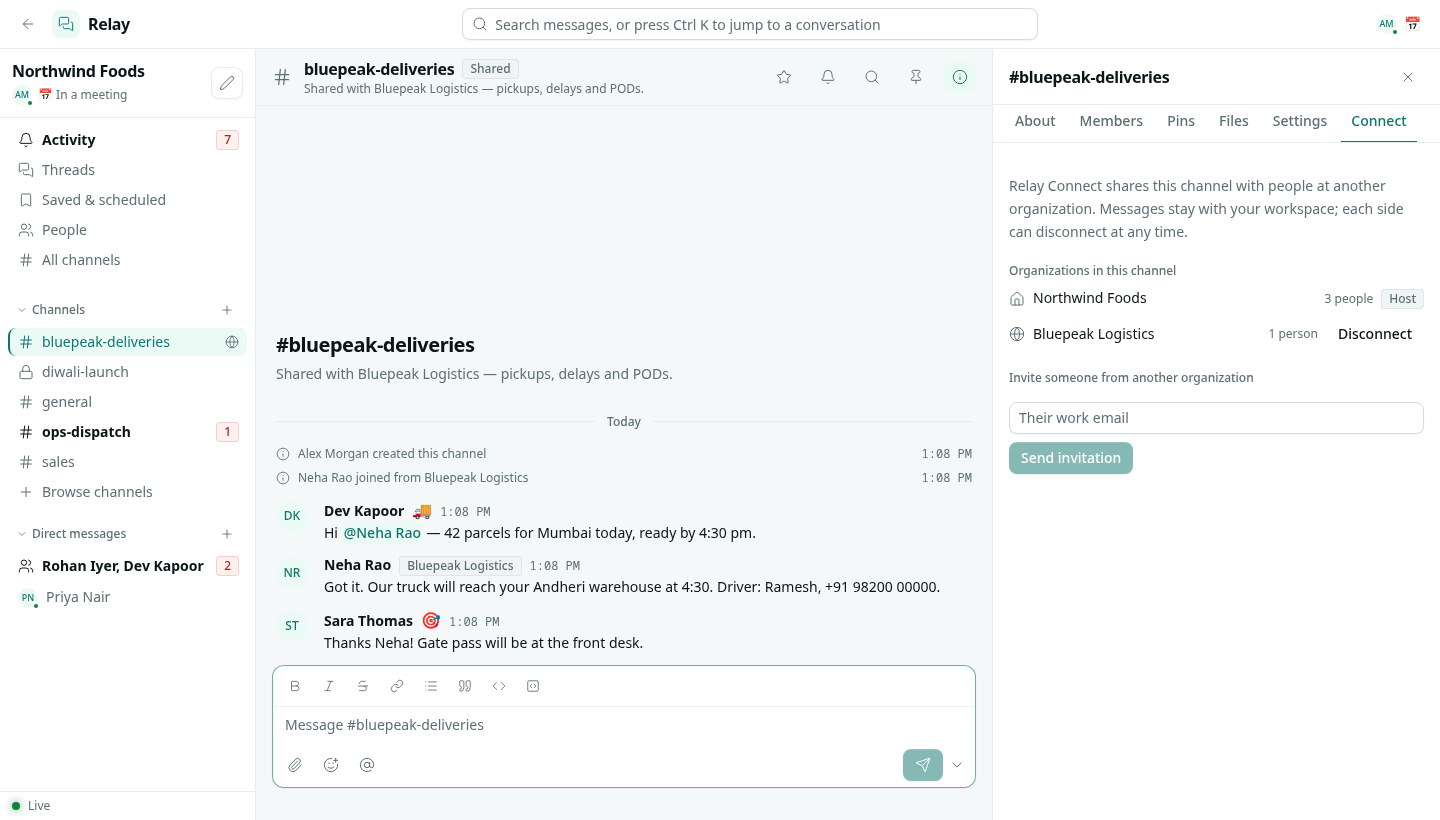
- Open the channel and click the i icon in its header.
- Open the Connect tab.
- Under Invite someone from another organization, type their work email and click Send invitation.
They receive an email with a link. The link works only for that email address, only once, and for 7 days. You can also copy it and send it yourself.
Accept an invitation
- Open the link from the email and sign in to AxisIQ with the address it was sent to.
- Check the channel and organization it comes from.
- In Bring it into, pick which of your workspaces should join, then click Accept invitation.
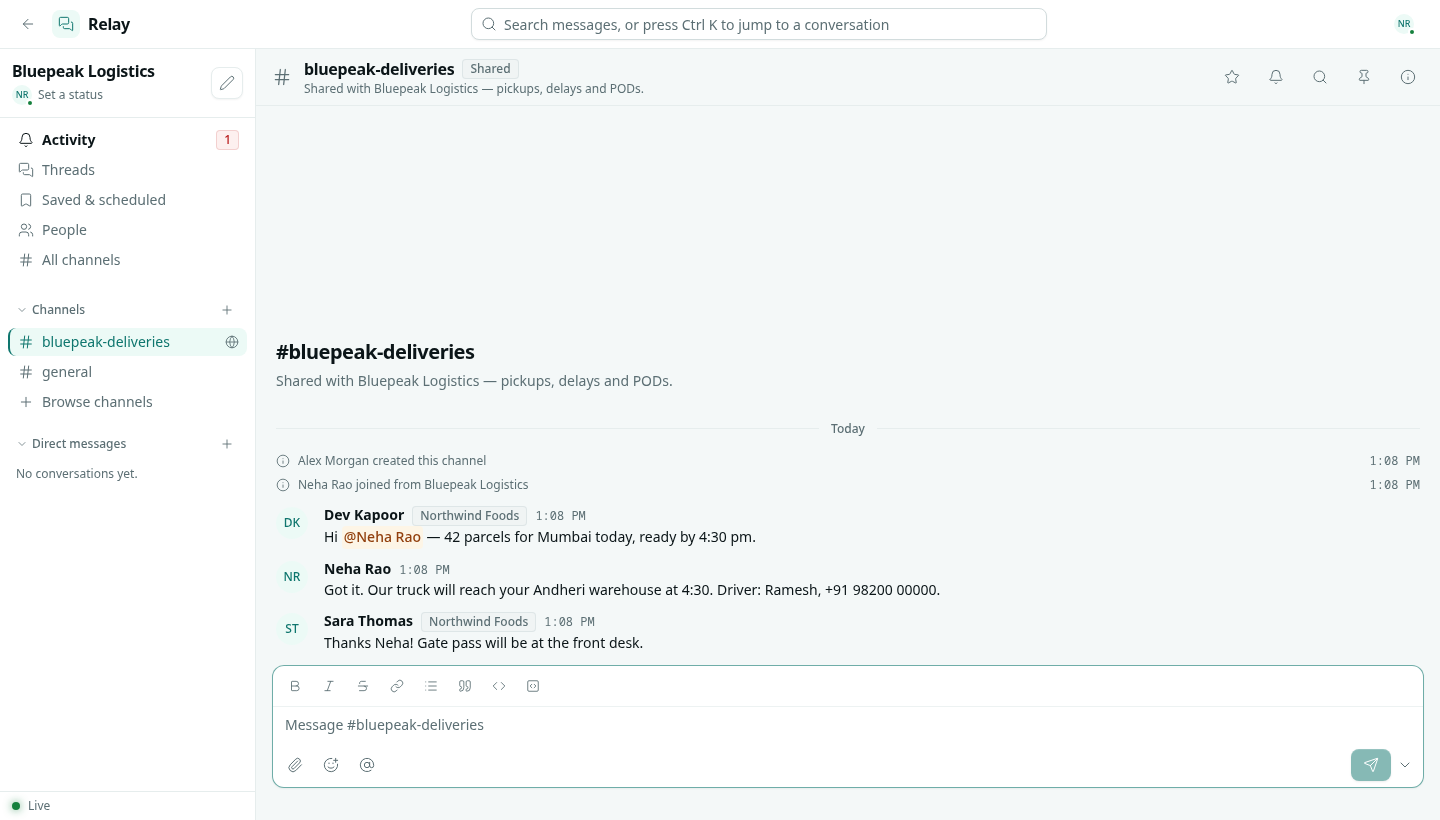
The channel appears in that workspace's sidebar with a globe icon. You can add your own teammates to it from Members.
What both sides see
- The channel shows Shared. Messages from the other organization show its name next to the author.
- Everyone in the channel can write, reply in threads, react, pin and share files, as in any channel.
- People who share a channel can send each other direct messages. They are listed under External in People.
- The Connect tab lists every organization in the channel, how many of its people are there, and which one is the Host.
Where the conversation is kept
The channel, its messages and its files stay with the organization that created it (the host). The guest organization's people read and write it through their own workspace. Their Saved items, reminders and status stay in their own workspace.
Disconnect
On the Connect tab, click Disconnect next to an organization. Its people leave the channel at once, and the channel stays with the host with its full history. The host's channel admins and Can moderate people can disconnect any guest organization; a guest organization's Can moderate people can take their own organization out.
Troubleshooting
this invitation was sent to … — sign in with that address to accept it Sign in with the address the invitation was sent to, or ask for a new invitation to your address.
This invitation has expired or was already used Ask the channel's host for a new one.
I do not see the Connect tab options You need Full control on Relay. Ask your workspace owner.