Threads, reactions and pins
Reply to a message in a thread, react with emoji, pin important messages and add bookmarks to a channel.
Threads
A thread keeps replies to one message together, so a side discussion does not bury the channel.
- Hover a message and click the reply arrow, or choose Reply in thread.
- The thread opens in the side panel. Write your reply and press
Enter. - Tick Also send to #channel when the whole channel should see your reply too.
Under the original message the channel shows who replied, how many replies there are and when the last one arrived. Click it to open the thread.
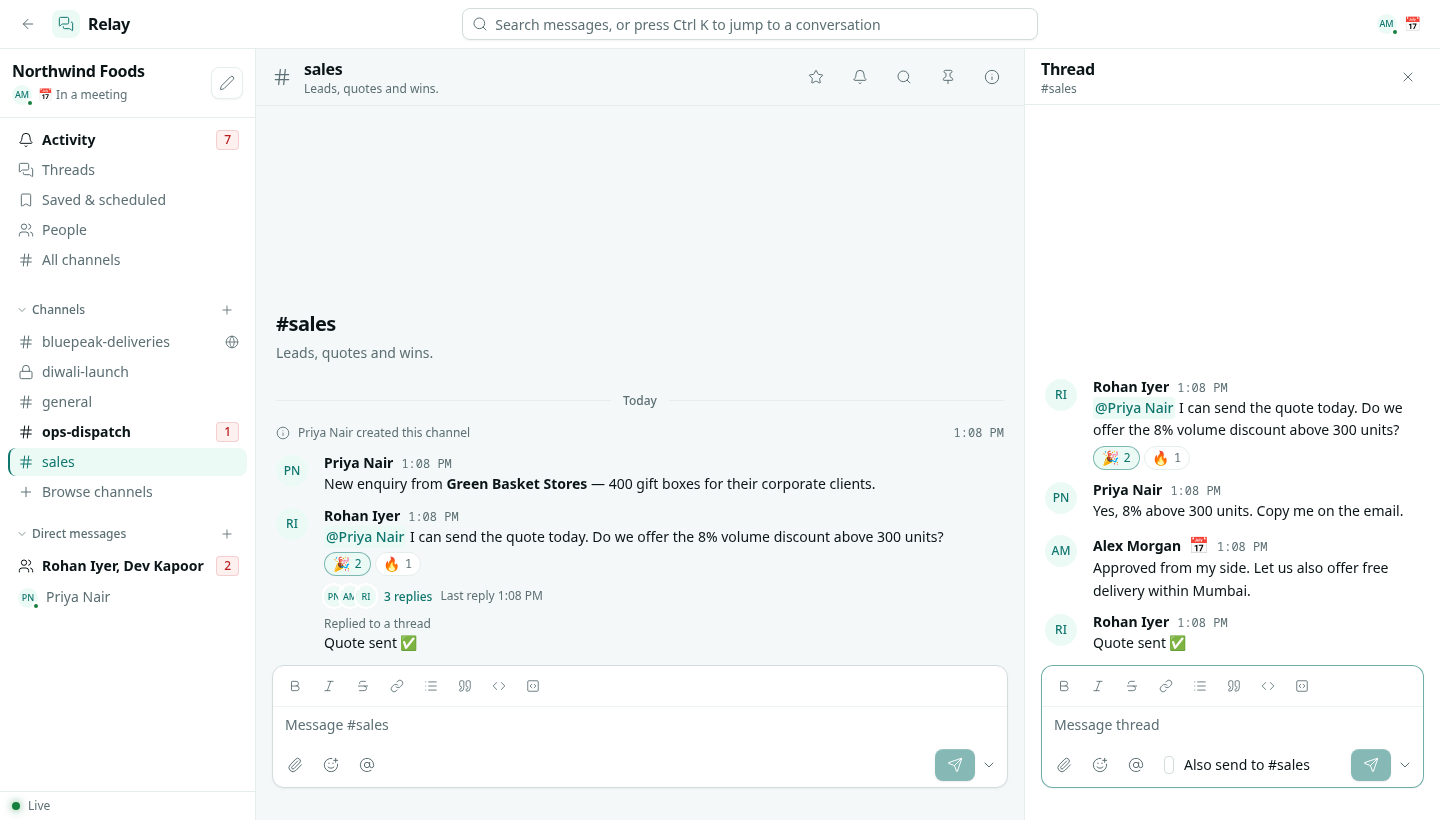
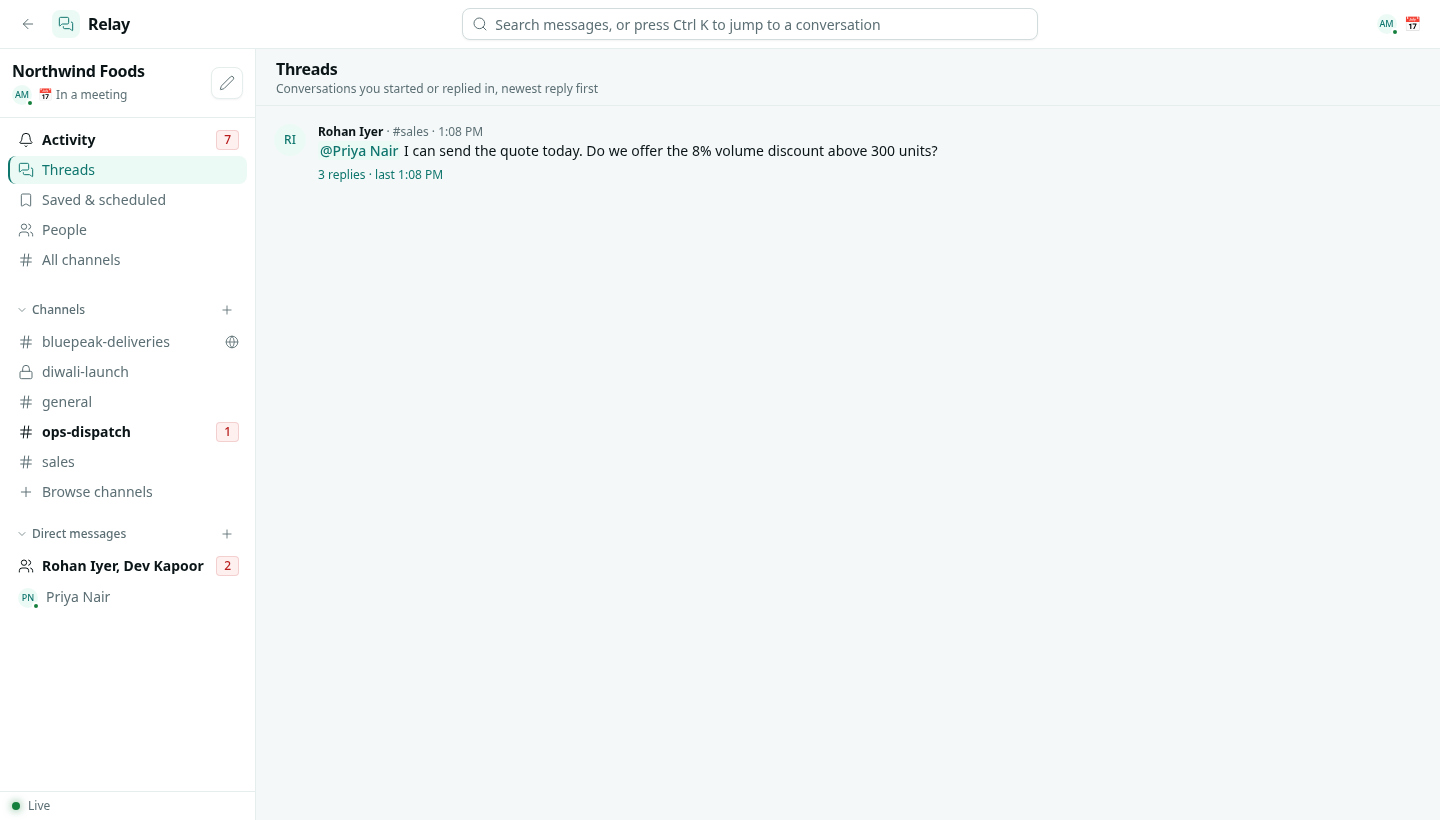
The author of the original message and everyone who replied get your reply in their Activity. Threads in the sidebar lists every thread you started or replied in, newest reply first.
Reactions
Hover a message and click one of the quick reactions, or the smiley to pick any emoji. Click a reaction under a message to add yours, click it again to take it back. Hover a reaction to see who reacted. The author of the message sees reactions in Activity.
Pins
Pin to channel from a message's menu adds it to the channel's Pins — use it for decisions, links and instructions people need later. Open them with the pin icon in the channel header. Anyone in the channel can pin and unpin.
Bookmarks
Bookmarks are links shown in a bar under the channel header, such as a checklist, a report or a shared folder. Add and remove them in the channel details, on the About tab. A channel can have up to 20.