Sort, filter and find
Sort rows by one or more columns, filter by values or conditions, and find or replace text.
Put rows in order, show only the rows you need, and find or replace text across a sheet.
Before you start: sorting and replacing need Can edit on Sheets. Filtering and finding work with Can view.
Sort
Quick sort: click a cell in the column to sort by, then Sort A → Z or Sort Z → A on the toolbar (or right-click › Sort A → Z by this column). The whole sheet is sorted; if the top row is frozen, it stays in place as a header.
Sort by several columns:
- Click Sort range… on the toolbar.
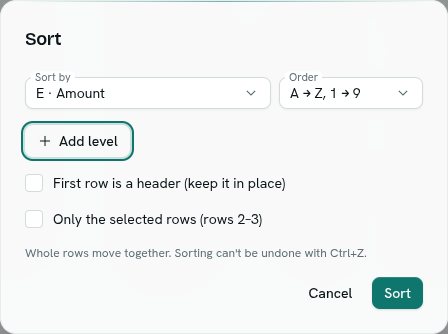
- Choose Sort by (a column) and Order (A → Z, 1 → 9 or Z → A, 9 → 1).
- Add level to break ties with another column (up to 5 columns).
- Tick First row is a header (keep it in place) if row 1 holds headings.
- If you selected several rows first, tick Only the selected rows to sort just those.
- Click Sort.
How sorting works:
- Whole rows move together, including their formatting and notes. Formulas in a moved row are adjusted to stay on that row.
- Empty values go last.
- Sorting cannot be undone with
Ctrl + Z. Make a copy of the workbook first if you might want the old order. - A sort can move up to 20,000 rows at a time.
Filter
- Click Filter on the toolbar. A filter button appears in every column header.
- Click a column's filter button.
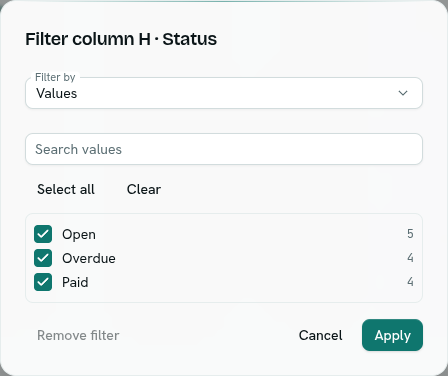
- Under Filter by, choose:
- Values — tick the values to show. Each value shows how many rows have it. Search values narrows the list; Select all and Clear tick or untick everything.
- Condition — Contains, Does not contain, Is equal to, Is not equal to, Greater than, Greater than or equal to, Less than, Less than or equal to, Is empty or Is not empty, with a value.
- Click Apply.
Only matching rows are shown. Filters on several columns combine: a row must match all of them. The status bar shows how many rows match, with Reapply (after editing data) and Clear filters. Remove filter in a column's filter clears just that column. Right-click a cell › Filter by this value is a shortcut.
A filter changes only your view. Other people still see every row.
Find and replace
- Press
Ctrl + For click Find and replace on the toolbar. - Type in Find and press
Enter. The first match is selected and the panel shows "1 of N". Use the arrows (orEnteragain) to step through matches. - Options: Match case, Whole cell (the entire cell must match) and Search formulas (look inside formulas instead of their results).
- To change text, type Replace with, then Replace (the current match) or Replace all.
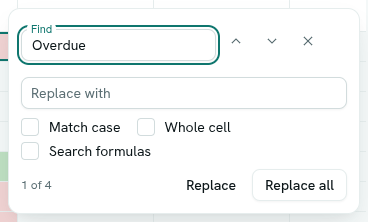
Find looks at the current sheet and lists up to 1,000 matches.
Troubleshooting
Sorting can't be undone Restore from a copy, or sort again by the original order column if you have one.
A filtered sheet looks empty No rows match. Click Clear filters in the status bar.