Switch between workspaces
Use the workspace chooser to open, search or create workspaces.
If you belong to more than one workspace, the chooser is where you pick the one you work in.
Steps
- Open the workspace name menu in the top bar and click Switch organization (a number badge shows how many you belong to). You can also open the Organizations page directly.
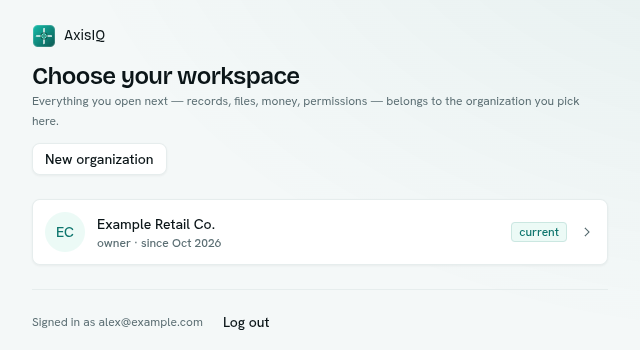
- On Choose your workspace, click a workspace to open its dashboard.
What you see
- Each row shows the workspace name, your role and when you joined ("owner · since Oct 2026"). A current badge marks the one you are in. A pulsing Setting up dot means it is still being prepared.
- With more than 8 workspaces a Search organizations... box appears.
- Right-click a row for Open and Copy organization ID.
- New organization opens Create a workspace.
- The foot of the page shows Signed in as and Log out.
What happens next
After signing in, the chooser is skipped when you belong to exactly one workspace. You go straight to its dashboard.
Tips
- The chooser has no left menu or top bar on purpose, so nothing from another workspace is on screen while you choose.
- If you have no workspace, the page says "Create one to get started, or open the invitation a colleague sent you."