Manage your subscription
Subscribe to a plan, switch plan or billing cycle, and cancel.
You will choose a paid plan, change it later, or stop it.
Before you start: You need Plan & invoices from AxisIQ at Can change the plan (the owner always has it). Online checkout must be available for your installation; otherwise the page says "Online checkout isn't configured on this deployment yet" and gives a contact address.
Subscribe
- Open Billing & usage from the workspace menu.
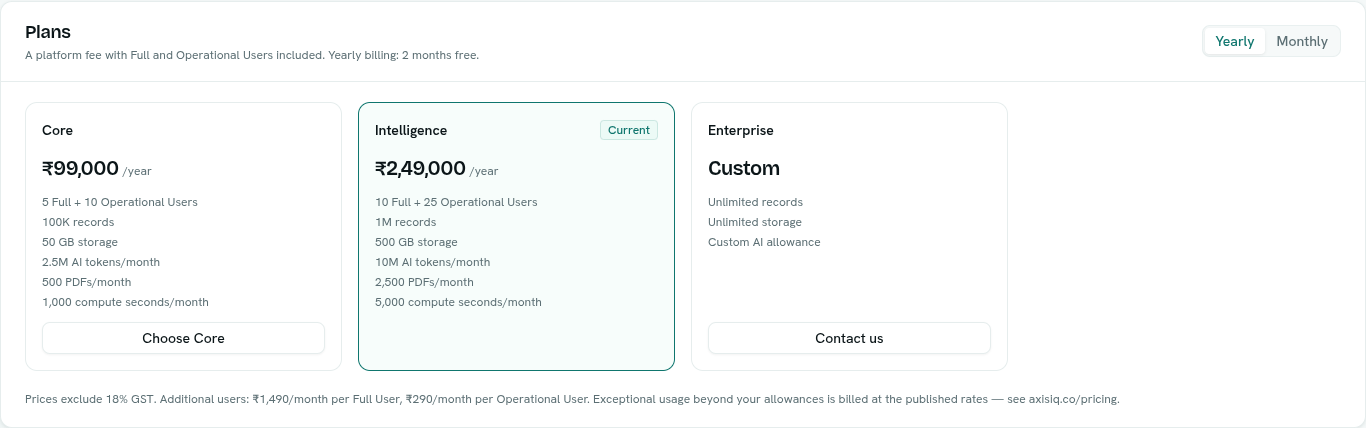
- In Plans, choose Yearly or Monthly (yearly is preselected for a new subscription and gives 2 months free).
- Click Choose Core or Choose Intelligence.
- Complete the Razorpay checkout window.
- A banner says "Confirming your payment". Your plan activates automatically in a few seconds and the status badge turns Active.
Change plan or cycle
- Moving up to a bigger plan applies at once. You are charged the prorated difference on your existing payment mandate, with no new checkout.
- Moving to a smaller plan, or from yearly to monthly, takes effect at the end of the current period. Until then you keep everything the current plan includes. The plan card shows Scheduled.
- Click the button on the plan card (it reads Upgrade to ..., Downgrade to ... or Switch to monthly/yearly) and confirm.
Cancel
- Click Cancel at period end on the Current plan card, or Downgrade to Free on the Free card.
- Confirm Cancel subscription with Stop subscription.
The subscription ends at the close of the current period and the workspace then drops to the Free plan's limits. Until then the status shows Cancels at period end and "ends on ".
Status labels
| Status | Meaning |
|---|---|
| Trial (badge beside the plan name) | You are on the 14-day trial. The card shows "trial ends on ". |
| Awaiting payment | Checkout started but payment is not confirmed. |
| Active | Subscription running. Shows "renews on ". |
| Payment past due | A payment failed. |
| Cancels at period end | You stopped it; it ends on the date shown. |
Tips
- The plan card shows the seats in use: "5 Full · 3 Operational".
- Anyone who can view billing sees the page; only plan managers see the buttons.
Troubleshooting
Could not open checkout Your browser may be blocking the payment window. Allow it and try again.
Plan did not activate Wait a minute, then reload the page. Payment confirmation can take a moment.