Invite and manage people
Invite someone with their roles, change roles later, switch seat type, revoke an invitation, or remove a person.
Invite a teammate by email, choose the roles they start with, and keep their access current afterwards.
Before you start: To invite you need People & permissions at Can invite people or higher. To give roles on an invitation, change a person's roles, change seat type or remove someone, you need Can manage people or higher. You can only give roles that grant no more than you hold yourself.
Invite someone
- Open Team & Permissions › People.
- Click Invite people.
- Type the person's Email address. It is required and must contain
@. - Under Give them these roles, pick one or more roles. The dialog tells you what they will be able to do, for example "They will be able to: …". Leaving it empty is fine: they join now and you decide their access later.
- Click Send invitation.
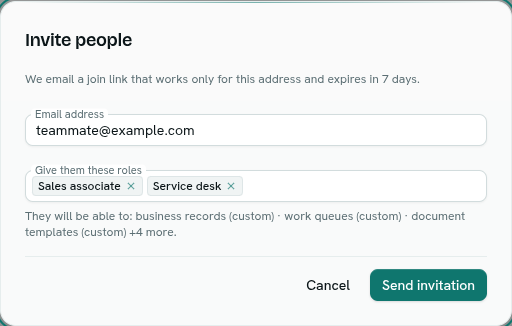
If your workspace has no roles yet, the dialog says so and lets you invite anyway. The person joins with no permissions until you create a role and give it to them.
What happens next
- AxisIQ emails a join link that works only for that address and expires in 7 days.
- Until it is accepted, the invitation shows under Waiting to accept with the roles chosen and its expiry date.
- When the person opens the link, they join the workspace with exactly those roles. A link can be used once.
- If the workspace cannot send email, you see "This workspace can't send email yet, so invitations cannot go out. Ask whoever set up AxisIQ to configure email."
Revoke an invitation
- In Waiting to accept, click Revoke beside the invitation, or right-click it and choose Revoke invitation.
- Confirm Revoke invitation. The link sent to that address stops working.
You can also right-click an invitation to Copy email.
Change a person's roles
- In People, click the ⋯ button on the person's row, or right-click the row.
- Choose Change roles.
- Pick the roles you want them to hold. The dialog describes what they will be able to do. With no roles it says "With no role, this person can sign in but cannot see or do anything."
- Click Save roles.
The owner's row has no menu: the owner's access cannot be changed.
Change seat type
Each person has a Seat of Full or Operational. Operational seats are for people who work in focused workflows such as queues, scanning, forms and approvals, and are priced lower. A seat type does not change what someone can do. Their roles still decide that.
Open the ⋯ menu and choose Make Operational User or Make Full User.
Remove someone
- Open the ⋯ menu on their row and choose Remove from workspace.
- Confirm Remove.
The person loses access immediately, along with every role they had. Their account is not deleted, and they stay able to sign in to AxisIQ and to other workspaces. Any access keys they created for service accounts stop working.
You cannot remove the owner or yourself.
Tips
- Use Copy email in the row menu to grab someone's address.
- The People table shows You next to your own row and Owner next to the owner's.
- People who have no role at all are counted in a warning above the table.
Troubleshooting
You cannot grant access you do not hold yourself You tried to give a role that allows more than your own roles do. Ask the owner, or someone with wider access, to do it.
The person says the link does not work Only the invited address can use a link, once, and within 7 days. Revoke the old invitation and send a new one.