Post and reverse entries
Post a balanced journal entry, and correct a mistake by reversing the entry.
You will post a journal entry, and learn how to undo one with a reversal.
Before you start: you need Can post entries under Accounting ledger on the Roles page, and accounts in your chart of accounts.
Post an entry
- Click Post entry at the top right of any Accounting section. (On the journal with no entries you can also click Post an entry.)
- In Post journal entry, set the header:
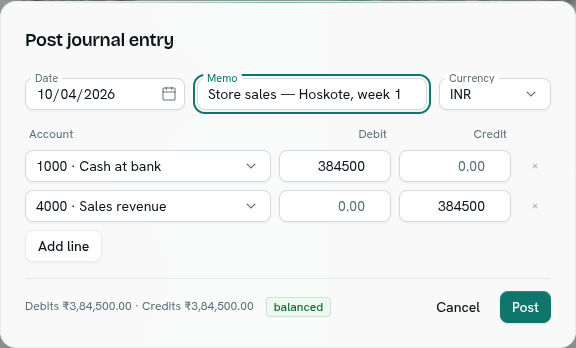
Field Notes Date Defaults to today. Memo Optional, up to 500 characters, for example "Invoice #1001". Currency The books you are viewing, or your default currency. Disabled if your workspace is limited to the default currency. - For each line, choose an Account from Select account…, then type an amount in Debit or Credit. Typing in one clears the other.
- Click Add line for more lines. The × button removes a line, but at least two lines always remain. An entry can have up to 200 lines.
- Watch the footer: Debits and Credits totals and a badge balanced or not balanced. Post is enabled only when you have at least two filled lines, the totals match, and the total is more than zero.
- Click Post. A toast says "Entry posted".
What happens next
The entry appears at the top of the journal, and balances, ledgers and reports include it at once. It cannot be edited.
If the entry is refused, the dialog shows The entry was not posted with the reason, and nothing you typed is lost. Reasons include an unbalanced entry, a line with both a debit and a credit, a negative amount, or an amount above 9,223,372,036,854.
Reverse an entry
- Open the entry by clicking it in Journal. Or right-click it in the journal and choose Reverse….
- In the entry window, click Reverse entry.
- Confirm Reverse this entry? by clicking Post reversal. The message explains that a mirror entry dated the same day cancels the original on every account and that the original stays in the journal.
- A toast says "Reversing entry posted".
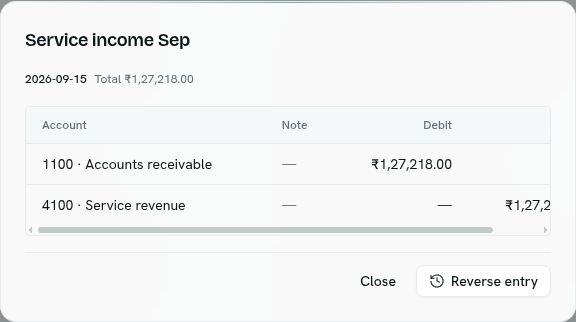
The reversal is a new entry called "Reversal of …" with every debit and credit swapped, on the original's date and in its currency. The original shows a Reversed badge. The reversal shows Reversal and an Open the original link.
Important: An entry can be reversed only once, and the app offers no Reverse button on a reversal. To fix a reversal made by mistake, post a new entry.
Tips
- To correct an amount, reverse the entry and post a corrected one.
- Reverse needs Can post entries. People with Can view see no Reverse button.
Troubleshooting
Post stays disabled Check that at least two lines have an account and an amount, and that the badge says balanced.
"entry has already been reversed" That entry already has a reversal. Find it in the journal with the Reversed filter.
"these books are kept in INR only" Your workspace has not upgraded to per-entry currency. Upgrade in Settings, or post in the default currency.