Data sources
Connect MySQL, PostgreSQL, MongoDB, SAP HANA or a JSON API and query it from the workspace with the same SQL, read-only.
A data source is a connection to another database or API. Once connected, you query it in the Query workspace with ordinary SQL. Everything is read-only: nothing at the source is ever changed.
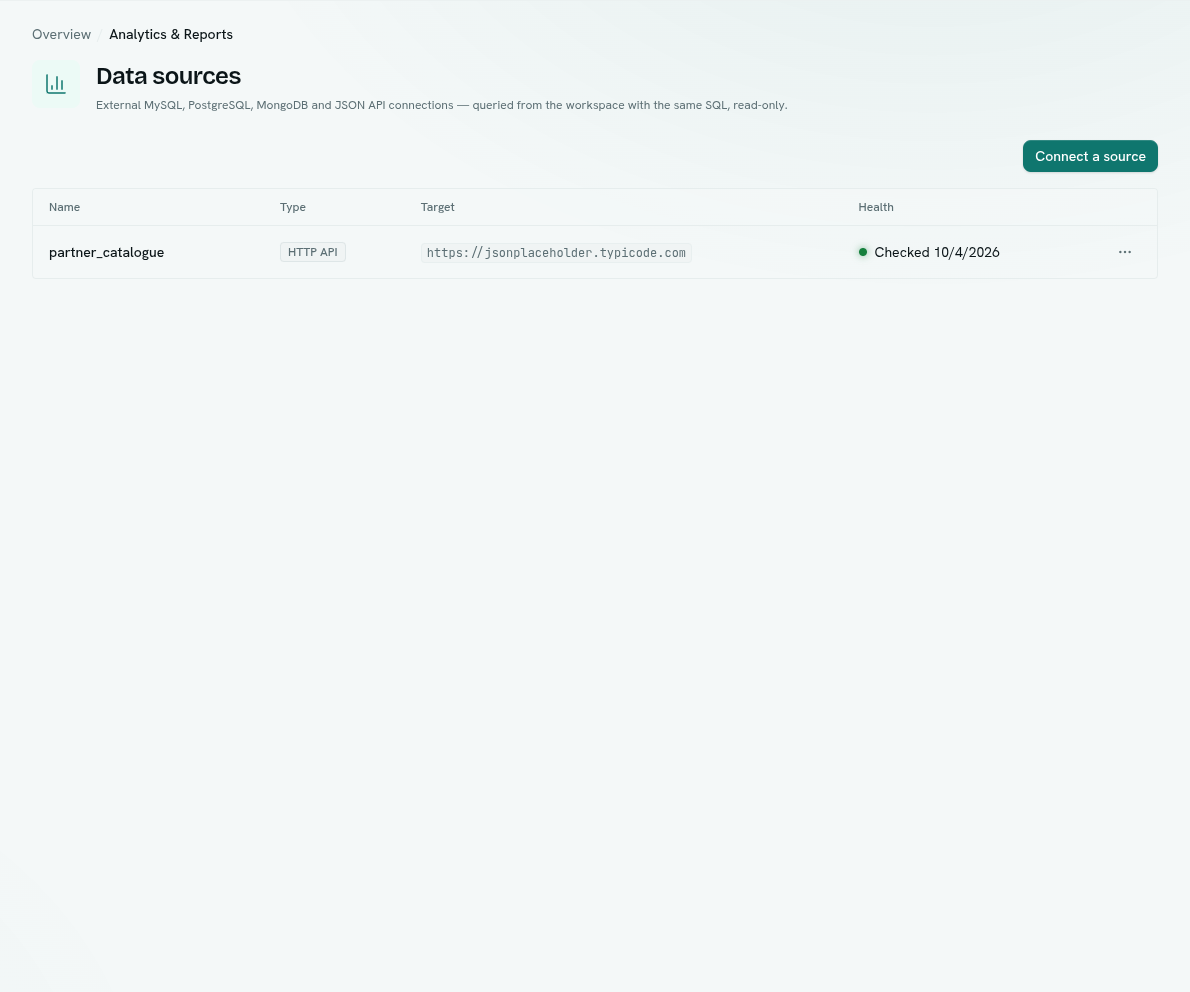
Before you start: connecting, editing, testing and disconnecting need Full control on Analytics & reports. Anyone with Can query & read can see the list, look at server info and query the sources. You need the connection details from whoever runs the source. The source must be reachable from the internet; addresses on private networks, and your own machine, cannot be connected.
Connect a source
- Open Analytics & Reports › Data sources.
- Click Connect a source (or the same button in the empty state, which says "No external sources").
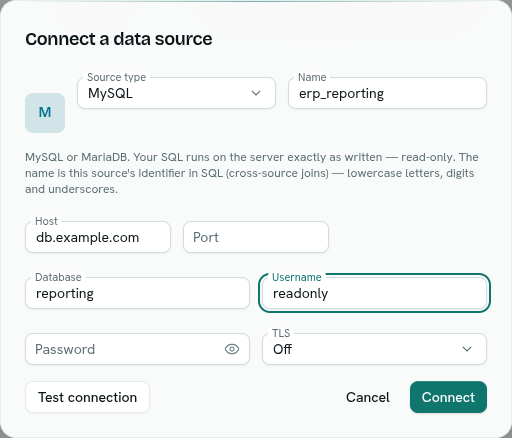
- In Connect a data source choose a Source type and type a Name. The name becomes the source's identifier in SQL, so it is turned into lowercase letters, digits and underscores as you type. It must start with a letter and be up to 64 characters. Example:
legacy_erp. The type cannot be changed later. - Fill in the fields for that type (below).
- Click Test connection. A green "Connection is reachable — you can save it." means the details work. A red message explains what failed. Any change clears the result, because it proved a different setup.
- Click Connect.
Fields by type
MySQL, PostgreSQL, SAP HANA, MongoDB
| Field | Required | Notes |
|---|---|---|
| Host | Yes | For example db.example.com. |
| Port | No | Defaults: 3306 MySQL, 5432 PostgreSQL, 443 SAP HANA, 27017 MongoDB. |
| Database | Yes, except SAP HANA | For SAP HANA the field is Schema (optional) and defaults to your user's schema. |
| Username | No | |
| Password | No | Stored encrypted and never shown again. |
| TLS | No | MySQL, PostgreSQL, SAP HANA: Off, Require (verified), Require (skip verification). MongoDB: Driver default, Require. |
MongoDB adds SRV connection (MongoDB Atlas) (hides Port) and Auth source (default admin).
HTTP API
| Field | Required | Notes |
|---|---|---|
| Base URL | Yes | For example https://api.example.com/v1. |
| Authentication | — | None, Bearer token, Basic auth (adds Username), Custom header (adds Header name, such as X-Api-Key), Query parameter (adds Parameter name, such as api_key). |
| Token / secret | When authentication is used | Stored encrypted. |
| Endpoints | Yes, at least one | Click Add endpoint for more. Each is one table. |
Each endpoint has: Table name, Path (such as /orders), Response path (where the list sits in the response, such as data.items, optional) and Page param (the API's page parameter, such as page, optional). With a page parameter a query reads further pages, up to 20 pages or 10,000 rows. Each endpoint's GET response is the table's rows.
Test connection becomes available once the host and database (or base URL) are filled in. Connect also needs a valid name. For SAP HANA the host alone is enough.
Query a source
- Open the Query workspace. A Data source menu appears in the top bar. Choose your source.
- The left rail now shows that source's tables. Click a table to preview it with
SELECT * FROM … LIMIT 100. - Write SQL as usual and click Run. Results are capped at 1,000 rows.
What changes for external sources: the AI bar, Save query, Add to report, Open in Sheets, the table inspector and Storage are not available. Saved queries and report widgets always run on your workspace data. Field-level hiding that applies to your own records does not apply to external data: anyone who can run queries can read the source through the connection.
Join sources together
You can join your own tables with an external table in one query, or join two external sources, by using the tables' names. The names must be unique across your sources; if two sources have a table with the same name you get an error naming them. Limits: up to 10,000 rows from each external table (more asks you to add filters), up to 4 external tables and 64 columns per query.
MySQL, PostgreSQL and SAP HANA run your SQL on the server as written, inside a read-only transaction. MongoDB understands a simple subset on its own (one collection, filters, grouping with count, sum, avg, min, max, sorting, limits); anything more complex is joined in the workspace. API sources are filtered and summarised in the workspace after fetching.
Manage sources
The list shows Name, Type, Target and Health ("Checked " or the last error). Right-click a row, or use the actions button at its end, for a menu. With Full control, clicking a row opens Edit. Test connection, Edit and Disconnect are only offered with Full control.
- Server info — live facts such as version, uptime, connections and size. Anything the connection's account cannot read is listed under "Not readable with this connection's access".
- Test connection — a toast says whether it is reachable.
- Edit — change details. Leave the password or token blank to keep the stored one. If you change the host, port, SRV setting or base URL, enter the secret again.
- Disconnect — asks you to confirm. Queries that use it stop working. Nothing is deleted at the source.
Tips
- Create a read-only account at the source for AxisIQ.
- Use a short, meaningful name; it appears in your SQL.
Troubleshooting
The connection failed / The connection did not answer Check host, port, TLS and credentials, and that the source accepts connections from the internet.
Could not save the data source A required field is missing or the name is not in the allowed form.
Queries over an external table ask for filters
The table has more than 10,000 rows. Add a WHERE condition.