Connectors
Add outside tool servers to Ask Axis so it can use their tools alongside its built-in ones.
A connector links Ask Axis to an outside tool server (an MCP server) so the assistant can call that server's tools in a chat. You can add a personal connector for yourself, or a shared one for the whole workspace.
Before you start: you need the Ask Axis assistant permission. Adding a shared (organization) connector needs Full control on that row of the Roles page. Anyone who can use Ask Axis can add personal connectors. You also need the server's web address, and its access token if it needs one.
Add a connector
- Open Intelligence › Ask Axis.
- Click Connectors at the top right.
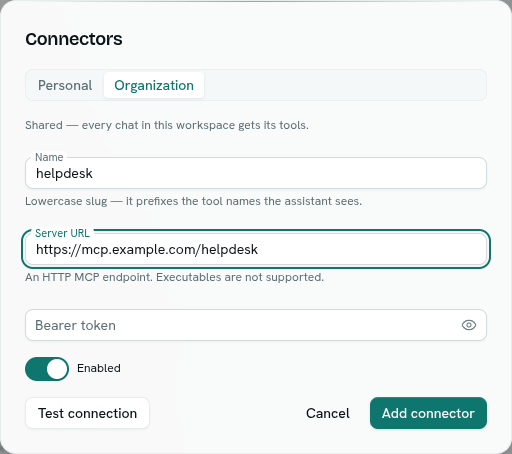
- In the Organization section click Add shared connector, or in the Personal section click Add connector. (Without Full control you only see the personal button.)
- Fill in the form:
Field Required Notes Name Yes A lowercase name such as helpdesk. It starts with a letter and may contain letters, digits,_and-, up to 32 characters. It prefixes the tool names the assistant sees.Server URL Yes The address of an HTTP tool server, for example https://mcp.example.com/mcp. Programs you would run on a machine are not supported.Bearer token No The access token the server expects. Stored encrypted and never shown again. Enabled — On by default. Switch off to pause the connector without deleting it. - Click Test connection. A green message shows Connected and how many tools the server offers, with their names. Nothing is saved yet.
- Click Add connector. You see "Connector saved".
Edit, pause or remove
- Click Edit on a connector row. You only see Edit and Remove on shared connectors if you have Full control. Leave Bearer token blank to keep the stored token. Click Save changes.
- If you change the Server URL, enter the token again. A stored token is only kept while the address stays the same.
- Turn off Enabled, or click Remove. Removing asks you to confirm: the assistant loses the tools, and the server itself is not touched. Disabled connectors show an Off badge.
What happens next
- In each chat Ask Axis can use the tools of your enabled personal connectors and the workspace's shared ones. Their tools appear as steps, and their input and output are open to inspection under the answer.
- Personal connectors are only used in your chats. Shared connectors are used in every member's chats.
- Up to 40 connector tools are offered to the assistant in a single turn.
Tips
- Connector tools are not confirmed one by one the way deletions and messages are. Only connect servers you trust. See Confirmations and questions.
- The server must be reachable from the internet. Servers on a private network or on your own machine cannot be reached.
Troubleshooting
The connector did not answer The test could not reach the server or it refused the token. Check the URL, the token and that the server is online.
Connected — 0 tools / The server lists no tools yet. The connection works but the server offers no tools at the moment.
Could not save the connector
A required field is missing, the name is not in the allowed form, or the address is not a full http:// or https:// address. Names use lowercase letters, digits, _ and -. The message usually names the problem.