Record indexing
Choose which record types are included in knowledge search, so their text answers questions too.
You will turn on indexing for a record type so its records can be found by meaning search and used by Ask Axis.
Before you start: this page needs Full control on Knowledge base. Others see "Admins only".
Steps
- Open Knowledge Base › Record indexing.
- Read the note: turn a type on to index its text fields; new and updated records are embedded automatically; existing records are indexed as they are next written.
- Switch on the toggle beside each record type you want. Line-item types are not listed.
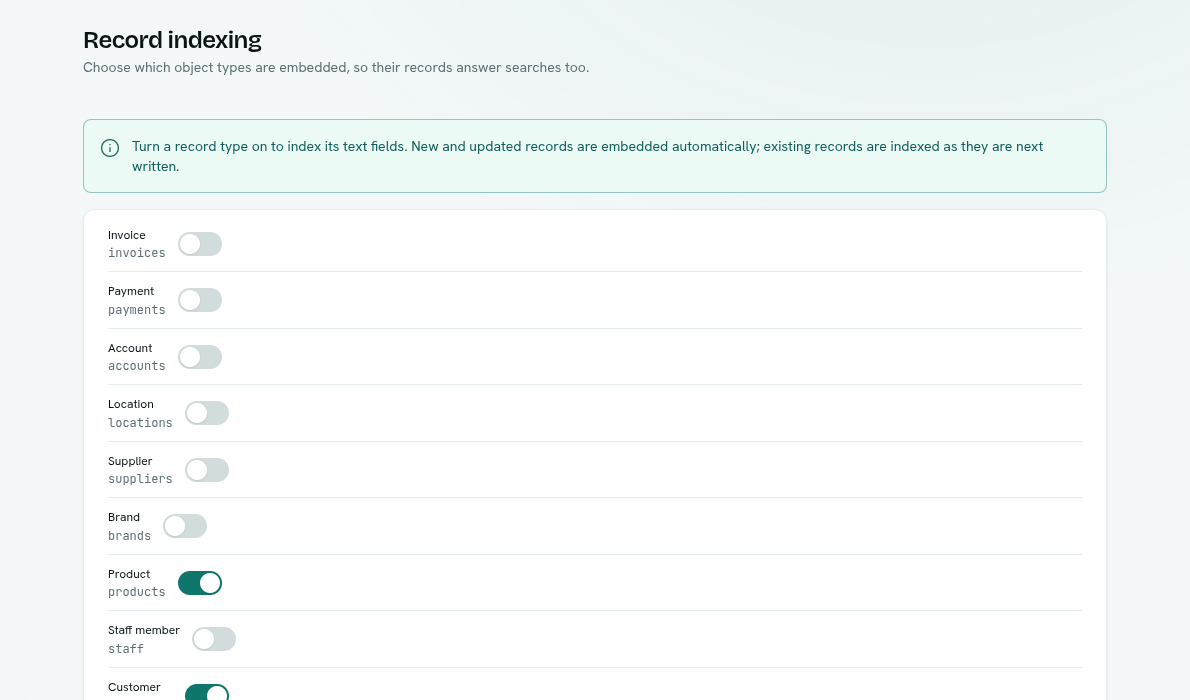
- Switch it off again to stop.
What happens next
- Every text field of a record is split into passages and indexed when the record is created or updated.
- Results show the record type and are checked against your permissions: you only see a passage if you may read that record and that field.
- Turning a type off removes its indexed records from the knowledge base. Deleting a record removes it too.
Tips
- Start with types that carry free text: tickets, notes, product descriptions, policies.
- Existing records are not indexed in bulk when you switch a type on. They join the index as they are next saved.
Troubleshooting
Admins only You need Full control on Knowledge base.
Could not update The change failed. Try again.