Keep knowledge up to date
See when each document was last indexed, set review dates, get reminded when a document is due for review, and re-index anything that is out of date.
Answers are only as good as the documents behind them. Knowledge shows you when each item was last indexed, flags anything that may be out of date, and reminds whoever added a document when it is time to check it again.
Before you start: to set a review interval for a collection you need Full control of Knowledge base on the Roles page. To set a review date, mark a document reviewed or re-index it, you need Can add documents for its collection. Your personal notes are always yours to manage.
What counts as out of date
Knowledge marks an item as needing attention when:
- Review due — the document's review date has passed.
- Out of date — the last re-index failed, so answers still use the previous version.
- Indexing stalled — indexing has not finished for over an hour.
- Settings changed — records were indexed before someone changed which fields of that record type are indexed.
Indexed records stay up to date by themselves: every time a record is saved, its text is indexed again. When you change which fields of a record type are indexed, its records are re-indexed in the background.
Set a review interval for a collection
- Open Knowledge and go to Library.
- Point to the collection in the collection list and press its pencil button (Edit and the collection's name).
- In Review every (days), enter how often documents here should be checked, for example 90.
- Press Save.
Every document in the collection that has no review date yet gets one that many days from today. From then on, a document's review date moves forward by the same interval whenever it is added, its text is edited, or it is marked reviewed. Leave the box empty to stop scheduling reviews.
Set or change one document's review date
- Open the document from the Library or from search results.
- Go to the Details tab.
- Under Review by, pick a date. Clear the date to remove it.
Mark a document reviewed
When you have checked a document and it is still right:
- Open the document.
- Press Mark reviewed — on the yellow notice at the top, or under Review by on the Details tab.
The next review date is set one collection interval from today. If the collection has no interval, the date is cleared.
Get reminded
When a document's review date comes, the person who added it gets a notification (for a personal note, its owner). Several documents due at once arrive as one notification that opens the Knowledge overview. Reminders follow your Approvals notification settings, so you can choose whether they also reach you by email or on your phone.
Fix everything in one place
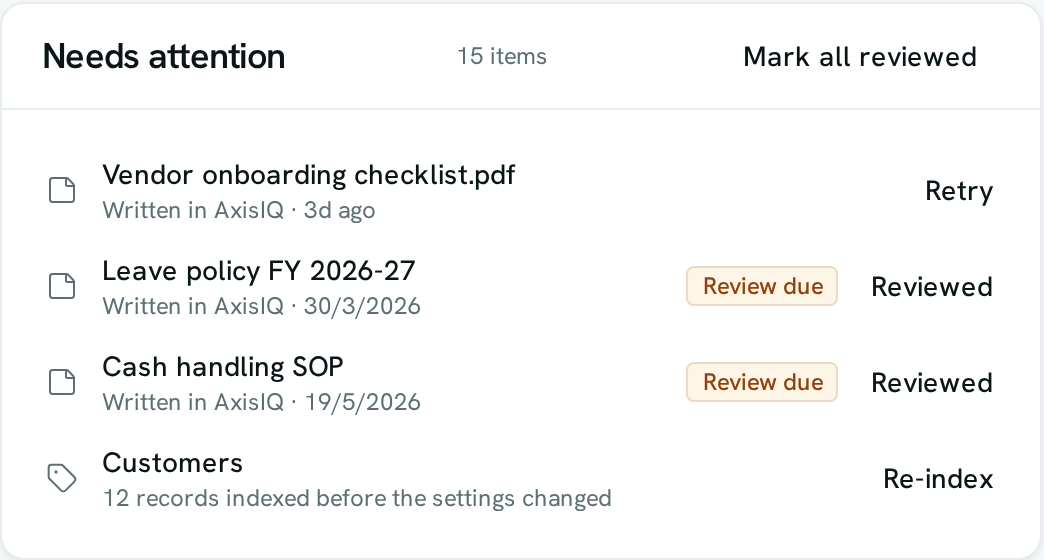
The Needs attention panel on the Knowledge Overview lists everything that failed or may be out of date:
- Open Knowledge. The Needs attention count is at the top.
- Next to each document press Retry to index it again, or Reviewed to mark it reviewed.
- Press Re-index all or Mark all reviewed to handle every listed item at once.
- For a record type whose settings changed, press Re-index to refresh all its records.
To re-index any single item, open it and press Re-index. In the Library you can also tick several documents and press Re-index in the bar that appears.
Out-of-date sources in answers
When Ask answers from a document that may be out of date, that source is marked May be out of date in the list under the answer, and the answer itself mentions it. Out-of-date documents are still used — nobody loses access to an answer because a review is overdue.
Good to know
- An uploaded file is copied into Knowledge when you upload it. If the original file changes, upload it again or edit the document's text; re-indexing uses the copy already stored.
- Re-index reads a document's stored text again, or a record's current values. It does not change the review date — use Mark reviewed for that.
- Changing a collection's interval does not move review dates that are already set.
- A reminder is sent once per review date. If you move the date later, you are reminded again when the new date comes.
- If the person who added a document has left the workspace or can no longer open its collection, no reminder is sent; the document still appears in Needs attention.
- Reminders are checked once an hour.