Connect a store
Connect a Shopify or WooCommerce store, then test, edit or disconnect it.
You will connect a store with an access key you create in that store.
Before you start: you need Full control under Online stores on the Roles page. You need admin access to the store to create its key.
Steps
-
Open Marketplaces and click Connect store.
-
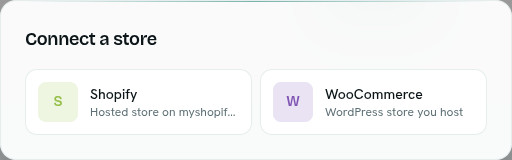
Pick the platform: Shopify (hosted on myshopify.com) or WooCommerce (a WordPress store you host).
-
Fill in the form for that platform. A Name is always required (up to 120 characters, for example "Main store").
Shopify
Field Notes Shop domain your-store.myshopify.com. You can paste it withhttps://.Admin API access token Create a custom app in Shopify admin (Settings → Apps → Develop apps) and copy its Admin API token. WooCommerce
Field Notes Site URL Must be https://, for examplehttps://shop.example.com.Consumer key WooCommerce → Settings → Advanced → REST API. Consumer secret From the same screen. -
Click Connect. AxisIQ checks the credentials against the live store first. The store is saved only if they work.
-
A toast says "Store connected".
To switch platform before connecting, click Change next to the chosen platform.
Tip: The key's permissions decide what AxisIQ can read and what your functions can reach. A read-only key is enough to browse. WooCommerce trading figures need a key with report access.
What happens next
The store appears in the list with a Health indicator ("Connected", "Checked ", or the error). Click it to open the store. See Store overview and trading.
Manage a connection
Right-click a store in the list or use its ⋯ button, or use the buttons at the top of the store page:
- Test connection (Test on the store page) — shows " is reachable" or " failed its check".
- Edit — change the name, domain or URL, and credentials. Credentials are blank in the form. Leave them blank to keep the saved ones. Saving re-checks the store. The platform cannot be changed.
- Open store admin — in the store page's settings menu, opens the store's own admin.
- Copy connection ID — in the list, for use in functions.
- Disconnect — in the list, or Disconnect… in the store page menu.
Important: Disconnecting makes AxisIQ forget the credentials and stop reading the store. Functions and schedules that call it start failing. Nothing in the store changes. You must paste the credentials again to reconnect.
Troubleshooting
"shop_domain must look like your-store.myshopify.com"
Use your myshopify.com address, not your custom domain.
"site_url must be an https URL" WooCommerce sites must use https.
"shopify: store rejected the credentials (status 401)" (or woocommerce: with the status the store returned)
The token or key is wrong or lacks permission. Create a new one and try again.
"re-enter the secret when changing the address" When you change the domain or URL of an existing store you must also enter the secret again.
The Test button reports a failure Open the store page to see the error shown in red at the top.