Templates
Write reusable messages that fill in values from a record, and link a template to one your provider has approved.
A template is a reusable message, such as an order confirmation, a payment reminder or a delivery notice. It can fill itself in from a record.
Before you start: Creating, editing and deleting templates needs Messaging at Full control. Anyone who can view Messaging can see the list.
Create a template
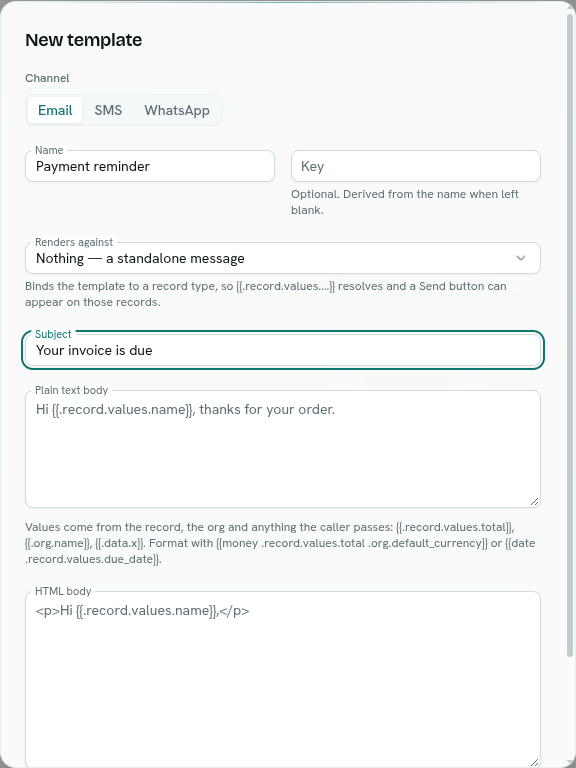
- Open Messaging › Templates.
- Click New template.
- Choose the Channel: Email, SMS or WhatsApp. You cannot change it later.
- Enter a Name, such as "Order confirmation". Required.
- Optionally enter a Key, such as
order-confirmation. It is made from the name if you leave it blank, and cannot be changed afterwards, because flows and functions refer to a template by its key. Use lowercase letters, digits,-or_, up to 60 characters. - Under Renders against, choose a record type, or Nothing — a standalone message. Choosing a type lets the template read that record's values.
- For email, enter the Subject (required).
- Write the Plain text body (email) or Message (SMS and WhatsApp).
- For email, you can add an HTML body too.
- Click Save.
A template needs a body, or a provider reference to one held by your provider. Subject, plain text and HTML parts can each be up to 256 KB. They are checked when you save, so a stored template always renders.
Fill in values from a record
Put values in double curly braces:
| Write | You get |
|---|---|
{{.record.values.number}} |
A field of the record the message is about. |
{{.org.name}} |
Your workspace name. |
{{.org.default_currency}} |
Your default currency. |
{{.data.x}} |
A value passed by whoever sends it, such as a flow or function. |
{{money .record.values.total .org.default_currency}} |
An amount with thousands separators, two decimals and the currency code. |
{{date .record.values.due_date}} |
A date written like Mar 5, 2026. |
{{datetime .record.values.sent_at}} |
A date and time. |
{{upper …}} and {{lower …}} |
Upper or lower case. |
{{.unsubscribe_url}} |
For email, a one-click opt-out link. |
This is the same vocabulary as Templates (PDF layouts), so a layout you wrote for an invoice can use the same words. Values in an HTML body are escaped, so a value that came from a public form cannot inject markup.
For an email example, use the subject Your order {{.record.values.number}} is confirmed and a text body such as Hi {{.record.values.name}}, thanks for your order.
Use a template your provider holds
WhatsApp and Indian (DLT) SMS do not send the body you write. They send a template your provider has approved. When your channel has a provider that works this way, a Provider template card appears:
- Provider reference — the approved template's name or ID. For MSG91, the DLT template ID.
- Language — for example
en_US. - Load from … — click to read the approved templates from your connected account. Pick one under Pick one of your approved templates. It fills in the reference, language and status, and the body if you have not typed one.
- A badge shows the provider's own status, such as APPROVED. If it is not approved, a warning says sending will fail until the provider approves it. That decision is the provider's, not AxisIQ's.
Email through SendGrid can also load its templates this way.
If nothing is approved on that account yet, you see "Nothing approved yet on that account."
Edit and delete
Click a template, or use the ⋯ menu or right-click: Edit, Copy key or Delete. Deleting asks you to confirm and warns that flows and functions that use it will fail.
What happens next
Templates show up when you send a message, filtered to your account's channel and, from a record, to that record's type.
Troubleshooting
an email template needs a subject Fill in the Subject.
a template needs a body, or a provider reference to one Write a message or add a provider reference.
that key is already in use Choose a different key.
WhatsApp needs an approved template: … A WhatsApp message with no provider reference is refused. Meta only accepts free-form text inside a 24-hour window opened by the customer's own message. Set the template's provider reference to its approved name.