Apply for and manage leave
Apply for leave with a live preview of working days and balance, follow your request, cancel it, and see who is away on the team calendar.
Apply for leave
- Click Apply for leave at the top of any People page.
- Pick the Leave type. Only types that apply to you are listed.
- Choose From and To. For a half day, tick Start after the first half or End after the first half.
- Add a Reason, and attach a document if the type asks for one (for example a medical certificate for longer sick leave).
- Read the preview: the working days counted, your available balance, the balance after, and who will approve it. Weekends and holidays are left out unless your company counts them.
- Click Send request.
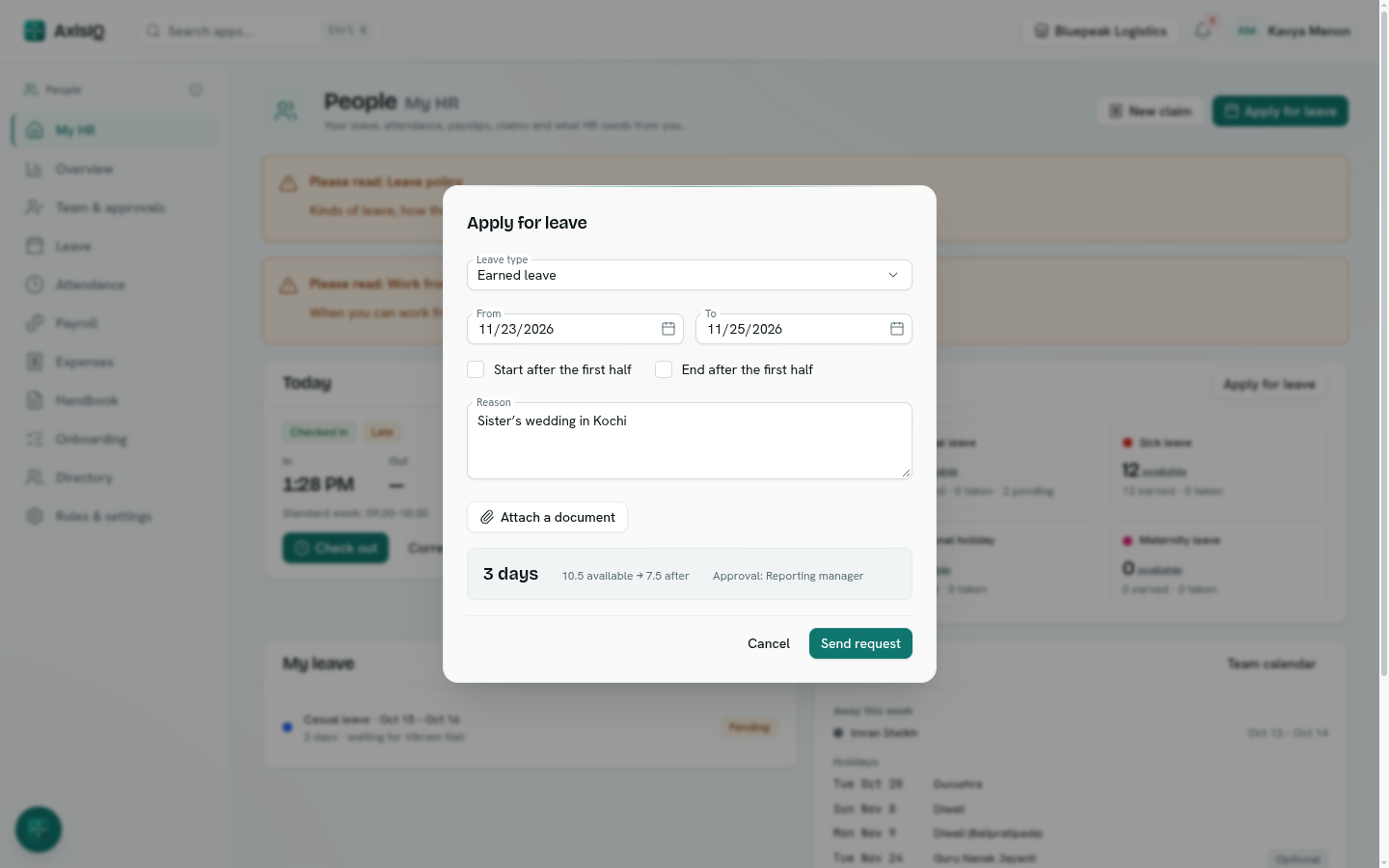
Your approver is notified. You get a notification when it is approved or rejected, and approved leave shows on the team calendar.
Note: The preview warns you before you apply — not enough balance, too little notice, too many days in a row, overlapping another request, or a document needed. Some warnings stop the request; your HR rules decide which.
Follow and cancel a request
Your requests are under My HR and Leave › Requests (Mine). Click one to see each approval step.
- Cancel a request while it is pending, or an approved one before it starts. The days go back to your balance.
- Once approved leave has started, ask HR — they can cancel it at any time.
Apply for someone else
With Can approve, use For in the Apply dialog to pick an employee. The button reads Record leave: leave you file for someone counts as approved, and notice and backdating limits don't apply.
The team calendar
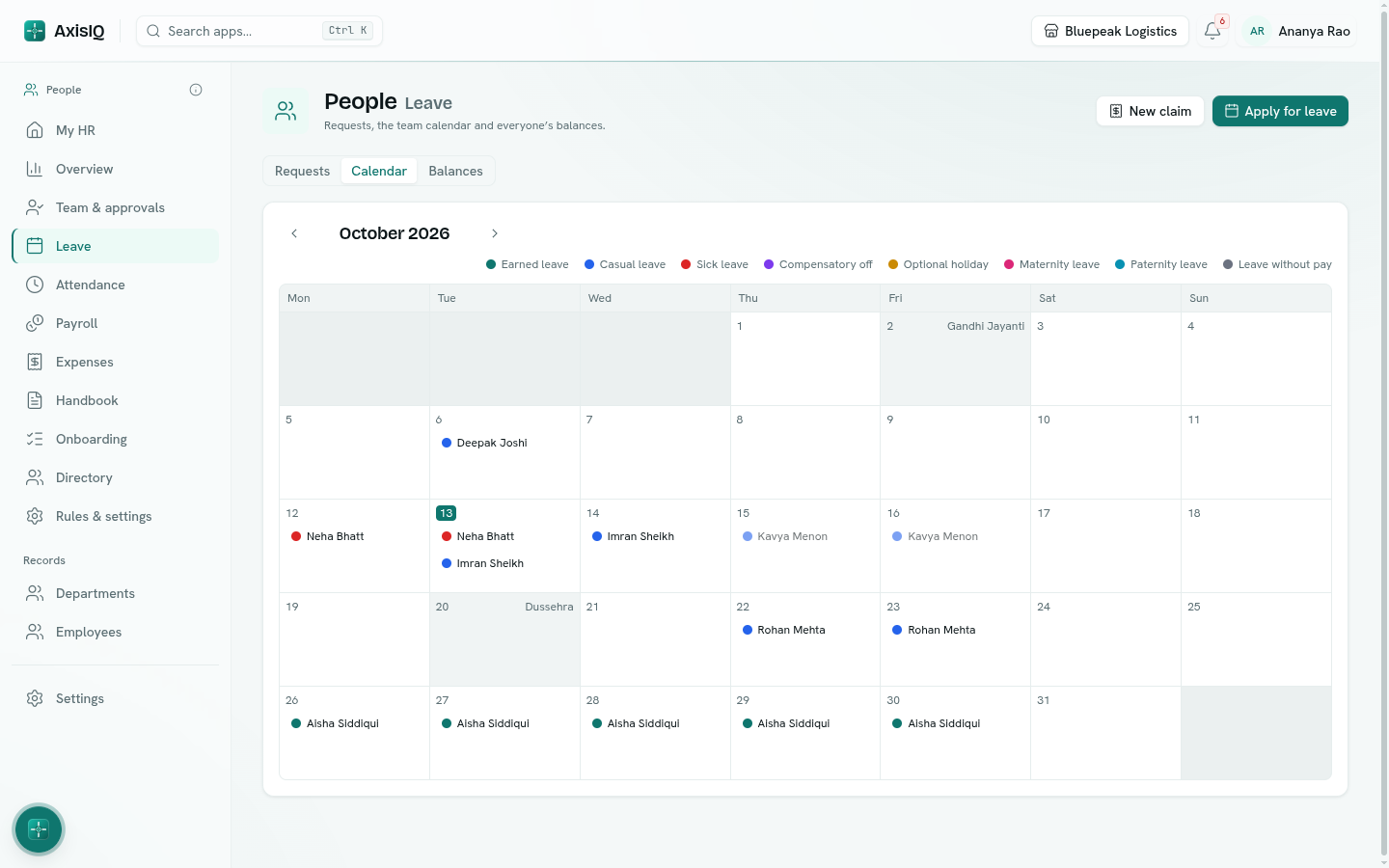
Leave › Calendar shows a month of approved and pending leave for the people you can see, with holidays marked. Colleagues in your own department show as Away, without the type of leave.
Requests and balances for HR
- Leave › Requests — Mine, My team, Waiting on me or Everyone, filtered by status, with search.
- Leave › Balances — every employee's balance per leave type. See Leave types and balances for adjustments.