Sales
List the sales rung up on your registers, filter them, and void a sale that is still waiting for payment.
Sales lists every sale across the registers you are allowed to see.
Before you start: Can view under In-store checkout sees sales. Voiding needs Can sell.
Steps
- Open In-Store Checkout › Sales.
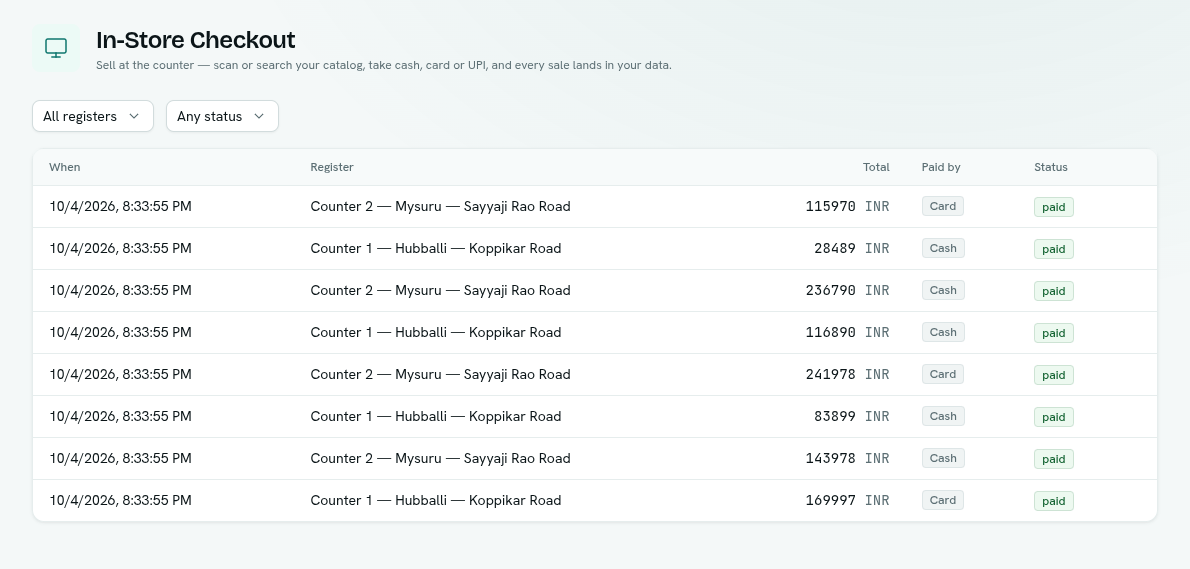
- Filter with All registers (pick one register) and Any status (Paid, Pending, Void).
- Read the table: When, Register, Total (with currency), Paid by (Cash, Card, UPI badges) and Status. Click Load more for older sales.
Statuses
| Status | Meaning |
|---|---|
| paid | Cash and card sales are paid at once. UPI sales become paid when the payment arrives. |
| pending | A UPI sale waiting for the customer to pay. |
| void | A pending sale that was cancelled. |
Void a pending sale
- On a pending row click Void, or right-click and choose Void sale.
- Confirm Void sale ("Void this pending sale? Its payment link is cancelled.").
Important: Only pending sales can be voided. A paid sale is final. The list has no refund action.
Other actions
Right-click a row for Copy sale ID.
What else
Sales include the register's store location, so you can report takings per location. Analytics can query them. See Analytics.
Troubleshooting
"No sales yet" Sales appear here as soon as one is rung up on any register.
Void says it is not pending The customer paid in the meantime, or someone already voided it. Refresh the list.