Sell at the register
Ring up a sale on the full-screen register: scan items, apply a discount, take cash, card or UPI, and print a receipt.
The register is a full-screen page built for a counter. The scan box stays ready, so a barcode scanner can type a code and press Enter.
Before you start: you need Can sell under In-store checkout, and a register that is Open with a price field mapped. See Set up a register.
Steps
- Open In-Store Checkout, click the register's row (or right-click and choose Open register).
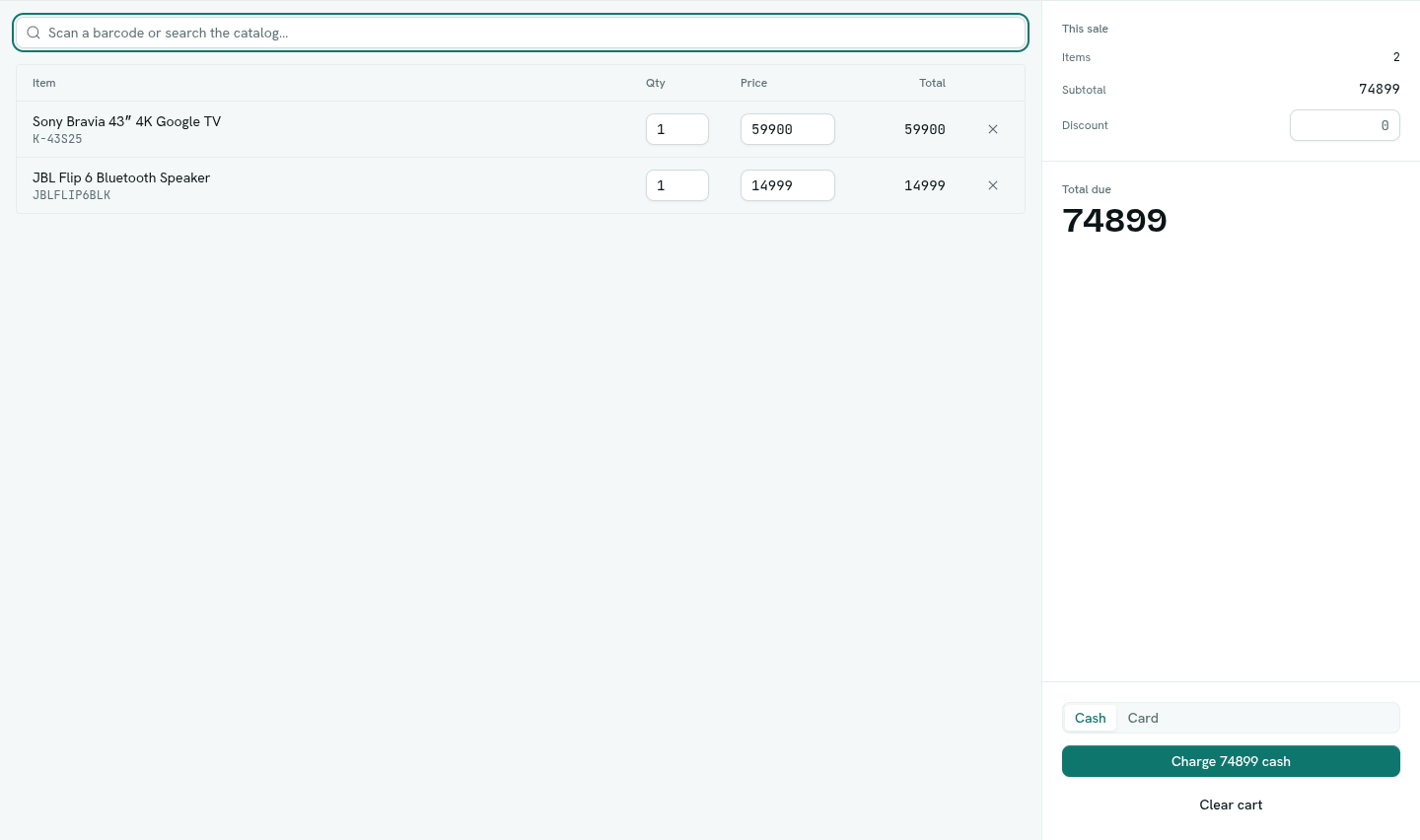
- In the scan box ("Scan a barcode or search the catalog…") scan a barcode or type, then press Enter.
- AxisIQ first looks for an exact barcode match, then an exact SKU match, then does a free-text search.
- One match is added at once. Several matches open a list. Click the item you want.
- If nothing matches the box says
Nothing matched "<term>".
- Adding the same item at the same price again raises its quantity by one.
- In the cart you can change Qty and Price on a line, or click × to remove it. Clear cart empties it.
- Optionally type a Discount amount on the right. It is a flat amount, not a percentage, and cannot be more than the subtotal.
- Choose the payment method: Cash, Card or UPI QR (only the ones this register accepts).
- Click the charge button. It reads "Charge 450.00 cash", "Charge 450.00 on card" or "Charge 450.00 by UPI". It reads Complete sale when the total is zero.
Cash and card
The sale is saved as paid and a Sale complete window shows the total and "Payment recorded". Click Print receipt for a plain receipt (organization, register, date, lines, subtotal, discount, total and payment), or New sale to start the next one.
Note: Card payments are recorded only. The money moves on your own card machine, and AxisIQ does not send the amount to it.
UPI
- A Waiting for payment window shows a QR code, the total and the payment link address.
- Ask the customer to scan the QR with any UPI app. The window updates by itself when the payment arrives.
- When paid it changes to Sale complete.
- To abandon it, click Cancel sale. The sale is voided and its payment link is cancelled.
If the register shows a sale as pending after the customer paid, wait a few seconds. Each refresh asks Razorpay for the latest status, so a missed notification does not leave a sale stuck.
Rules the register enforces
- 1 to 200 lines per sale, each with a name and a quantity above zero.
- Payments must add up to the total exactly. The register fills this in for you.
- One UPI payment per sale.
- Money is calculated exactly, with line totals rounded to 6 decimals.
- A disabled register cannot sell (the charge button is disabled).
Troubleshooting
"This register has no catalog price field configured…" Edit the register and map a Price field. The scan box is disabled until you do.
Record has no usable price in "<field>"
The product's price field is empty or not a number. Fix the record, or type the price in the cart.
"This register doesn't exist or you don't have access to it." Check the link and your permissions. Click Back to In-Store Checkout.
A red message appears after Charge The reason is shown, for example "tenders must add up to the total". Re-select the payment method and try again.